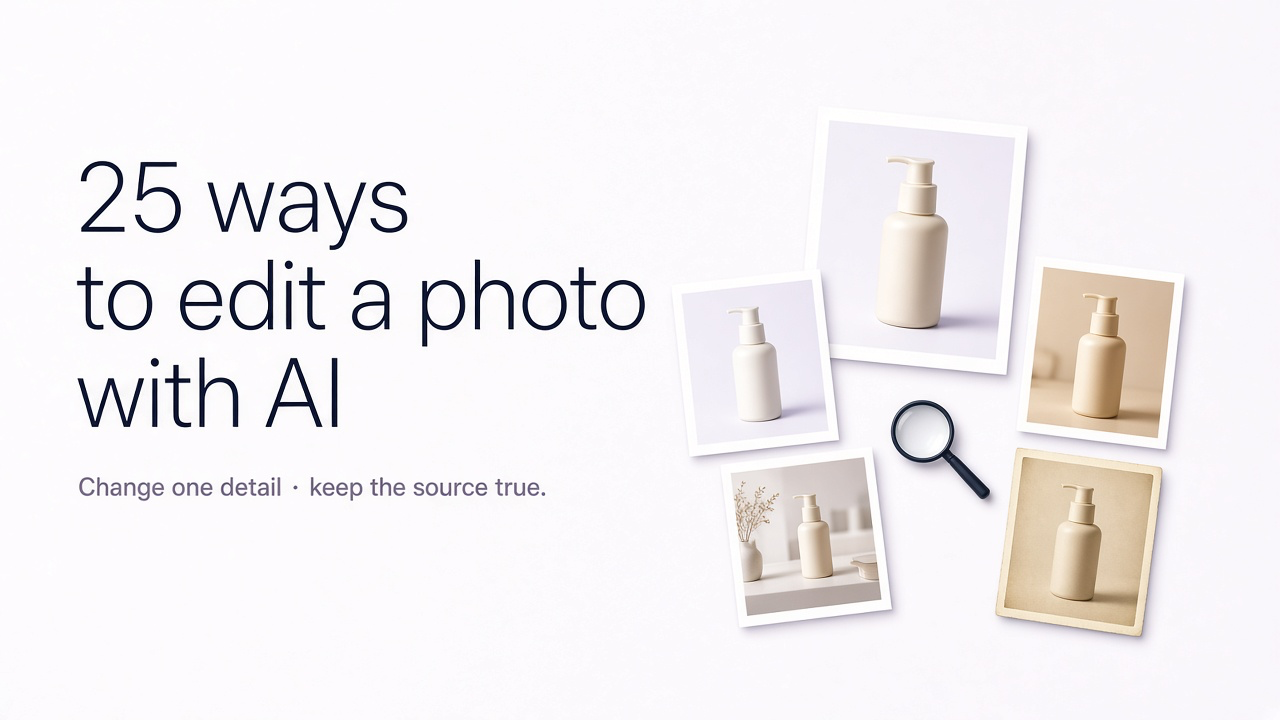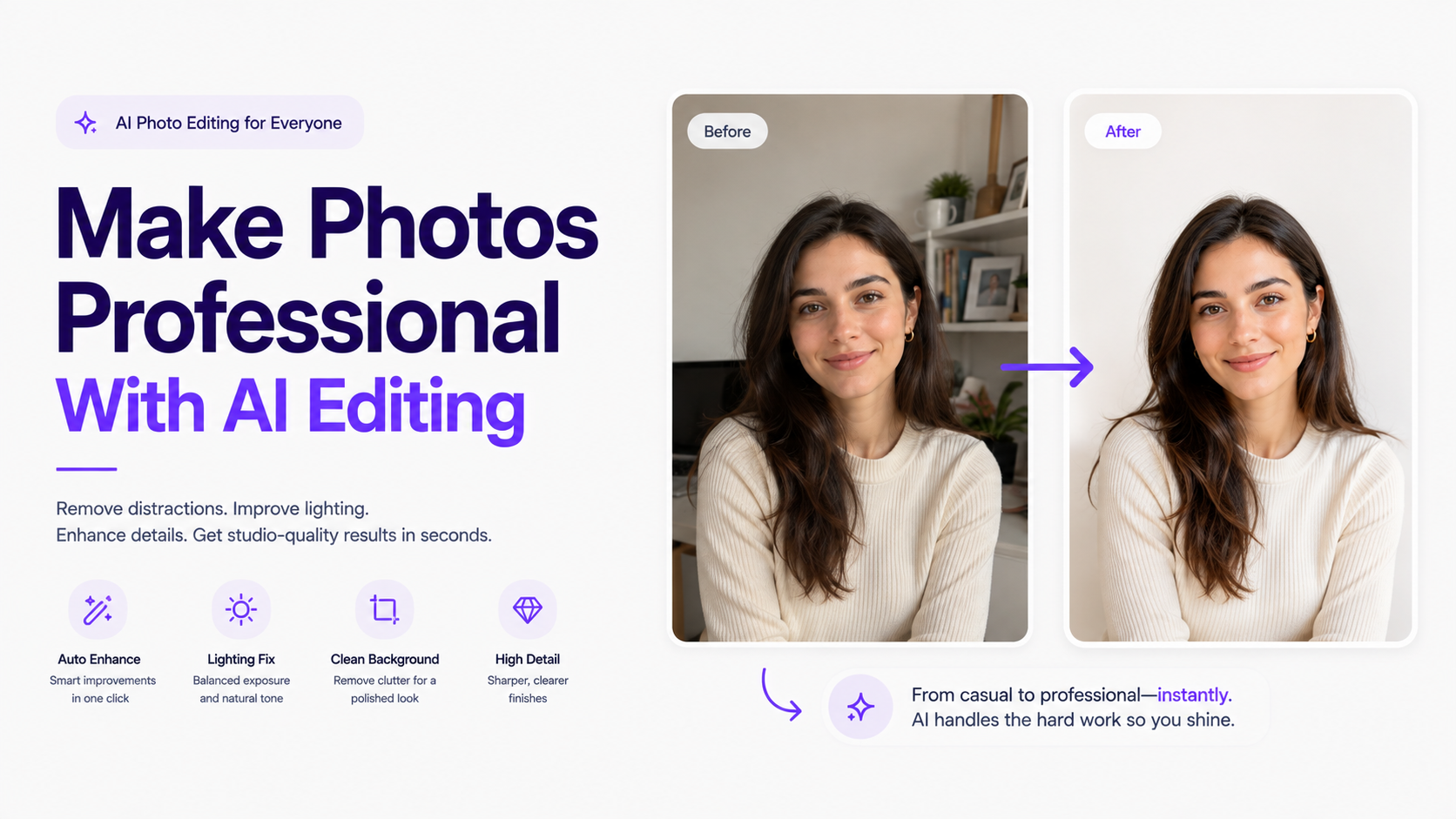
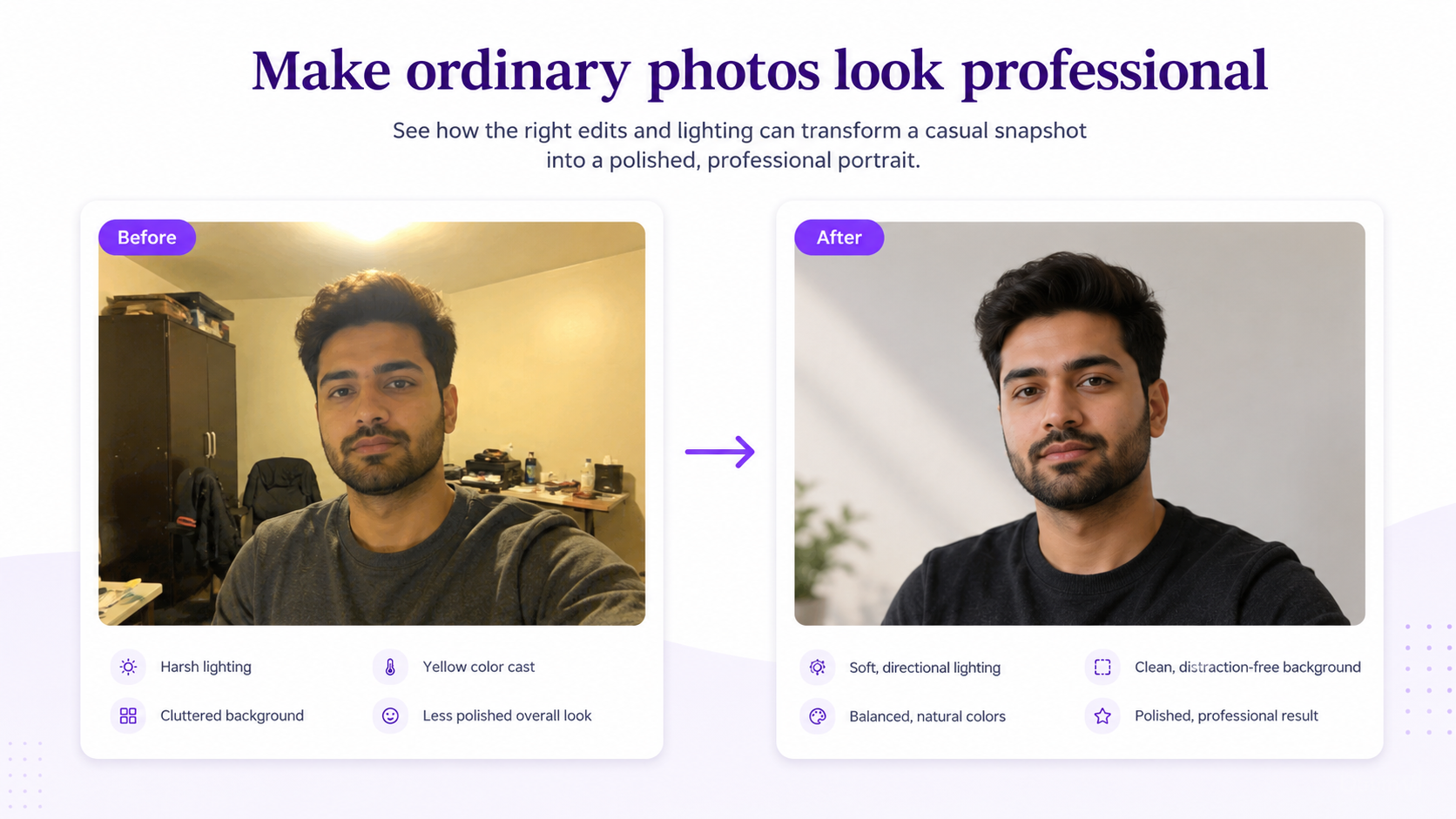
Foto profesional jarang tercipta dari satu efek dramatis. Foto tersebut adalah gabungan dari komposisi rapi, pencahayaan natural, warna terkontrol, pemisahan subjek, detail akurat, dan sentuhan akhir yang halus.
AI dapat melakukan banyak hal ini dari foto ponsel biasa—latar belakang, pencahayaan, penghapusan objek, potret, pembingkaian, perluasan kanvas, presentasi produk. Jangan hanya meminta untuk 'membuat ini profesional.' Identifikasi mengapa yang asli terasa amatir dan perbaiki masalah tersebut.
Jawaban Cepat
Mulai dengan sumber terbaik. Sempurnakan latar, pencahayaan, komposisi, warna, tekstur, dan ketajaman sambil menghilangkan gangguan. Pertahankan identitas orang dan produk. Lakukan editan besar secara bertahap, jangan langsung semua.
Apa Rahasia Foto Terlihat Profesional?
Profesional tidak berarti sinematik atau terlalu dipoles. Ciri-ciri umum di berbagai kategori: komposisi yang disengaja, pencahayaan terkontrol, warna yang koheren, pemisahan subjek yang jelas, perspektif yang konsisten, material yang meyakinkan, ketajaman yang sesuai, dan tanpa kesalahan yang mengganggu.
1. Mulai dengan Gambar Sumber yang Lebih Baik
AI dapat memperbaiki foto yang kurang sempurna, tetapi tidak dapat mengembalikan informasi yang hilang. Lebih baik gunakan sumber yang tajam dan jelas daripada bidikan yang dramatis tetapi buram, terpotong, atau terlalu banyak filter.
Untuk Potret dan Produk
Potret memerlukan wajah dan mata yang terlihat. Produk memerlukan kemasan, bentuk, label, logo, dan bahan yang terlihat sebelum mengubah suasana.
2. Hapus Elemen Latar Belakang yang Mengganggu
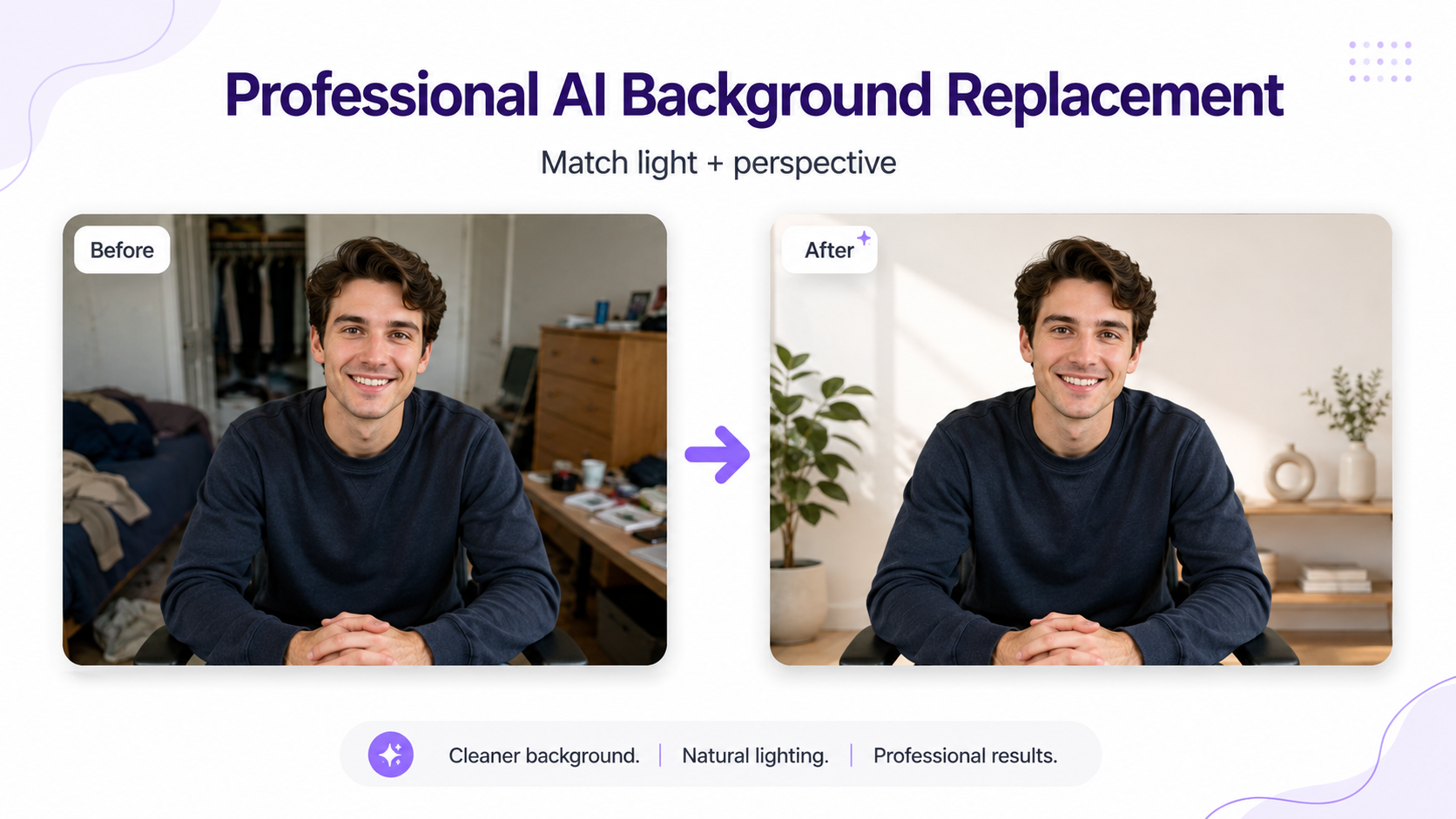
Latar belakang yang berantakan sering menjadi pembeda antara foto kasual dan profesional. AI dapat menghilangkan gangguan dan merekonstruksi apa yang ada di baliknya.
Contoh Prompt
3. Ganti Latar Belakang Amatir
Terkadang lokasi itu sendiri tidak sesuai dengan tujuan. Tukar kamar tidur dengan kantor, meja dapur dengan studio, dinding kosong dengan editorial—tetapi sesuaikan perspektif dan pencahayaan atau akan terlihat seperti potongan tempelan.
Contoh Prompt
4. Tingkatkan Pencahayaan
Foto kasual seringkali memiliki pencahayaan atas yang keras, suhu warna yang campur aduk, bayangan yang dalam, sorotan yang terlalu terang, atau cahaya yang datar. AI dapat mengatur ulang pencahayaan sambil menjaga subjek tetap mudah dikenali.
Prompt Pencahayaan Potret Profesional
Prompt Pencahayaan Produk Profesional
5. Sesuaikan Subjek dengan Lingkungan Baru
Pencahayaan yang tidak konsisten adalah tanda komposit yang jelas. Harmoniskan arah cahaya, suhu warna, kontras, bayangan, dan atmosfer antara subjek dan lingkungan.
6. Koreksi Komposisi
Pembingkaian yang canggung bisa membuat foto terlihat amatir. Ekspansi generatif dapat menambah ruang, menyeimbangkan kembali bingkai, menciptakan ruang negatif yang siap iklan, atau mengadaptasi lanskap menjadi format sosial vertikal.
Contoh Prompt Hero Situs Web
7–9. Perspektif, Keseimbangan Putih, dan Gradasi Warna
Periksa latar belakang yang melengkung, produk yang meregang, dan perspektif yang tidak konsisten. Koreksi warna kuning/hijau di dalam ruangan dan nada biru berlebihan di luar ruangan sambil tetap mempertahankan suasana.
Prompt Keseimbangan Putih
Hindari warna teal-oranye yang ekstrem, warna hitam pekat, kulit yang terlalu jenuh, atau HDR yang intens. Lebih baik gunakan keseimbangan putih yang akurat, kontras sedang, dan saturasi yang terkontrol.
Prompt Gradasi Warna
10–11. Retouch Potret Tanpa Menghilangkan Tekstur atau Identitas Kulit
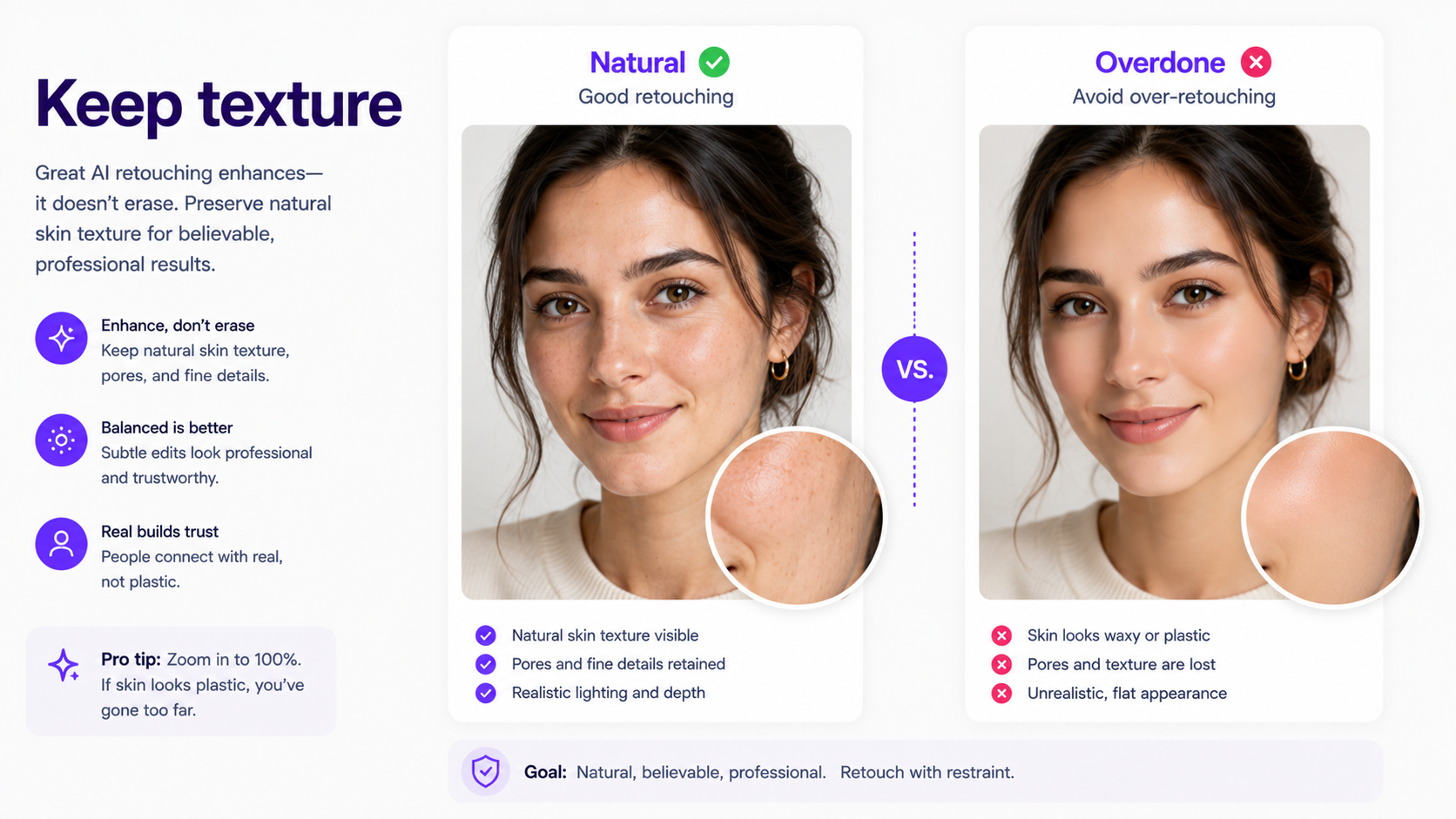
Jangan hapus setiap pori dan garis—kulit AI yang terlalu mulus terlihat palsu. Perbaiki noda sementara dan rambut yang berantakan sambil mempertahankan tekstur, serta lindungi identitas wajah saat mengubah rambut, riasan, pakaian, atau latar belakang.
Prompt Retouch Alami
Prompt Pelestarian Identitas
12–15. Rambut, Pakaian, Ketajaman, dan Efek Blur Latar Belakang
Bersihkan anak rambut tanpa membuat rambut terlihat rata. Perbaiki kerutan pakaian yang terisolasi. Pertajam secara selektif (mata; label/tepi produk). Gunakan efek kedalaman bidang yang bertahap tanpa halo potongan.
Prompt Pembersihan Pakaian
Prompt Blur Latar Belakang
16. Tambahkan Bayangan dan Refleksi yang Realistis
Bayangan kontak dan pantulan yang terkontrol menghubungkan subjek dengan lingkungan baru. Bayangan yang hilang atau tidak konsisten membuat komposit terlihat tidak alami.
17–18. Gambar Produk Studio dan Kampanye
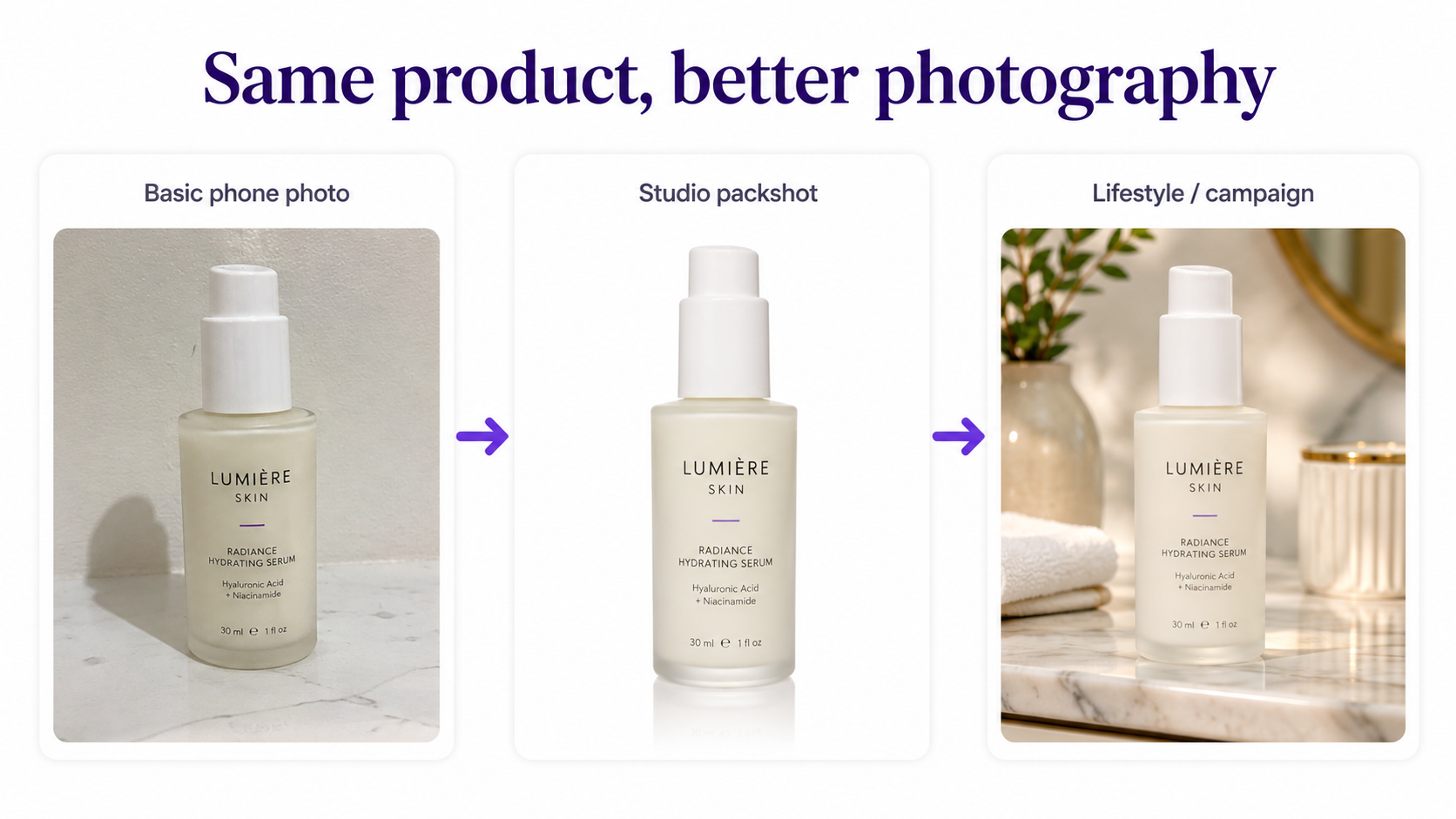
Pertahankan keakuratan produk sementara AI menyempurnakan pencahayaan, latar belakang, dan komposisi. Setelah Anda memiliki <i>packshot</i> sumber kebenaran, bangun adegan studio dan kampanye di sekitarnya—bukan produk yang didesain ulang.
Prompt Foto Produk Profesional
19–21. Foto Kepala, Fesyen, dan Makanan
Prompt Foto Profesional
Prompt Editorial Fashion
Prompt Fotografi Makanan
22–23. Ruang Negatif dan Berbagai Format
Ciptakan ruang kosong yang disengaja untuk teks pemasaran. Perluas gambar yang kuat menjadi iklan vertikal untuk media sosial atau iklan lebar daripada memotong informasi penting.
Prompt Ruang Negatif
24–25. Edit Bertahap dan Tahu Kapan Harus Berhenti
Mengubah banyak elemen seperti latar, pakaian, riasan, pose, sudut, dan cahaya sekaligus akan merombak total gambar. Lakukan edit secara bertahap. Berhenti jika foto sudah bagus untuk menghindari distorsi dan hasil yang melenceng.
Prompt yang Bisa Digunakan Berulang untuk Membuat Foto Terlihat Profesional
Diagnosis Foto Awal
Diagnosis terlebih dahulu: pencahayaan, latar belakang, corak warna, pembingkaian, skala, pencahayaan berlebih, lingkungan yang tidak relevan, atau kekacauan. Kemudian tulis promptnya.
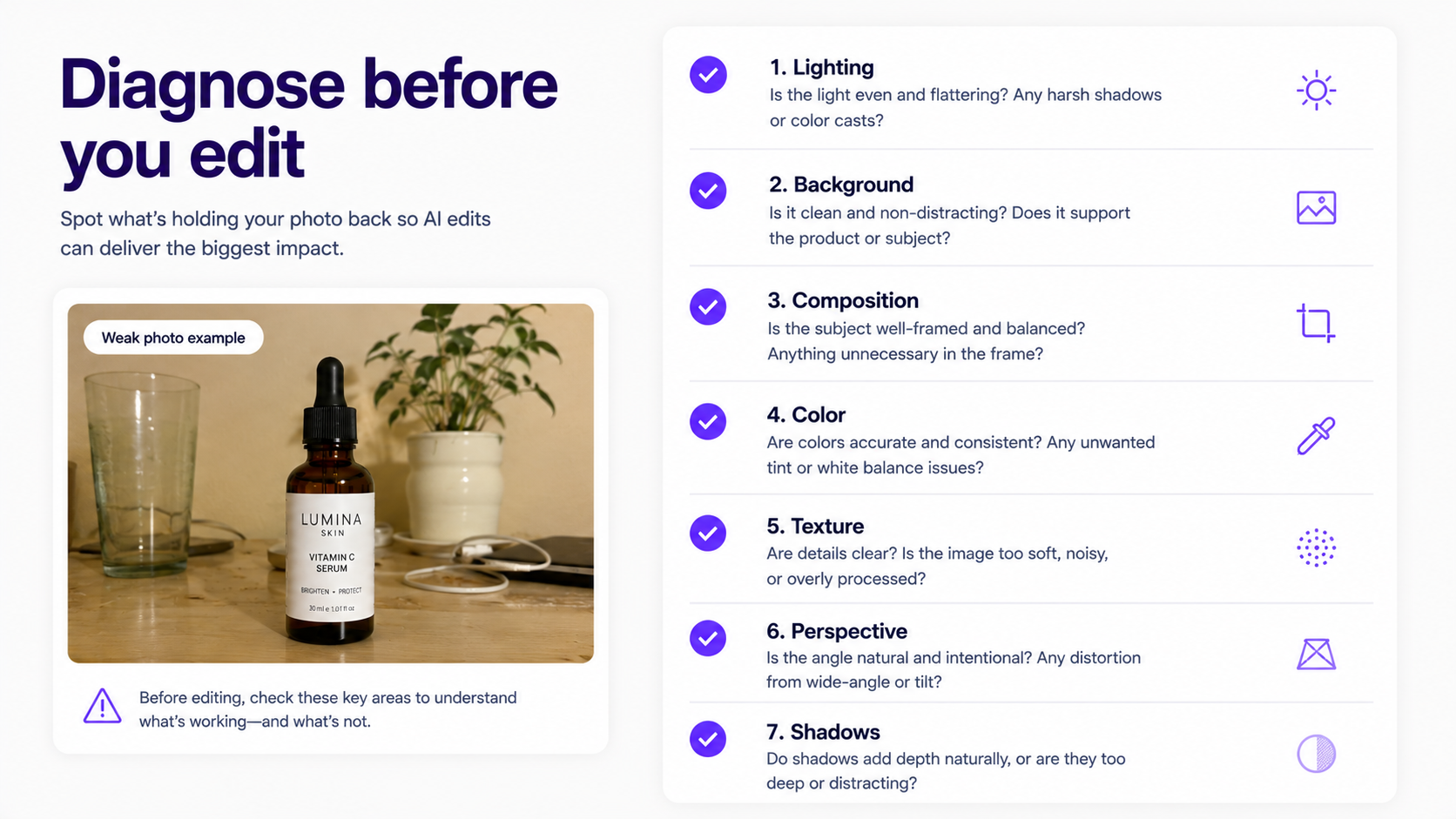
Daftar Periksa Foto Profesional
Periksa kejelasan subjek, pencahayaan, latar belakang, pemotongan, warna, tekstur material, perspektif bersama, bayangan/pantulan, dan apakah retouching mempertahankan identitas serta akurasi produk.
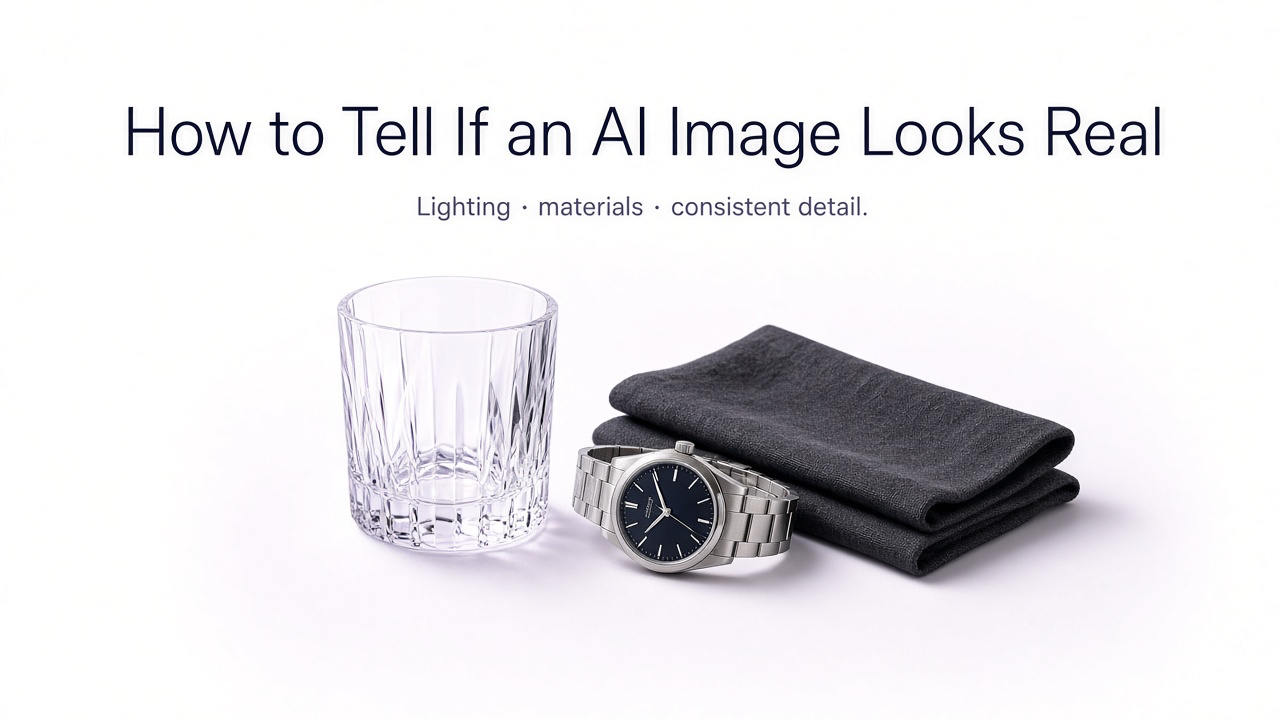
Tetap Profesional Tanpa Terlihat Dibuat oleh AI
Hindari kulit seperti lilin, pantulan yang tidak realistis, gumpalan rambut yang sempurna, ketajaman berlebihan, bokeh ekstrem, cahaya sinematik, dan pencahayaan yang tidak serasi. Tingkatkan presentasi; jangan merekonstruksi subjek sepenuhnya.
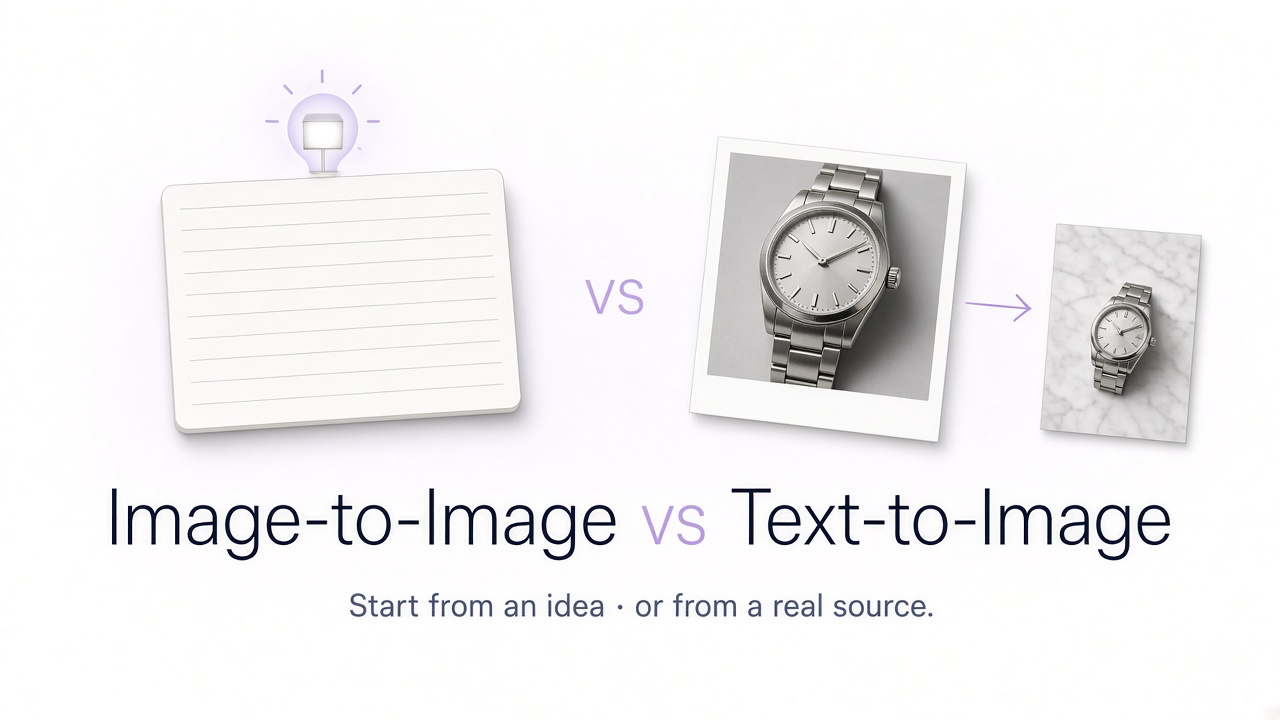
Gambar ke Gambar vs. Membuat dari Awal
Ketika gambar asli sudah memiliki subjek yang benar, pengeditan gambar-ke-gambar biasanya lebih terkontrol. Teks-ke-gambar akan merekonstruksi semuanya. Lebih baik gunakan pengeditan berbasis referensi saat akurasi menjadi prioritas.
Di Mana GenImagePro Cocok untuk Anda
GenImagePro mengubah gambar yang ada menjadi arahan profesional—produk, mode, potret, kecantikan, latar belakang, makanan, dan alur kerja gambar-ke-gambar lainnya—saat subjek sudah benar tetapi fotografi perlu ditingkatkan.
Bisakah AI Menggantikan Fotografer Profesional?
AI dapat mengurangi beberapa kebutuhan produksi, tetapi fotografer tetap mengontrol pengambilan gambar. Gunakan AI secara ekstensif untuk varian e-commerce, konsep pemasaran, foto kepala, latar belakang, dan produksi massal. Pertahankan fotografi asli untuk kampanye merek, acara, dokumentasi, dan testimoni di mana realitas yang ditangkap itu penting.
Alur Kerja Terbaik Seringkali Hibrida
Abadikan produk nyata, potret, dan pakaian dengan jelas; gunakan AI untuk adegan kampanye, latar belakang, dan pencahayaan. Pertahankan informasi penting dunia nyata; manfaatkan AI di mana pun ia memberikan keunggulan.
Aturan Akhir: Tingkatkan Fotografinya, Bukan Hanya Gambarnya
Resolusi dan polesan bisa tetap terlihat amatir tanpa pencahayaan yang disengaja, komposisi, dukungan latar belakang, dan akurasi. Gunakan AI untuk mengatasi masalah spesifik tersebut—bukan untuk membuat gambar secara umum lebih mengesankan.
Pertanyaan Umum
Bagaimana cara membuat foto terlihat profesional dengan bantuan AI?
Perbaiki kelemahan spesifik seperti latar belakang, pencahayaan, komposisi, keseimbangan putih, <i>retouching</i>, dan ketajaman, sambil tetap mempertahankan detail penting. Lakukan perubahan besar secara bertahap.
Prompt apa yang sebaiknya saya gunakan agar foto terlihat profesional?
Perbaiki foto ini sambil mempertahankan subjek utama. Ciptakan komposisi yang lebih bersih, pencahayaan yang meyakinkan, warna yang akurat, tekstur alami, pemisahan subjek yang lebih baik, dan latar belakang yang rapi tanpa mengubah detail penting pada wajah, produk, pakaian, atau struktur.
Bagaimana cara membuat selfie terlihat profesional dengan AI?
Pertahankan identitas wajah, lalu tingkatkan latar belakang, pencahayaan, pembingkaian, presentasi pakaian, dan retouching dengan tekstur kulit alami.
Bagaimana cara membuat foto produk terlihat profesional dengan AI?
Pertahankan produk asli tanpa perubahan, sambil menyempurnakan latar belakang, permukaan, pencahayaan, bayangan, pantulan, dan komposisi. Jaga agar geometri, kemasan, label, logo, warna, dan material tetap utuh.
Bisakah AI mengganti latar belakang foto secara profesional?
Ya—jika latar belakang baru cocok dengan sudut kamera, skala, perspektif, arah cahaya, bayangan, suhu warna, dan kedalaman bidang.
Bagaimana cara mencegah AI mengubah wajah saya?
Unggahan Anda adalah referensi identitas yang akurat dan akan mempertahankan bentuk wajah, mata, hidung, bibir, garis rahang, warna kulit, usia, gaya rambut, serta proporsi. Kami hanya akan mengubah elemen fotografi yang Anda tentukan.
Haruskah potret profesional memiliki kulit yang mulus sempurna?
Tidak. Pertahankan pori-pori, garis halus, dan variasi warna kulit. Hilangkan gangguan, bukan semua tekstur.
Apakah konversi gambar ke gambar lebih baik daripada teks ke gambar untuk foto profesional?
Biasanya ya, jika Anda sudah memiliki orang, produk, atau pakaian yang tepat, karena pasokan asli memberikan identitas, geometri, warna, dan tekstur.
Bisakah GenImagePro membuat foto yang sudah ada terlihat lebih profesional?
Tentu. GenImagePro dirancang untuk mengedit foto yang ada. Cukup unggah foto potret, produk, fashion, atau makanan untuk menyempurnakan latar belakang, pencahayaan, dan presentasi, tanpa mengubah detail penting pada subjek utama.