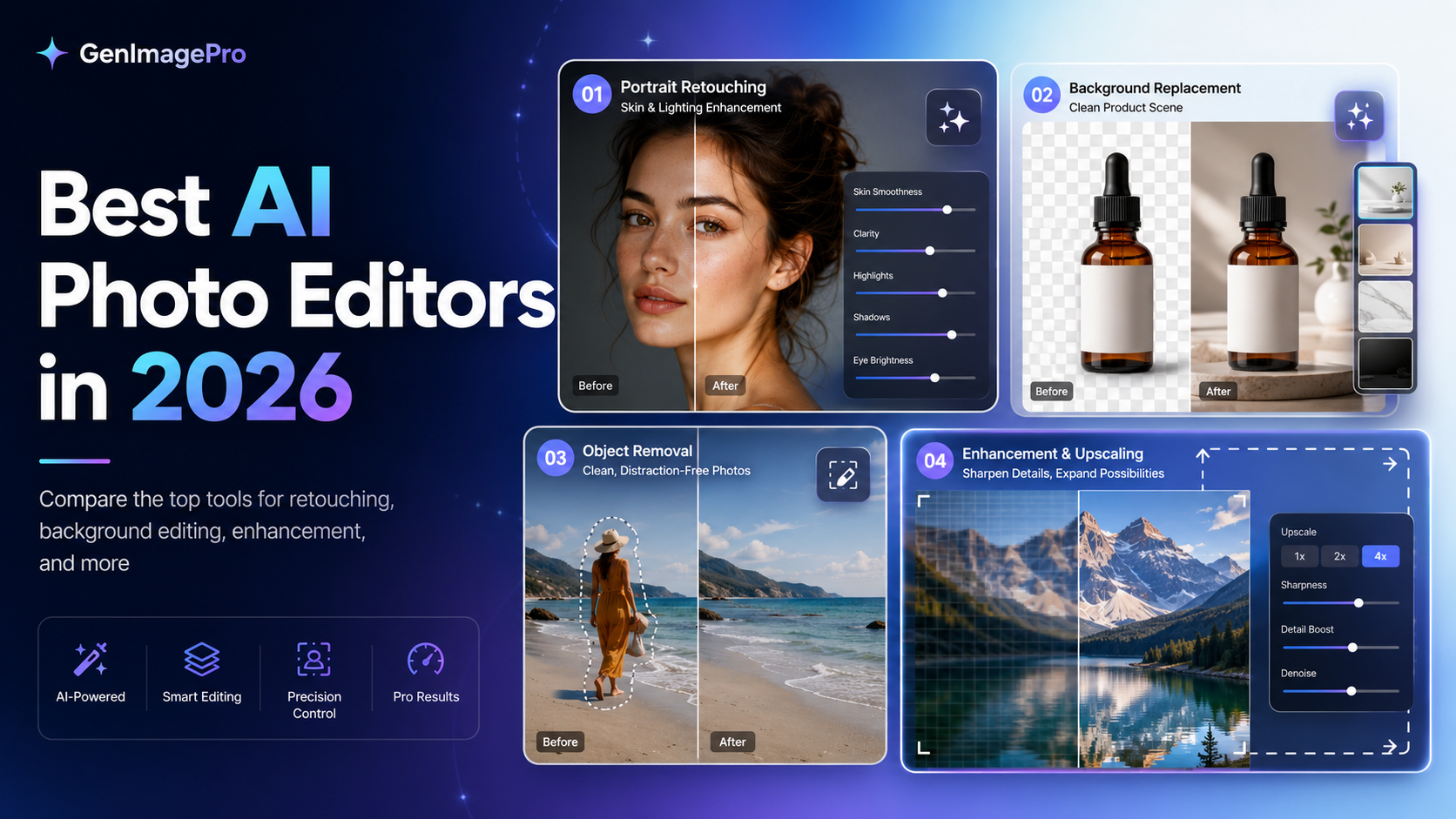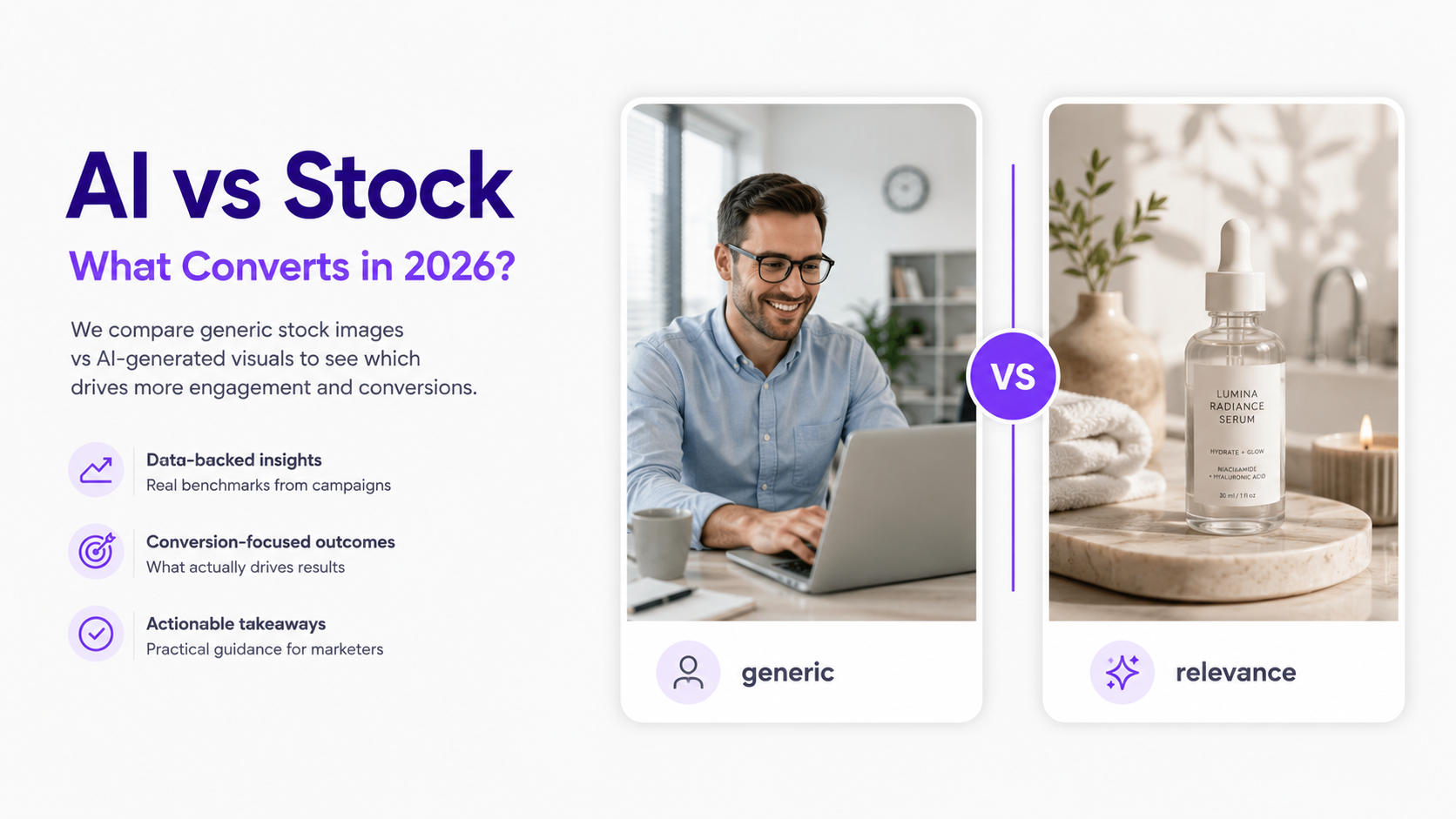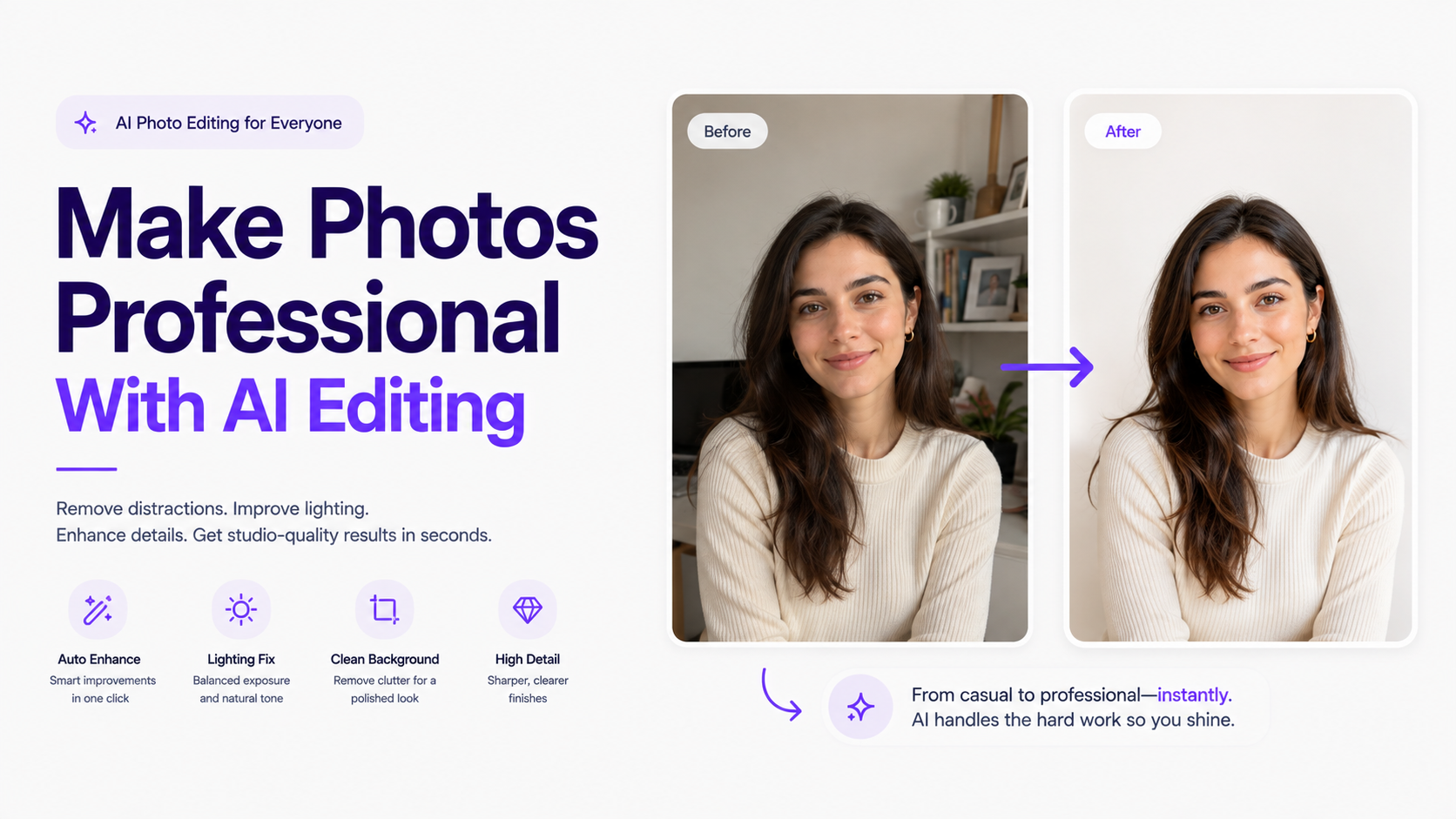
A professional-looking photo rarely comes from one dramatic effect. It usually combines clean composition, believable lighting, controlled color, subject separation, accurate detail, and restrained retouching.
AI can do much of this from ordinary phone photos—backgrounds, lighting, object removal, portraits, framing, canvas expansion, product presentation. Do not just ask to 'make this professional.' Identify why the original feels amateur and fix those problems.
Quick Answer
Start with the best source you have. Fix background, lighting, composition, distractions, color, texture, and sharpness. Preserve people and product identity explicitly. Stage major edits instead of changing everything at once.
What Makes a Photo Look Professional?
Professional does not mean cinematic or over-polished. Shared traits across categories: intentional composition, controlled light, coherent color, clear subject separation, consistent perspective, believable materials, appropriate sharpness, and no distracting errors.
1. Start With a Better Source Image
AI can rescue imperfect photos, but it cannot recover missing information. Prefer a sharp, clear source over a dramatic but blurry, clipped, or heavily filtered shot.
For Portraits and Products
Portraits need a visible face and eyes. Products need packaging, geometry, labels, logos, and materials visible before transforming the scene.
2. Remove Distracting Background Elements
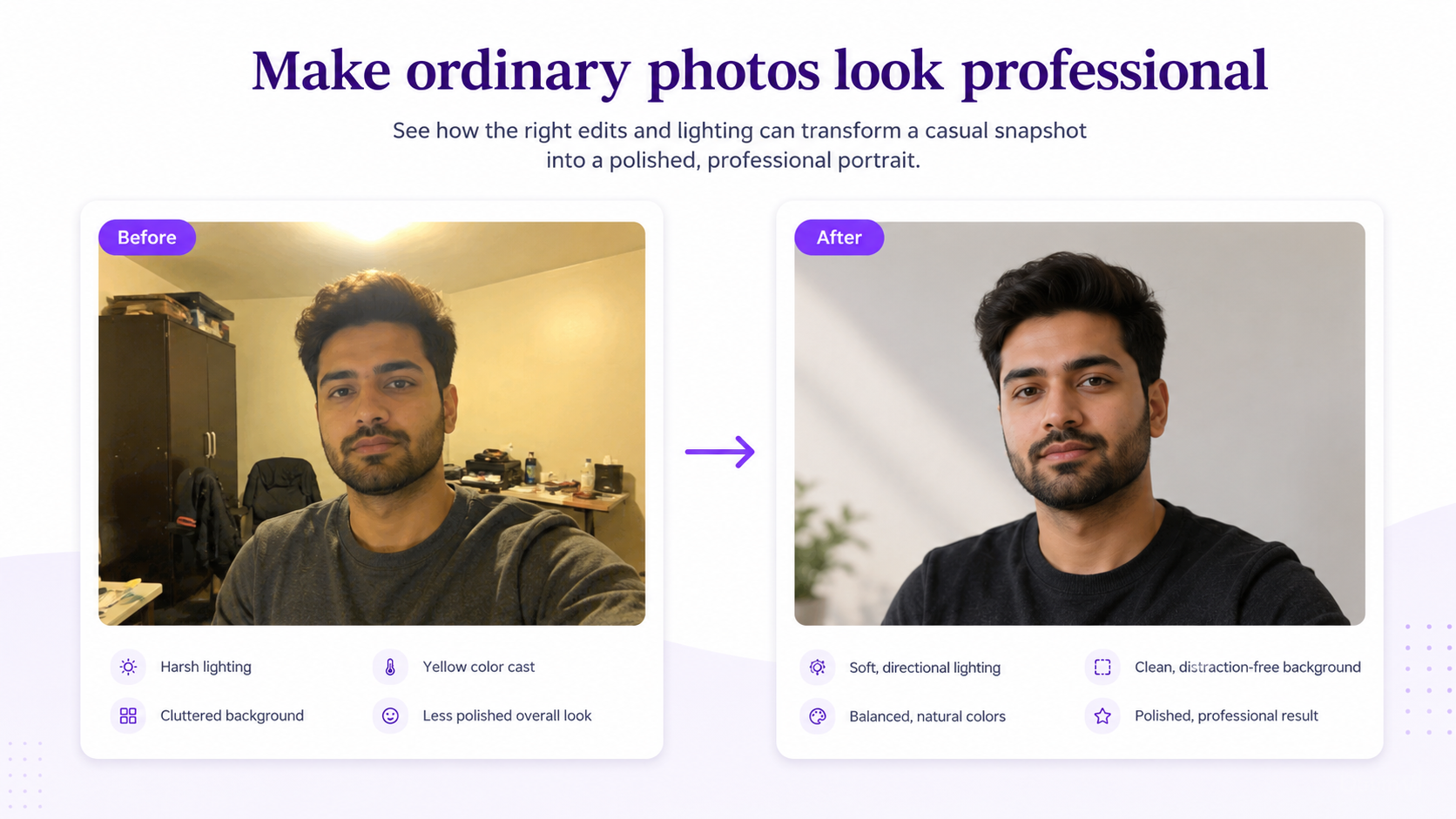
Background clutter is a common gap between casual and professional photos. AI can remove distractions and reconstruct what was behind them.
Example Prompt
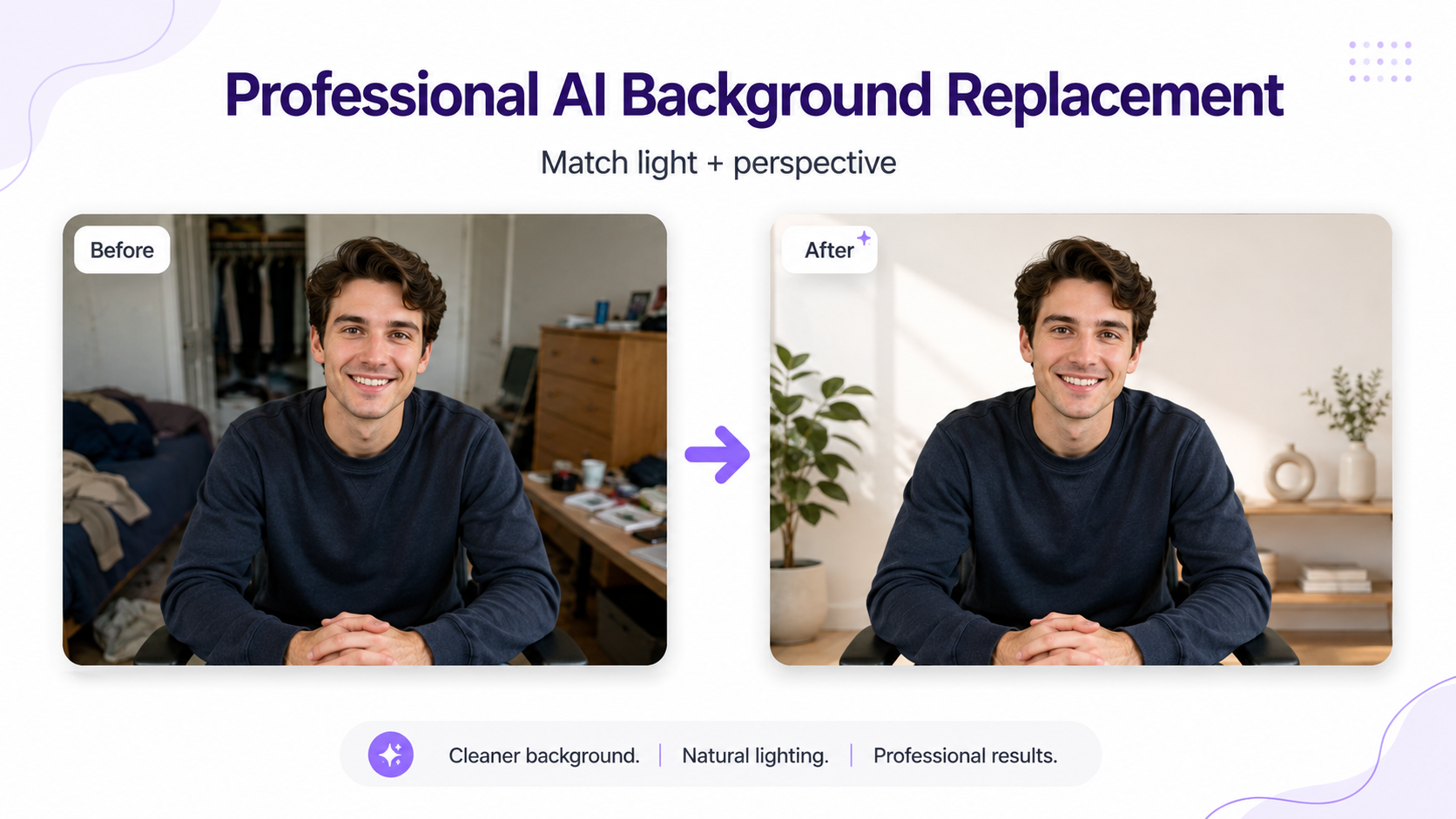
3. Replace an Amateur Background
Sometimes the location itself does not match the purpose. Swap bedroom for office, kitchen counter for studio, blank wall for editorial—but match perspective and lighting or it will look like a cutout.
Example Prompt
4. Improve the Lighting
Casual photos often have harsh overhead light, mixed color temperatures, deep shadows, blown highlights, or flat light. AI can relight while keeping the subject recognizable.
Professional Portrait Lighting Prompt
Professional Product Lighting Prompt
5. Match the Subject to the New Environment
Inconsistent light is an obvious composite tell. Harmonize light direction, color temperature, contrast, shadows, and atmosphere between subject and environment.
6. Correct the Composition
Awkward framing can make photos feel amateur. Generative expansion can add space, rebalance the frame, create ad-ready negative space, or adapt landscape into vertical social formats.
Example Website Hero Prompt
7–9. Perspective, White Balance, and Color Grading
Inspect for warped backgrounds, stretched products, and inconsistent perspective. Correct yellow/green indoor casts and overly blue outdoor tones while preserving atmosphere.
White Balance Prompt
Avoid extreme teal-orange, crushed blacks, oversaturated skin, or intense HDR. Prefer accurate white balance, moderate contrast, and controlled saturation.
Color Grade Prompt
10–11. Retouch Portraits Without Removing Skin Texture or Identity
Do not erase every pore and line—waxy AI skin looks artificial. Fix temporary blemishes and flyaways while preserving texture, and protect facial identity when changing hair, makeup, clothing, or backgrounds.
Natural Retouch Prompt
Identity Preservation Prompt
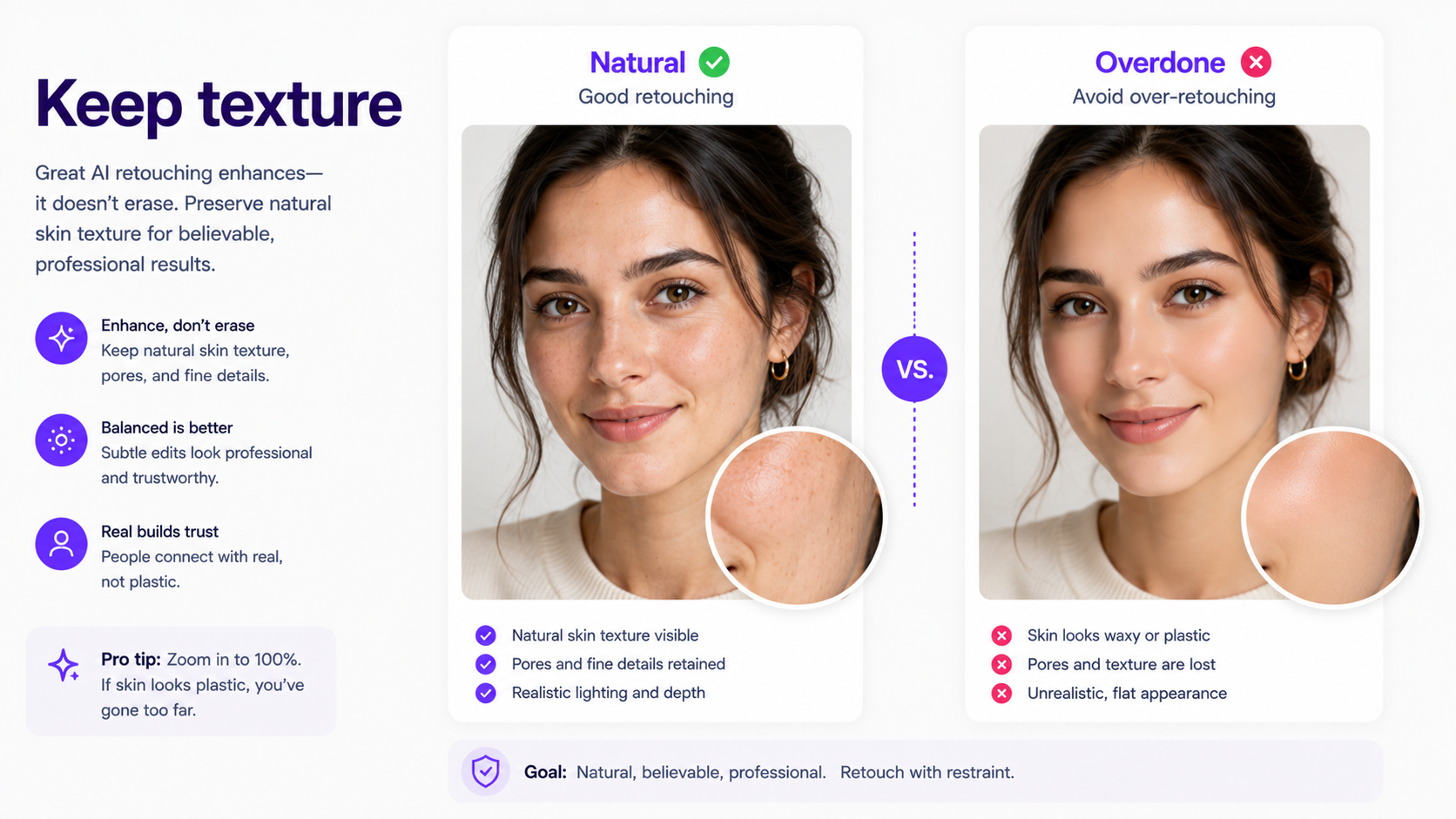
12–15. Hair, Clothing, Sharpness, and Background Blur
Clean flyaways without smoothing hair into one shape. Fix isolated clothing wrinkles. Sharpen selectively (eyes; product labels/edges). Use gradual depth-of-field falloff without cutout halos.
Clothing Cleanup Prompt
Background Blur Prompt
16. Add Realistic Shadows and Reflections
Contact shadows and restrained reflections connect subjects to new environments. Missing or inconsistent shadows make composites look artificial.
17–18. Product Studio and Campaign Images
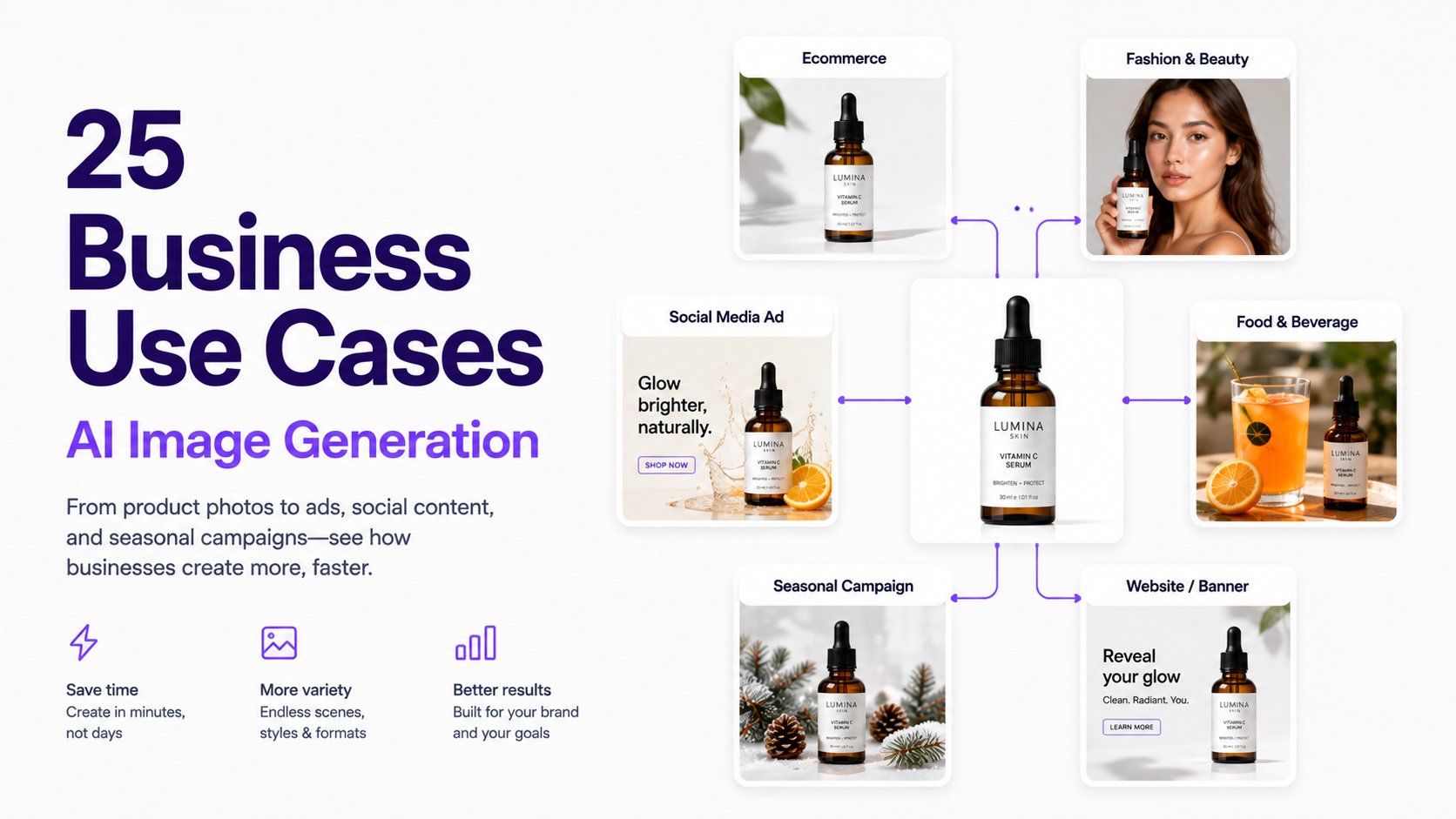
Keep the product accurate while AI improves lighting, background, and composition. Once you have a source-of-truth packshot, build studio and campaign scenes around it—not a redesigned product.
Professional Product Photo Prompt
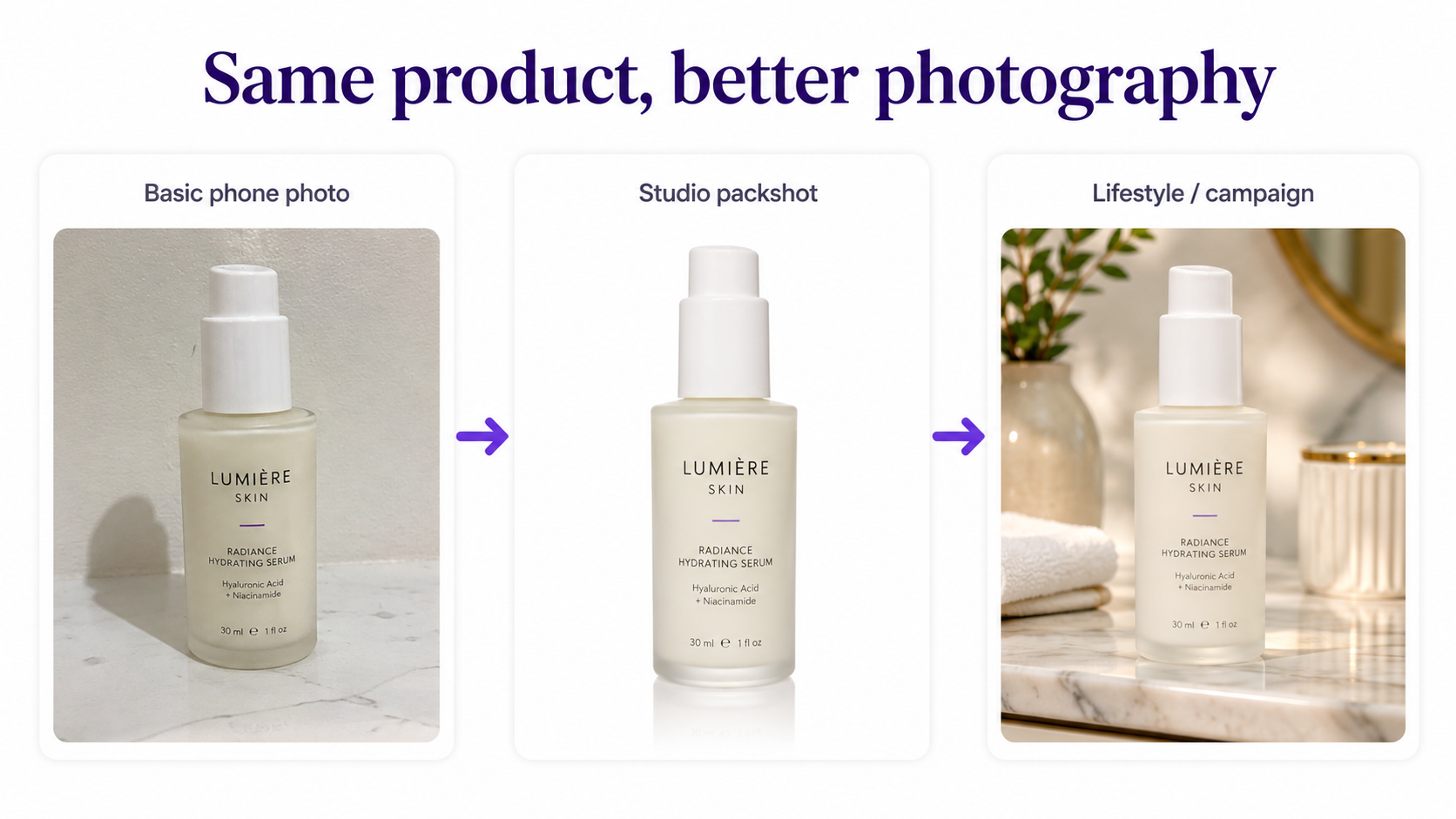
19–21. Headshots, Fashion, and Food
Professional Headshot Prompt
Fashion Editorial Prompt
Food Photography Prompt
22–23. Negative Space and Multiple Formats
Create intentional negative space for marketing text. Expand strong images into vertical social or wide ads rather than cropping away important information.
Negative Space Prompt
24–25. Edit in Stages and Know When to Stop
Changing background, outfit, makeup, pose, angle, lighting, and hair in one prompt forces a near-total reinterpretation. Stage edits. Stop when the photo already works—extra generations risk drift and distortion.
A Reusable Prompt for Making Photos Look Professional
Diagnose the Photo First
Diagnose first: lighting, background, color cast, framing, scale, overexposure, unrelated environment, or clutter. Then write the prompt.
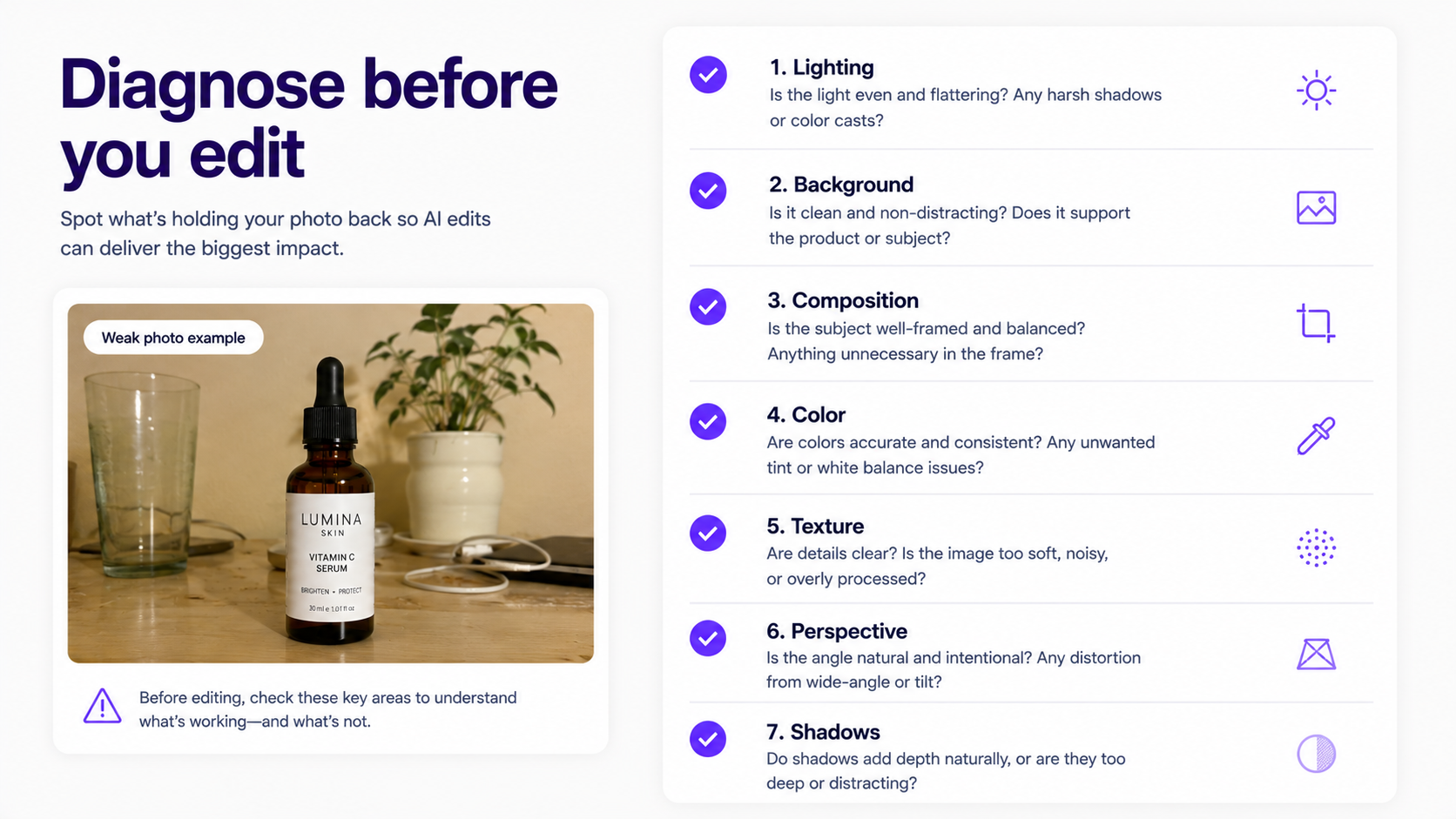
Professional Photo Checklist
Check subject clarity, lighting, background, crop, color, material texture, shared perspective, shadows/reflections, and whether retouching preserved identity and product accuracy.
Stay Professional Without Looking AI-Generated
Avoid waxy skin, impossible reflections, perfect hair blobs, excessive sharpness, extreme bokeh, cinematic glow, and mismatched lighting. Improve presentation; do not fully reconstruct the subject.
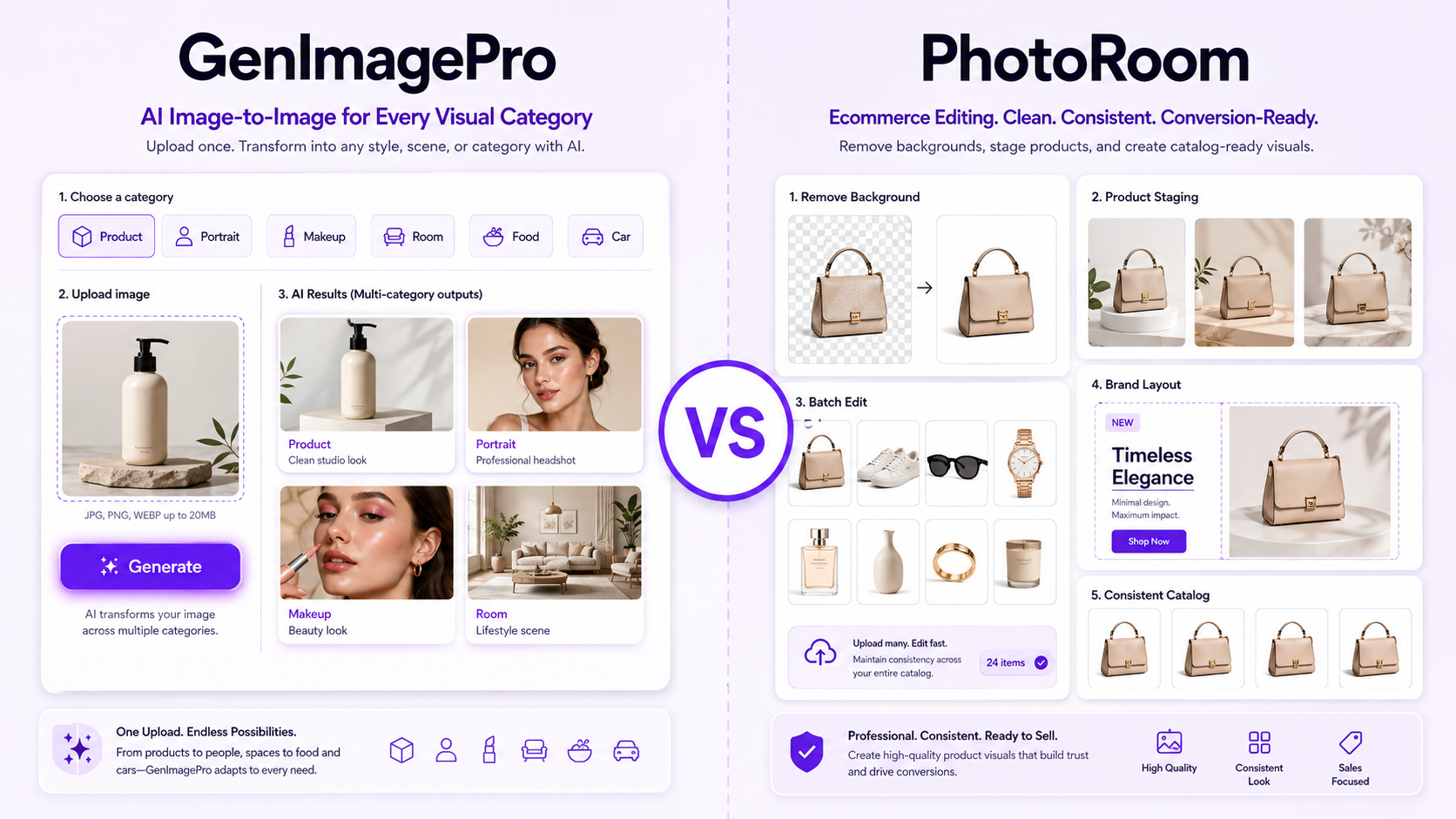
Image-to-Image vs. Generating From Scratch
When the original already has the correct subject, image-to-image is usually more controlled. Text-to-image reconstructs everything. Prefer reference-based editing when accuracy matters.
Where GenImagePro Fits
GenImagePro turns existing images into professional directions—products, fashion, portraits, beauty, backgrounds, food, and other image-to-image workflows—when the subject is already correct but the photography needs improvement.
Can AI Replace Professional Photography?
AI can reduce some production needs, but photographers still control capture. Use AI heavily for ecommerce variants, marketing concepts, headshots, backgrounds, and volume. Keep real photography for brand campaigns, events, documentation, and testimonials where captured reality matters.
The Best Workflow Is Often Hybrid
Capture clear real products, portraits, and garments; use AI for campaign scenes, backgrounds, and lighting. Preserve critical real-world information; use AI where it provides leverage.
Final Rule: Improve the Photography, Not Just the Image
Resolution and polish can still look amateur without intentional light, composition, background support, and accuracy. Use AI to solve those specific problems—not to make the image more impressive in general.
FAQ
How can I make a photo look professional with AI?
Improve specific weaknesses—background, lighting, composition, white balance, retouching, sharpness—while preserving important details. Make major changes gradually.
What prompt should I use to make a photo look professional?
Improve this photo while preserving the main subject. Create cleaner composition, believable lighting, accurate color, natural texture, better subject separation, and a polished background without changing important facial, product, clothing, or structural details.
How do I make a selfie look professional with AI?
Preserve facial identity, then improve background, lighting, framing, clothing presentation, and retouching with natural skin texture.
How do I make product photos look professional with AI?
Keep the real product unchanged while improving background, surface, lighting, shadows, reflections, and composition. Preserve geometry, packaging, labels, logos, colors, and materials.
Can AI replace the background of a photo professionally?
Yes—if the new background matches camera angle, scale, perspective, light direction, shadows, color temperature, and depth of field.
How do I stop AI from changing my face?
State that the upload is the exact identity reference and preserve face shape, eyes, nose, lips, jawline, skin tone, age, hairstyle, and proportions. Change only specified photographic elements.
Should professional portraits have perfectly smooth skin?
No. Keep pores, fine lines, and complexion variation. Remove distractions rather than all texture.
Is image-to-image better than text-to-image for professional photos?
Usually yes when you already have the correct person, product, or garment, because the original supplies identity, geometry, color, and texture.
Can GenImagePro make existing photos look more professional?
Yes. GenImagePro is built for image-to-image workflows: upload a portrait, product, fashion, food, or everyday photo and improve backgrounds, lighting, presentation, and campaign directions while preserving important subject details.