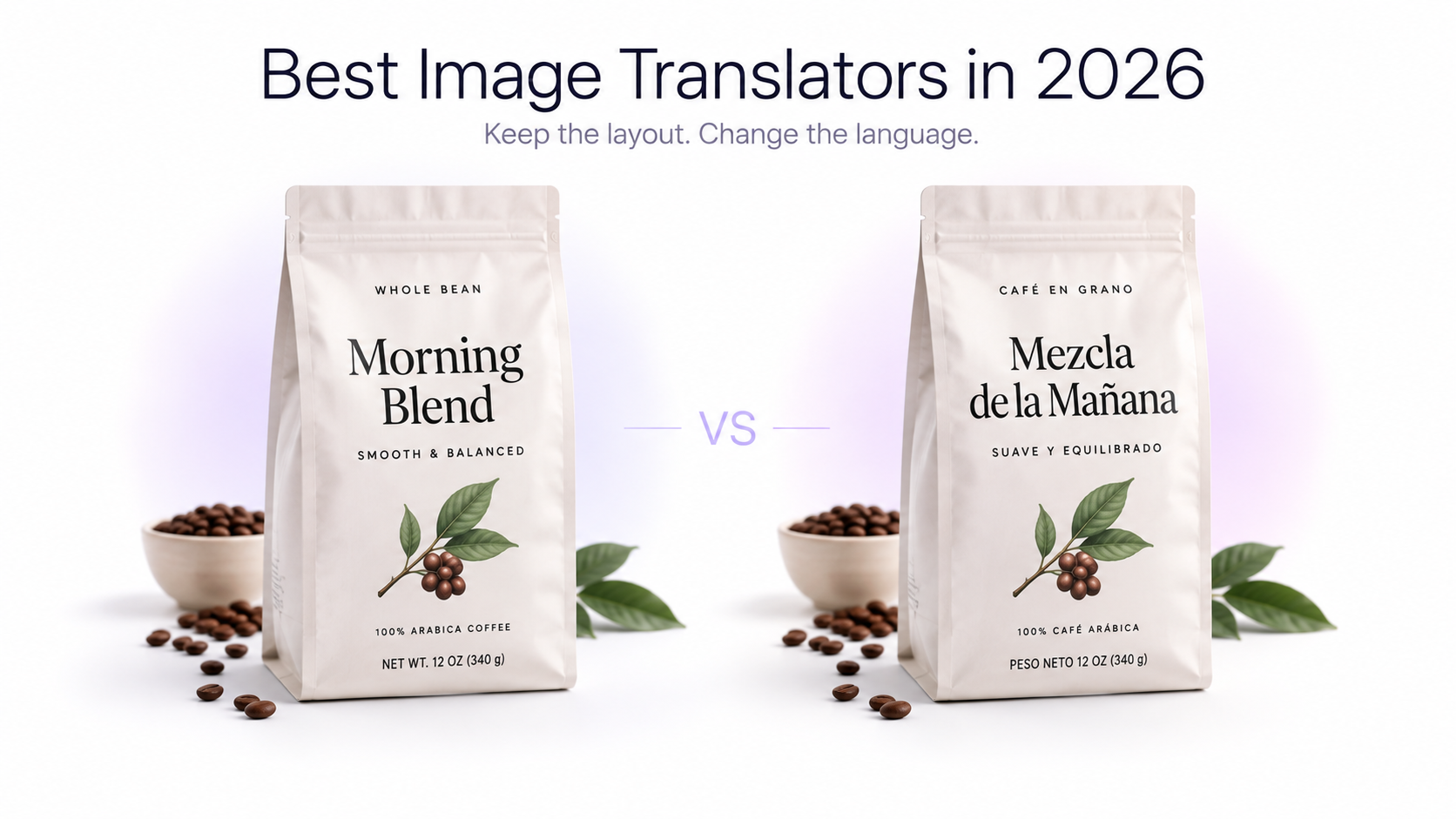
Translating text from an image sounds simple until you want the translated version to still look like the original. Extracting words with OCR and pasting a translation into a separate document is useful when you only need the information. It is much less useful when the text is part of the design itself.
Product images, advertisements, screenshots, menus, presentations, packaging, posters, and social media graphics often depend on specific text placement, spacing, colors, and visual hierarchy. In these cases, the goal is not simply to understand the text. You need to translate the text inside the image without rebuilding the entire design manually.
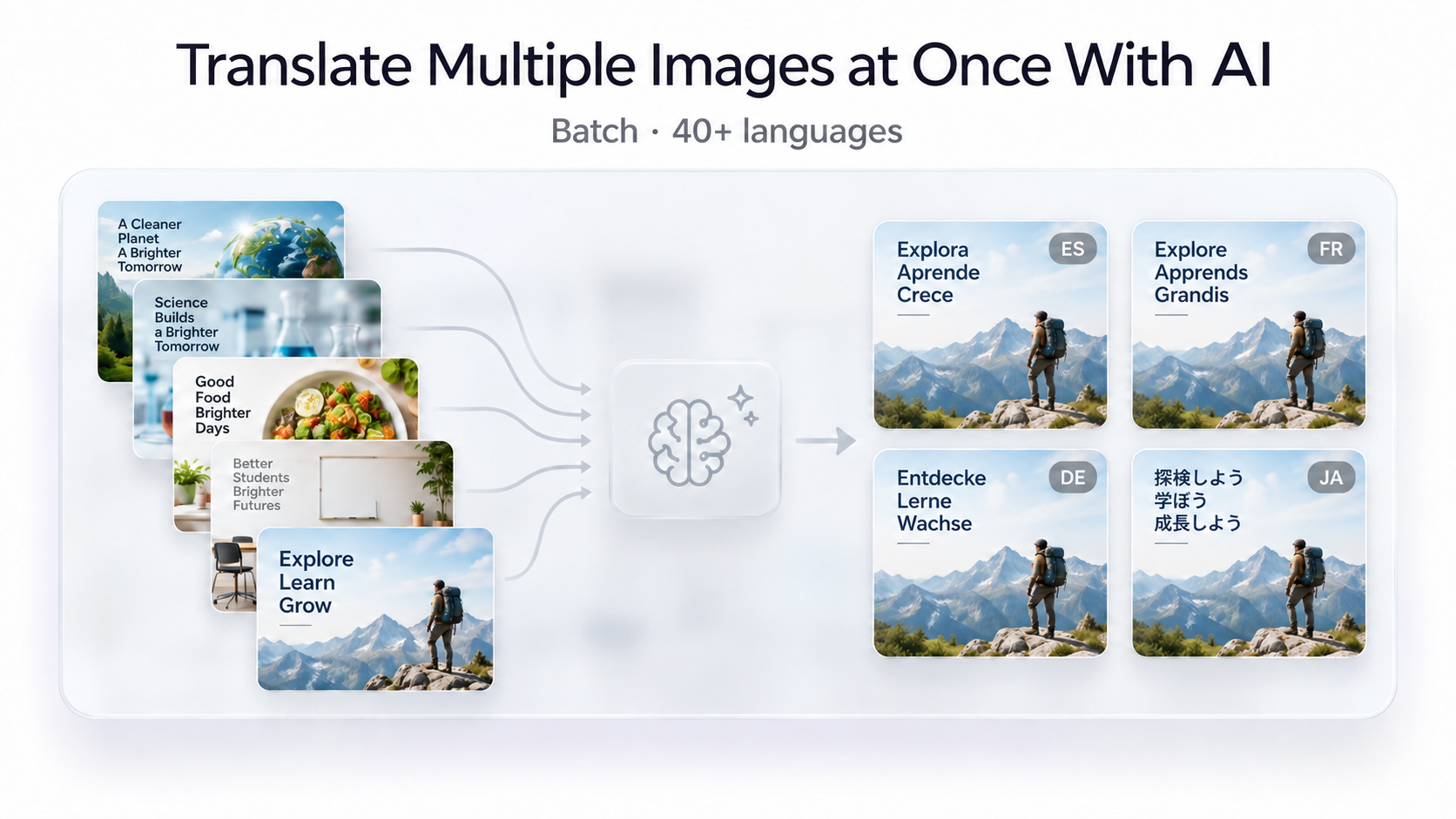
A layout-aware AI Image Translator can simplify this process by identifying text regions, translating their meaning, and creating a new version of the image with the translated text placed back into the visual. You can translate one image or a full batch, and choose from 40+ target languages.
What Does It Mean to Translate an Image Without Losing the Layout?
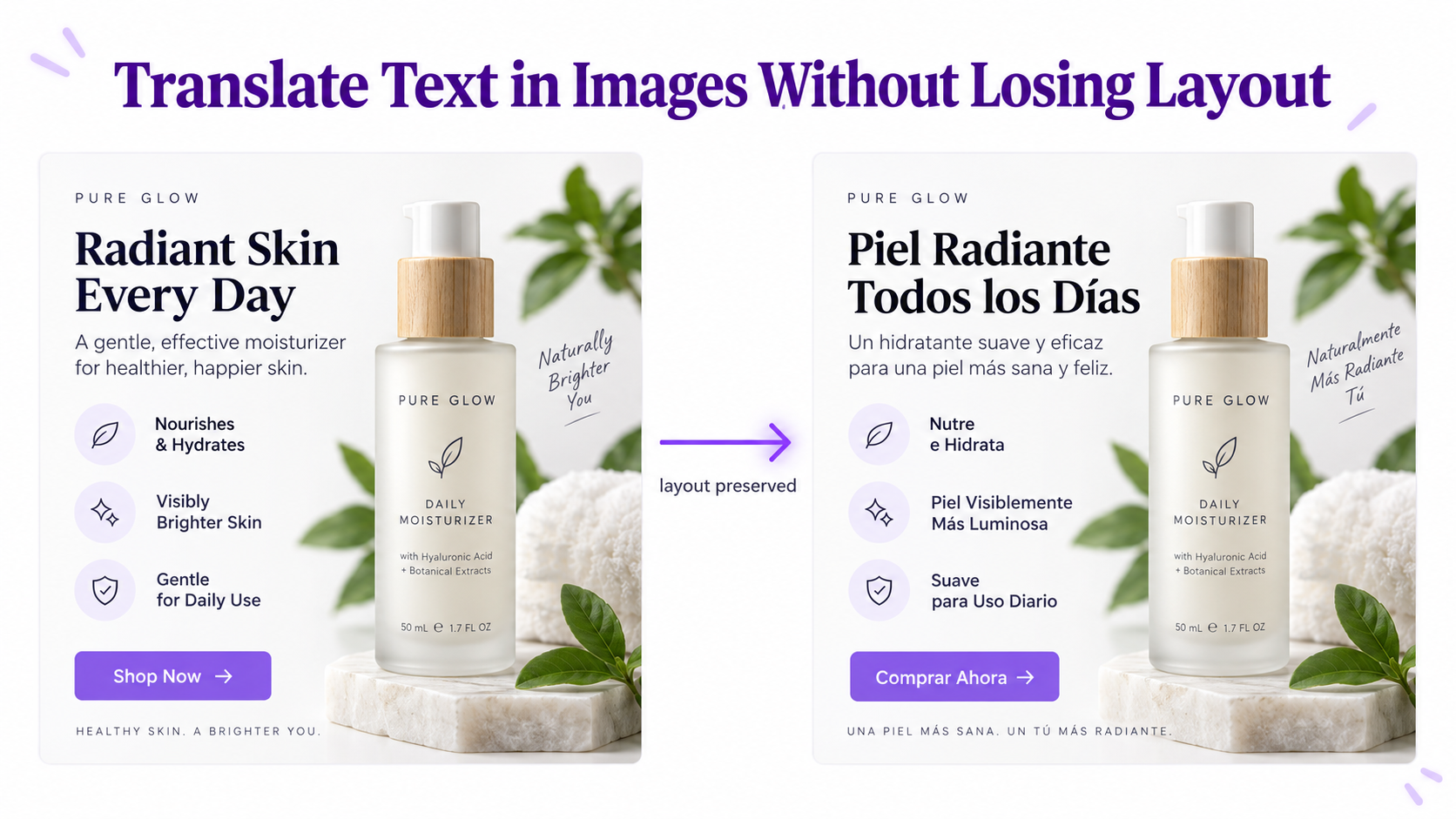
Preserving the layout means keeping the translated image visually close to the source image rather than returning only extracted text. The location of headings, labels, buttons, captions, prices, callouts, and other text elements should remain recognizable.
For example, imagine a product infographic containing a large headline at the top, three feature labels beside the product, and a short description near the bottom. A useful translated version should keep those elements in approximately the same locations and preserve the hierarchy between the headline, labels, and supporting text.
Why Traditional Image Translation Often Breaks the Design
A traditional translation workflow usually has several separate steps. First, OCR software detects and extracts the text. The extracted text is then translated. Finally, someone has to open the original image in a design or photo editing application, remove the old text, and manually position the translated version.
That workflow can work for one simple image, but it becomes inefficient when an image contains many separate text regions or when dozens of images need to be localized. It also introduces design problems because translated sentences rarely have exactly the same length as the original.
A short English phrase can become significantly longer in another language. A compact label may require more horizontal space, while another translation may become shorter. If every translated element is pasted back using the original font size and text box dimensions, the result can quickly look misaligned or crowded.
How to Translate Text in an Image While Preserving the Layout
1. Start With the Highest-Quality Source Image
Use the original or highest-resolution version of the image whenever possible. Clear text boundaries make it easier to distinguish letters from backgrounds, illustrations, patterns, and decorative elements.
Avoid repeatedly compressed screenshots when a cleaner source file is available. Very small text, motion blur, heavy compression, extreme perspective, or text that is partially hidden behind objects can make translation less reliable.
2. Upload One Image or a Batch
Upload your image to the GenImagePro Image Translator. You can translate a single visual or upload multiple images in one go — useful for catalogs, menus, packaging sets, and screenshot packs. The goal is to work from the original images rather than separating the text and visual content into completely different workflows.
3. Choose the Language You Want to Translate Into
Select the target language for the final image. GenImagePro supports 40+ languages, so you can localize the same image set for different markets — for example English, Spanish, French, German, Japanese, Chinese, Korean, and many more. When translating commercial content, think about the actual audience rather than translating everything literally. Product terminology, button labels, measurements, calls to action, and short marketing phrases may need to sound natural in the target market.
4. Generate the Translated Image
The translator analyzes the text regions and produces a translated version of the visual. Instead of returning only a block of translated text, the objective is to keep the translated content associated with the corresponding areas of the original image. For batch uploads, each image is translated together in the same run so you do not have to restart the workflow for every file.
5. Review the Translation and Visual Placement
Always review the finished image before publishing it. Check important names, product specifications, prices, measurements, legal information, and branded terminology carefully. Also inspect the visual result for overflowing text, unusual line breaks, small labels, or areas where the translated phrase is significantly longer than the original.
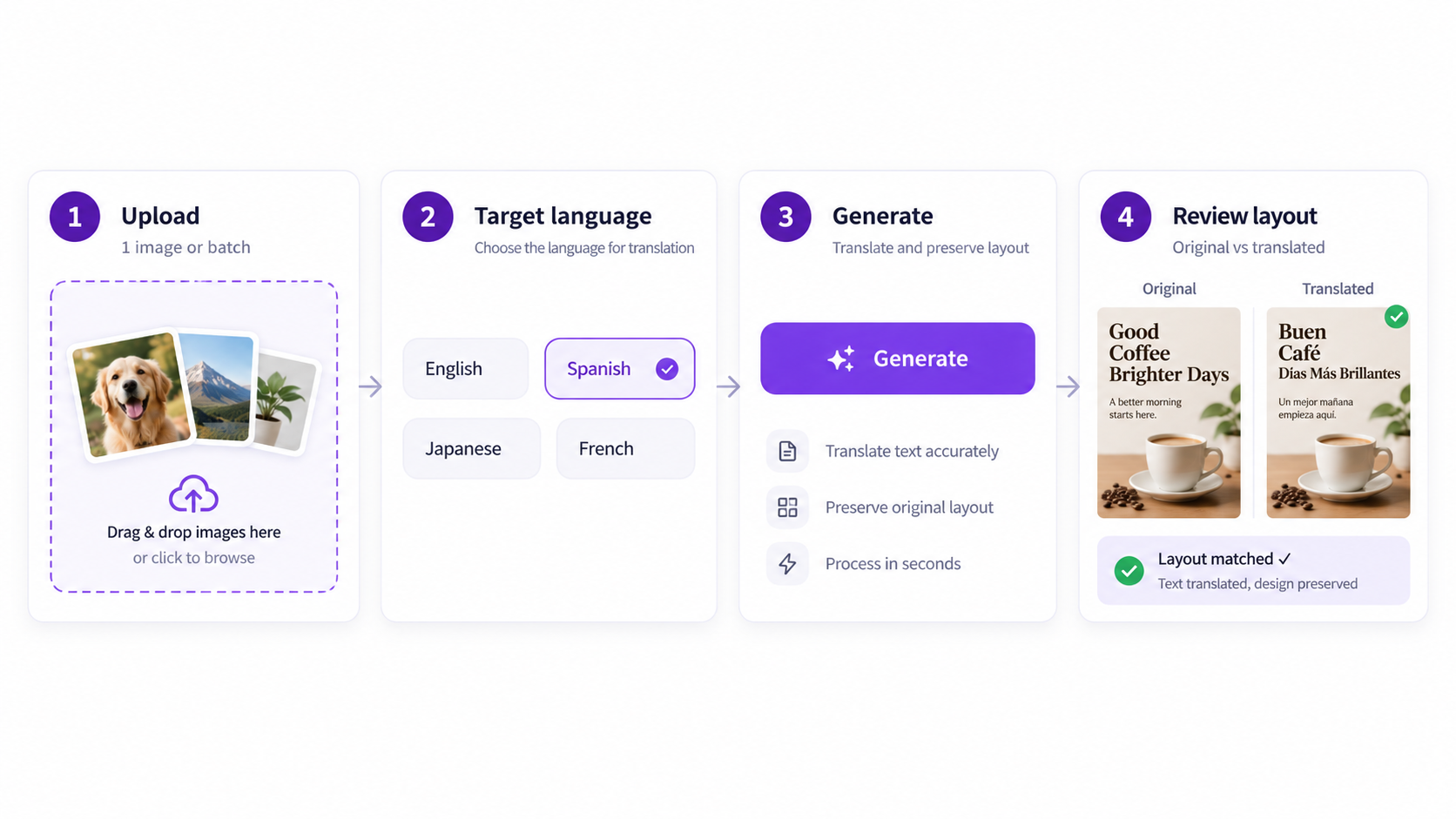
Image Translation vs OCR: What Is the Difference?
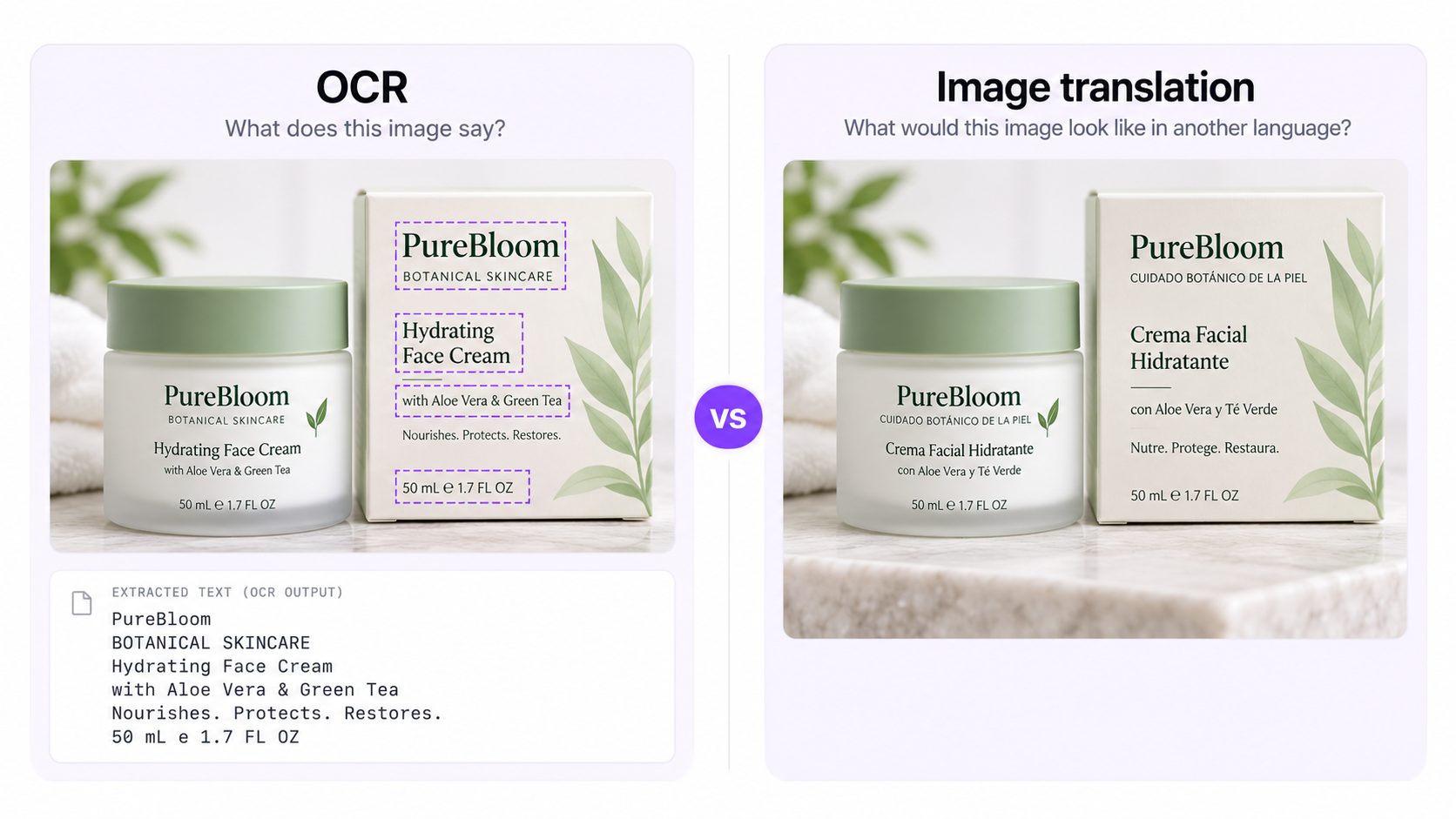
OCR, or optical character recognition, focuses on identifying written characters inside an image and turning them into machine-readable text. This is useful when your goal is to copy text from a receipt, document, screenshot, sign, or scanned page.
Image translation has a different end goal. Instead of stopping after the text has been extracted and translated, the translated words need to remain connected to the visual content. For graphics, product images, interfaces, advertisements, and other designed material, maintaining that relationship can be more useful than receiving plain text.
A simple way to think about the difference is that OCR answers, "What does this image say?" while layout-aware image translation answers, "What would this image look like in another language?"
When Should You Preserve the Original Image Layout?
Preserving the layout is most valuable when text is part of the visual communication rather than simply information placed on a page. The more closely text interacts with products, illustrations, interface elements, or other design components, the more useful a layout-preserving workflow becomes.
Product Images and E-commerce Graphics
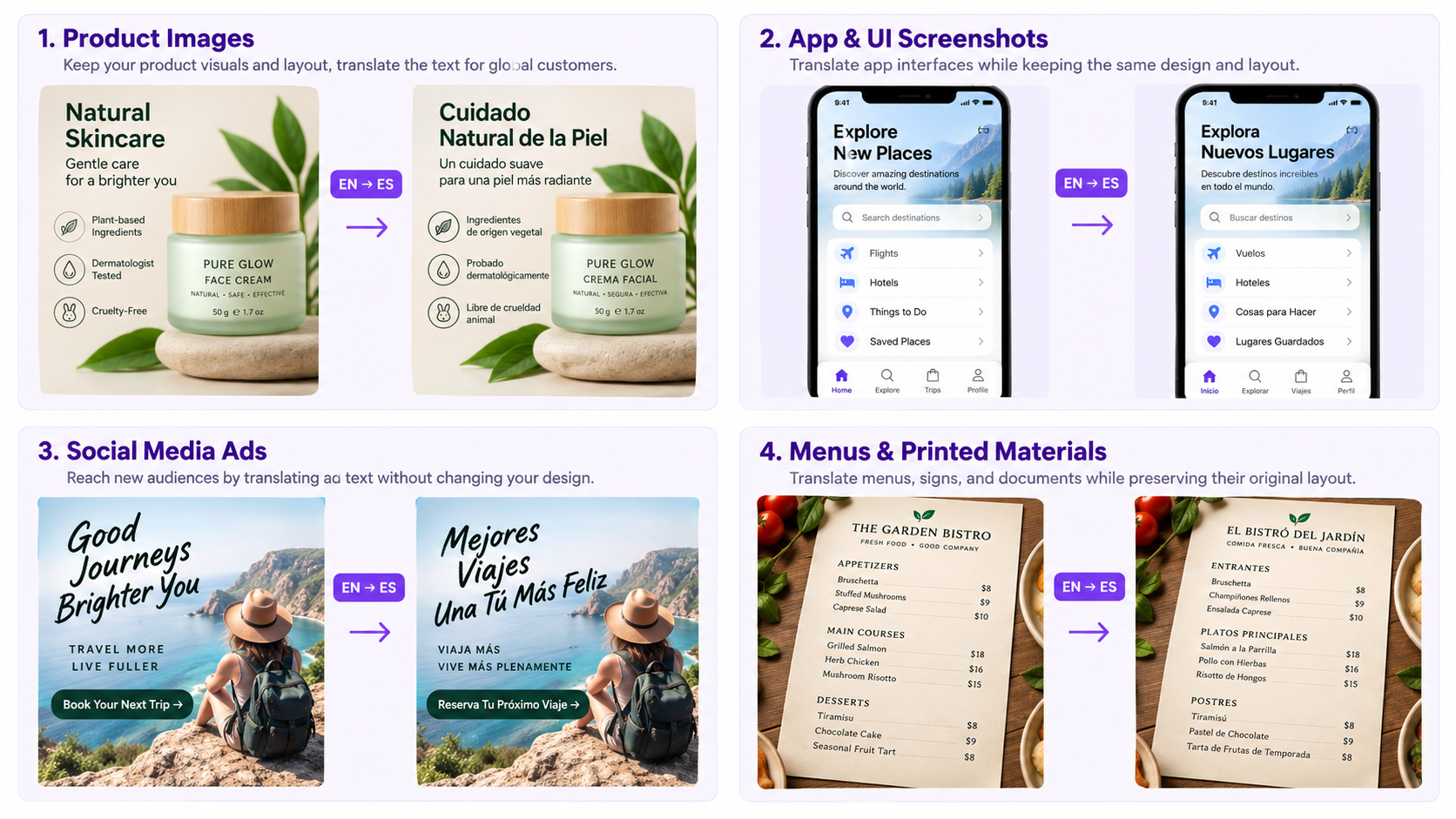
Product images frequently contain feature labels, dimensions, ingredients, usage instructions, specifications, promotional badges, or comparison information. Sellers expanding into new markets may need localized versions of the same product visual for different storefronts.
Instead of recreating every infographic from scratch, you can translate the existing visual and then review the result before publishing it. This can be especially useful when working with supplier images or when adapting creative assets for international ecommerce stores. Batch translation makes that practical when you have many product graphics to localize at once.
If you also need to create new commercial visuals around the product itself, AI product photography can be used alongside localization workflows.
Screenshots and User Interfaces
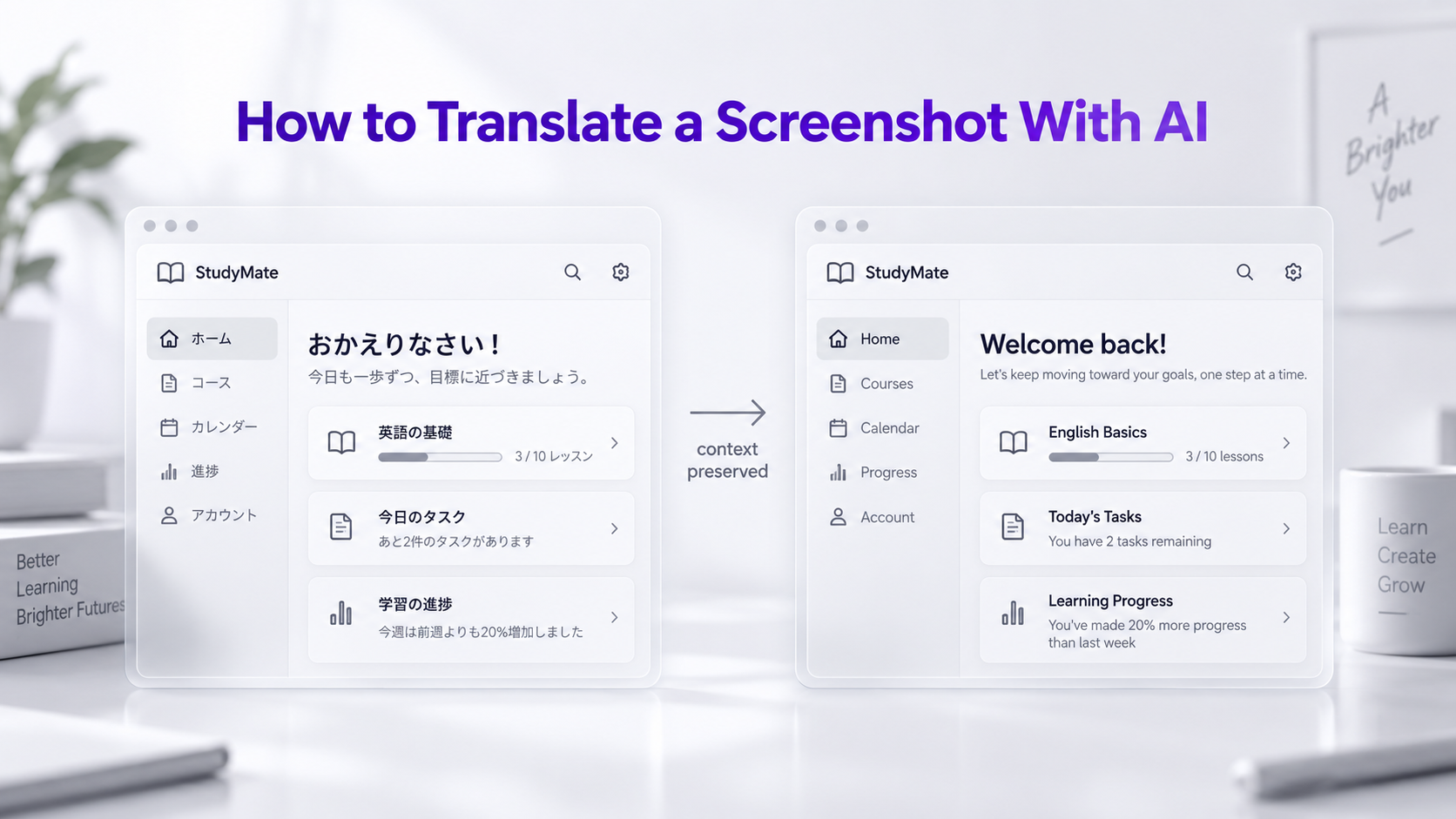
Screenshots often contain text inside buttons, menus, dialogs, navigation elements, settings pages, notifications, dashboards, or application interfaces. Extracting all of this text into a separate document removes the context that explains where each phrase appeared.
Translating the screenshot itself makes it easier to understand the interface as a whole. This can help when reviewing foreign-language software, sharing localized product demonstrations, analyzing competitor interfaces, or communicating technical issues across languages.
Marketing graphics are particularly sensitive to layout because headlines, promotional text, and calls to action are intentionally positioned around the visual subject. A plain-text translation cannot show whether a new phrase still works inside the original composition.
Creating translated versions of the full image lets marketers evaluate the actual localized creative instead of reviewing the words in isolation.
Restaurant menus, event posters, signs, catalogs, flyers, and other printed materials often combine text with photographs and graphic elements. Translating the complete visual can make the information easier to understand because the reader can see which translation belongs to which item or section.
Documents and Scanned Pages
Scanned documents may include headings, tables, labels, diagrams, stamps, and other spatial information. When understanding the original structure matters, retaining the visual arrangement can be preferable to extracting every sentence into one continuous text block.
Why Translated Text Does Not Always Fit Perfectly
Languages use space differently. A short phrase in one language may require several additional words in another. Character widths, punctuation, writing direction, and sentence structure can also change.
This is why preserving an image layout should not be understood as reproducing every pixel around the text exactly. A good localization may need to adjust line breaks, text size, spacing, or the size of a text region so that the translated version remains readable and visually balanced.
Common Challenges When Translating Text Inside Images
Very Small Text
Tiny labels and low-resolution text contain less visual information, making individual characters harder to identify. Starting with a larger image generally gives the system more information to work with.
Text Over Complex Backgrounds
Text placed over photographs, textures, reflections, gradients, or detailed illustrations is more difficult to replace than text on a simple solid background. The surrounding visual area has to remain coherent after the original lettering is changed.
Decorative and Stylized Typography
Highly decorative lettering, handwritten text, curved text, logos, and unusual typographic effects can be more difficult than standard printed fonts. These areas deserve additional review after translation.
Longer Translations
A translated phrase may simply require more space than the original. In these situations, slightly different typography or line wrapping may produce a more natural result than forcing the new text into exactly the same dimensions.
Tips for Better Image Translation Results
Use the cleanest version of the source image you have. Make sure important text is large enough to read, avoid unnecessary compression before translation, and check that text is not cropped at the edges of the image.
For product listings and commercial assets, review terminology consistently across every image. The same product feature should not be translated differently from one graphic to another. Brand names, model numbers, URLs, measurements, and product-specific terminology may need to remain unchanged. When localizing a catalog, batch-translate the full set so wording stays consistent across related visuals.
Finally, treat AI translation as part of the localization workflow rather than as a replacement for final review. This is particularly important for legal text, safety information, medical information, pricing, contractual material, or other content where an incorrect translation could have significant consequences.
How Image Translation Helps With E-commerce Localization
International ecommerce stores often localize their product titles and descriptions while leaving text inside product photos unchanged. That creates an inconsistent experience: the storefront may be translated into the customer's language while feature graphics, size charts, product comparisons, packaging images, and instructional visuals remain in another language.
Image translation fills this gap. A seller can maintain a master set of product creatives and produce localized versions for different markets without manually rebuilding each graphic. Batch translation across multiple images — and 40+ target languages — makes visual localization significantly more practical for larger catalogs.
Can AI Keep the Exact Same Font and Design?
The objective should usually be visual consistency rather than pixel-perfect duplication. A translated phrase may contain different characters, require additional space, or use a writing system that is not supported by the original typeface.
For everyday screenshots, ecommerce images, menus, posters, and similar material, a visually consistent recreation may be sufficient. Brand campaigns and design systems with strict typography requirements may still need a final manual design pass after translation.
Translate the Image, Not Just the Words
When text is part of an image, translation is also a visual design problem. The words need to remain connected to the product, button, diagram, menu item, feature, or section they originally described.
For simple text extraction, OCR may be all you need. When you need a usable translated version of the original visual — for one file or a full batch across many languages — a layout-aware image translator provides a more direct workflow.
Frequently Asked Questions
How can I translate text inside an image?
Upload the image to an AI image translator, choose the language you want to translate into, generate the translated version, and review the result before using it.
Can I translate multiple images at once?
Yes. GenImagePro supports batch translation, so you can upload several images and translate them together — useful for product catalogs, menus, packaging sets, and screenshot packs.
Can I translate images into multiple languages?
Yes. GenImagePro supports 40+ target languages. Choose the language you need for each run so you can localize the same visuals for different markets.
Can I translate an image without extracting the text first?
Yes. Layout-aware image translation tools can process the image as a visual and create a translated version without requiring you to manually copy the extracted text into another application.
Can AI translate an image and keep the same layout?
AI can preserve the general composition, text placement, and visual hierarchy of many images. Exact results depend on factors such as image quality, typography, background complexity, and how much the translated text differs in length.
What is the difference between OCR and an image translator?
OCR extracts written characters from an image and returns machine-readable text. An image translator goes further by translating that content and producing or helping produce a localized version of the visual.
Can I translate text in a screenshot?
Yes. Screenshots containing buttons, menus, messages, settings, websites, or application interfaces can be translated while keeping the surrounding visual context.
Can I translate product images into English?
Yes. Product images containing feature labels, specifications, instructions, comparison text, or promotional graphics can be translated into English or another supported target language.
Will the translated text use exactly the same font?
Not always. Different languages may require characters that are unavailable in the original font, and longer translations may require typography or spacing adjustments to remain readable.
Should I review an AI-translated image before publishing it?
Yes. Review important terminology, numbers, measurements, prices, names, instructions, and visual placement before using a translated image commercially.