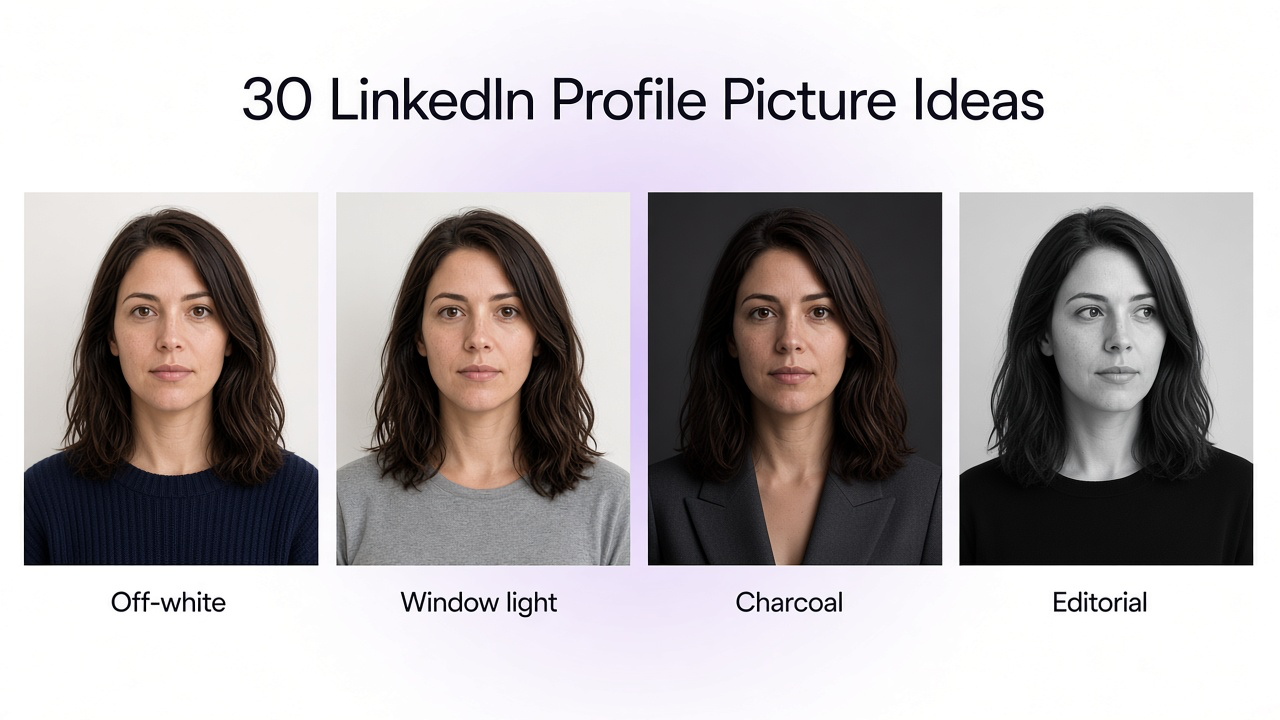
Your LinkedIn profile picture is one of the first visual signals people see when they visit your profile, read your comment, receive your connection request, or find you in search results.
The image does not need to look expensive or overly formal. It needs to look clear, current, credible, and appropriate for your professional field.
A strong LinkedIn photo helps people recognize you quickly. The face should remain visible at small size, the background should not compete for attention, and the overall styling should match the way you want to present yourself professionally.
This guide explains how to choose or create a LinkedIn profile picture, including lighting, crop, attire, expression, background, phone photography, AI headshots, identity preservation, editing, and final quality checks.
What Makes a Good LinkedIn Profile Picture?
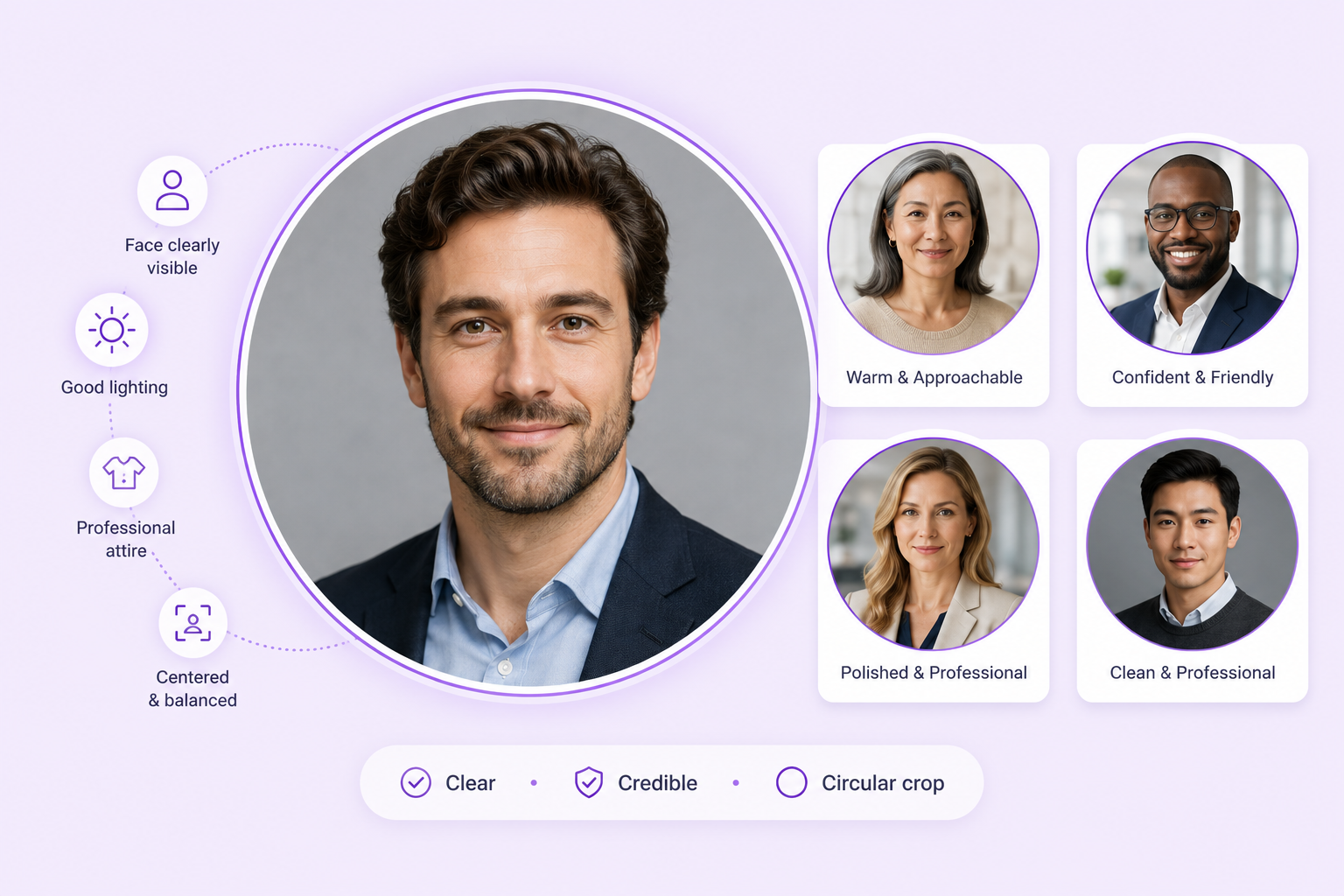
A good LinkedIn profile picture is simple and intentional. It shows the face clearly, uses flattering but realistic lighting, keeps the background controlled, and presents the subject in a way that fits their role.
The photo should look like the same person someone would expect to meet in a video call, interview, conference, or workplace.
The best profile images usually avoid extreme filters, dramatic poses, distracting locations, heavy retouching, and crops that make the face difficult to recognize.
Use a Current and Recognizable Photo
Choose a recent image that reflects your current appearance. Major changes in hairstyle, facial hair, glasses, or age can make an outdated photo feel misleading.
A recognizable photo builds trust. Recruiters, clients, colleagues, and event contacts should be able to connect the profile image with the person they meet.
Avoid stylized avatars, old graduation photos, extreme beauty filters, or AI portraits that change facial identity.
How Much of Your Body Should Be Visible?
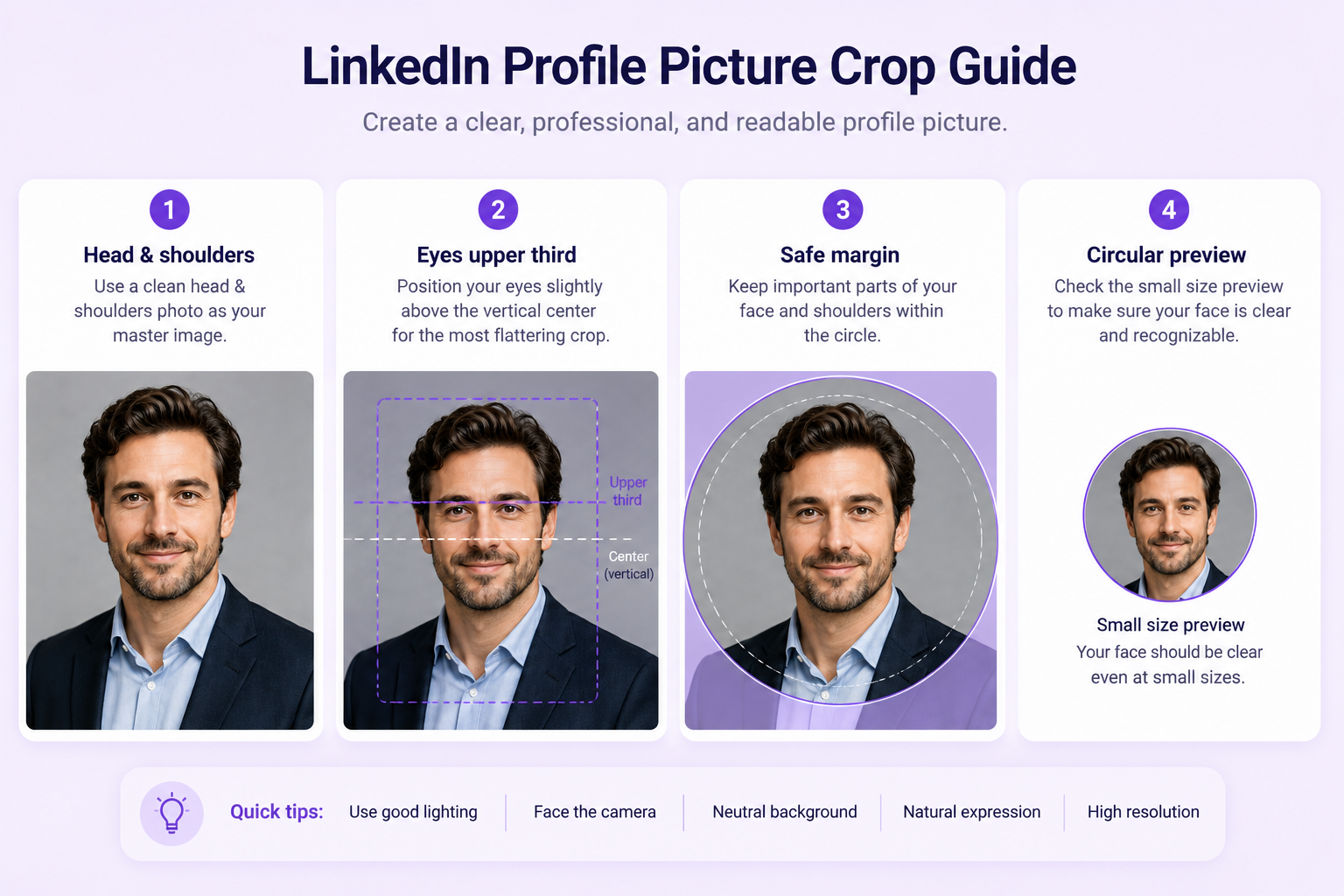
A head-and-shoulders or chest-up crop works well for most LinkedIn profiles. The face should occupy enough of the frame to remain clear inside a small circular crop.
Full-body photos usually make the face too small. Extremely tight face-only crops can feel uncomfortable and leave no flexibility for different platform layouts.
Keep some space above the head and around the shoulders. This gives you room to adjust the crop without cutting into the hair or face.
Best LinkedIn Profile Picture Crop
- LinkedIn displays profile pictures in a circular frame, so important details should remain away from the corners.
- Place the eyes slightly above the vertical center of the image. Keep the head centered or only slightly off-center.
- Before publishing, preview the photo as a small circle. Hair, glasses, ears, shoulders, and clothing should remain visible without feeling cramped.
Best Expression for LinkedIn
A relaxed neutral expression or natural smile works well for most professionals. The ideal expression depends on your role and personal brand.
A broad smile may feel approachable for sales, recruiting, hospitality, education, or customer-facing work. A smaller confident smile may fit consulting, engineering, finance, law, design, or executive profiles.
Avoid exaggerated expressions, forced smiles, or heavily posed looks. The expression should feel believable and comfortable.
Look at the Camera
Direct eye contact usually creates the clearest and most confident profile image. Looking far away from the camera can feel less direct at small size.
Slightly turning the shoulders while keeping the eyes toward the camera can create a natural and professional pose.
Best Lighting for a LinkedIn Profile Picture
- Soft, even lighting is the safest choice. It keeps the face clear without producing harsh shadows, overexposed skin, or dramatic contrast.
- A large window can provide excellent light. Stand facing the window or turn slightly so the light comes from one side.
- Avoid direct overhead ceiling light, bright sunlight at midday, strong colored light, and light coming only from behind the subject.
Use Window Light
Stand near a large window and turn off mixed indoor lighting. A sheer curtain can soften direct sunlight.
Keep the window slightly above eye level when possible. This creates natural facial modeling and visible catchlights in the eyes.
Avoid Strong Backlighting
A bright window behind the subject can make the face too dark or create a washed-out background.
If the location cannot be changed, use fill light or adjust the camera exposure carefully so the face remains visible.
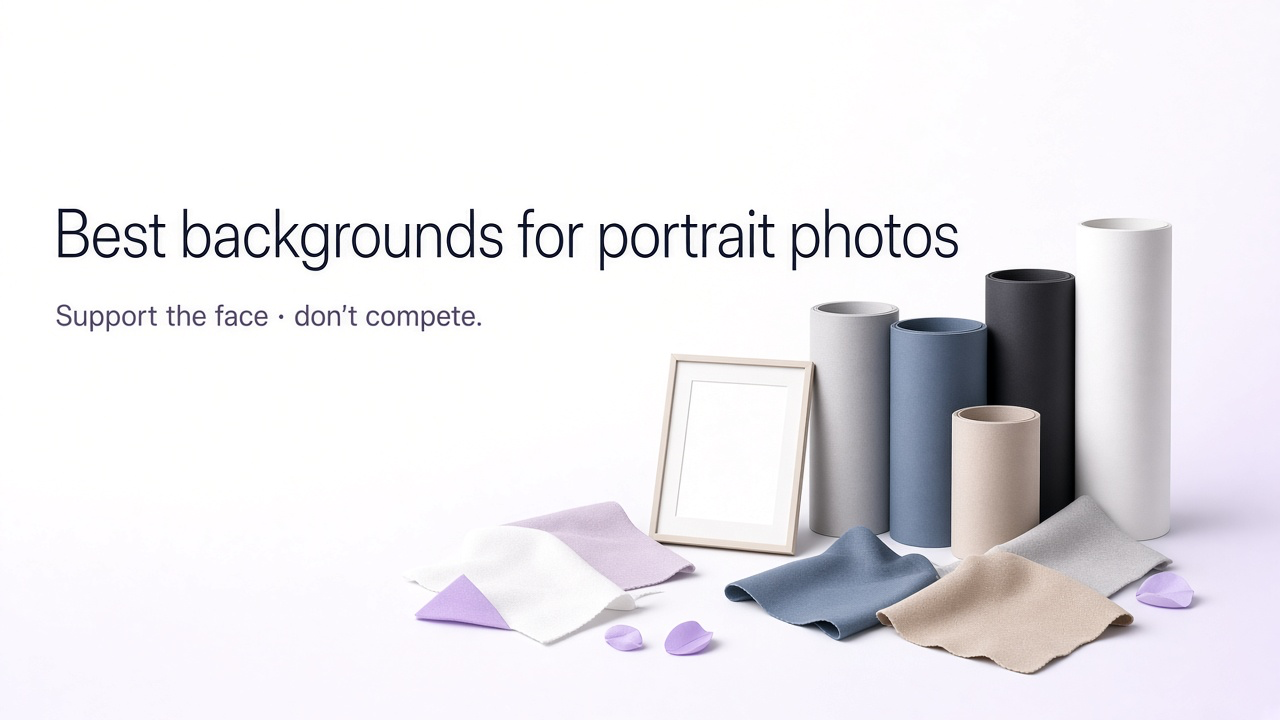
Best Backgrounds for LinkedIn Profile Pictures
The background should support the portrait rather than explain your entire career. Simple backgrounds are usually more effective at small size.
Neutral Gray
Gray is versatile and works for corporate, technical, financial, legal, consulting, and general professional profiles.
Warm Beige or Cream
Warm neutrals feel softer and more approachable. They suit founders, coaches, consultants, creatives, and personal brands.
Softly Blurred Office
An office background adds professional context while keeping the face dominant. Avoid visible clutter, screens, cables, and distracting people.
Bright Architectural Interior
A modern interior can work for real estate, architecture, technology, design, and business professionals.
Outdoor Urban Background
A softly blurred street, building, or campus can feel natural and contemporary when the lighting matches the subject.
Dark backgrounds can create a premium or executive look. Use enough edge light to separate dark hair and clothing.
What Backgrounds Should You Avoid?
- Avoid messy bedrooms, cars, crowded restaurants, visible laundry, party environments, strong patterns, distracting signage, and unrelated household objects.
- A visible workplace can be appropriate, but it should look controlled and intentional.
- When replacing the background with AI, check perspective, light direction, depth of field, and edge quality around the hair and shoulders.
What to Wear for a LinkedIn Profile Picture
Choose clothing that matches the expectations of your field without making the image feel like a costume.
Business casual is suitable for many industries. A blazer, structured shirt, blouse, knit top, or simple solid-colored outfit can look professional without being overly formal.
A suit may be appropriate for finance, law, executive leadership, consulting, or formal corporate environments. Creative and technical professionals may prefer simpler or more relaxed clothing.
Use Solid and Controlled Colors
- Solid colors usually work better than small stripes, complex checks, reflective fabrics, or large logos.
- Navy, charcoal, black, cream, white, muted blue, olive, burgundy, and soft earth tones are reliable options.
- Create contrast with the background. Dark clothing may disappear against charcoal, while a white shirt may lose definition against pure white.
How to Take a LinkedIn Profile Picture with a Phone
Use the Rear Camera
The main rear camera usually provides better image quality than the front-facing camera.
Clean the Lens
A fingerprint on the lens can reduce contrast and create haze.
Move the Phone Farther Away
Very close selfies can distort the nose and face shape. Use a timer, tripod, shelf, or another person to take the photo from farther away.
Keep the Camera Near Eye Level
A camera placed too low can look unflattering, while an extreme high angle can feel like a casual selfie.
Use Portrait Mode Carefully
Portrait mode can create useful background blur, but inspect hair, glasses, ears, and shoulders for artificial cutout errors.
Take Several Variations
Capture different small expressions, shoulder angles, and crops without changing the lighting setup.
How to Create a LinkedIn Headshot with AI
AI can transform a clear selfie into a more polished professional portrait by improving the background, lighting, crop, and clothing presentation.
The safest workflow begins with a sharp, evenly lit selfie and makes controlled changes. The AI should preserve the same face, skin tone, hairstyle, age, and expression.
Choose a style that fits your role: neutral studio, business casual, modern office, founder, executive, creative professional, healthcare, or real estate.
LinkedIn AI Headshot Prompt
How to Preserve Facial Identity
Identity preservation is essential when using AI. The result should not look like a more generic or conventionally attractive version of the subject.
Compare the AI image with the original. Check the eyes, nose, lips, jaw, cheek structure, skin tone, age, hairstyle, hairline, and expression.
Avoid requesting background, clothing, hairstyle, makeup, pose, expression, age, and facial changes all at once. The more elements the AI changes, the greater the chance of identity drift.
How Much Retouching Is Appropriate?
Light professional retouching can remove temporary distractions such as small blemishes, flyaway hairs, uneven lighting, or minor clothing wrinkles.
Retouching should not remove natural skin texture, change face shape, whiten the skin or teeth excessively, enlarge the eyes, or reshape the nose and lips.
A credible profile picture looks polished without appearing synthetic.
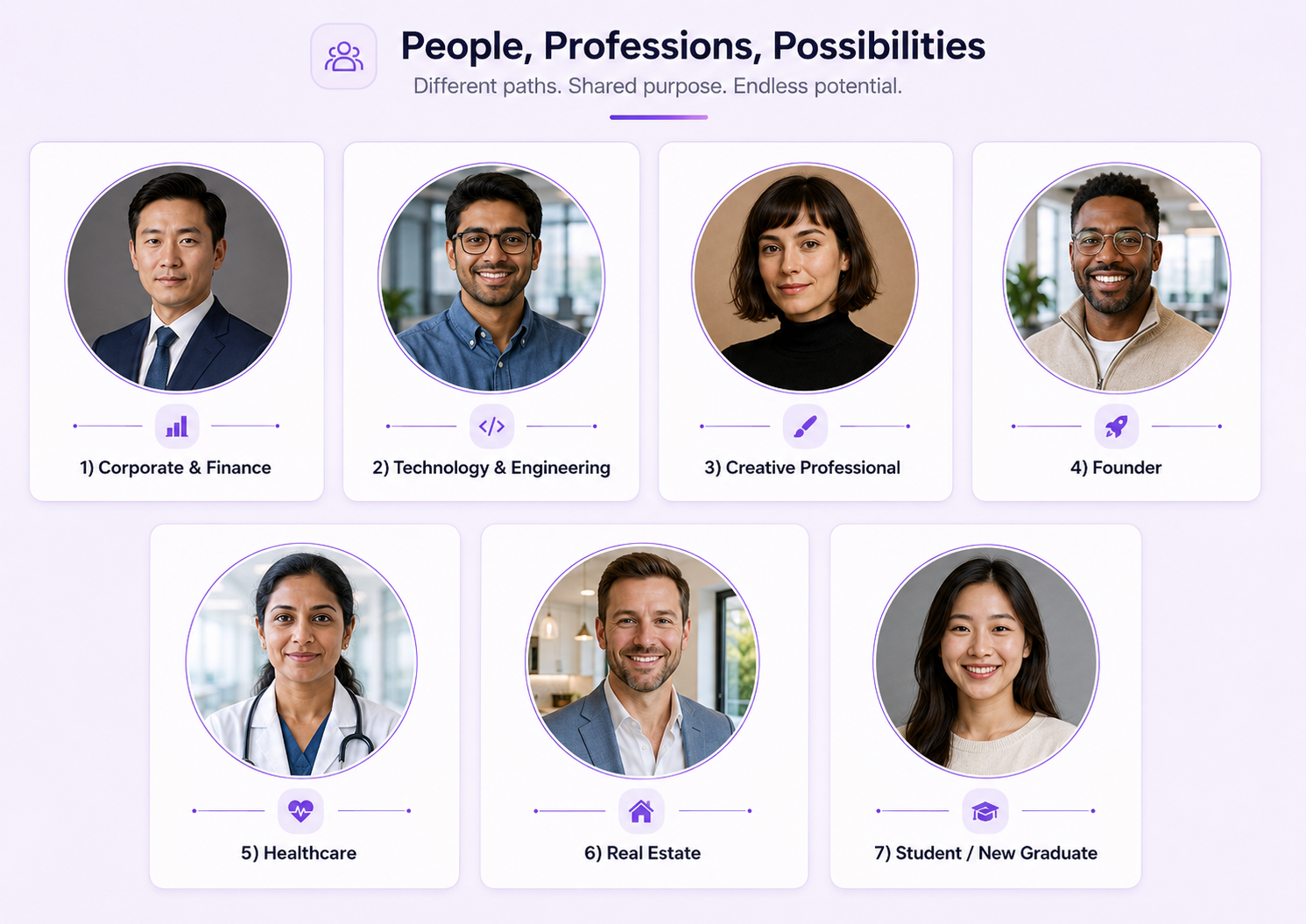
LinkedIn Profile Picture Ideas by Profession
Corporate and Finance
Use a neutral studio or office, structured clothing, controlled lighting, and a confident expression.
Technology and Engineering
Use a clean modern background, business-casual clothing, and a direct but approachable expression.
Creative Professionals
Use warmer neutrals, subtle editorial lighting, and slightly more personality while keeping the face clear.
Founders and Entrepreneurs
Use an approachable business-casual look, bright modern interior, and confident direct eye contact.
Healthcare
Use clean bright lighting, neutral backgrounds, and professional clothing or role-appropriate attire.
Real Estate
Use a bright architectural or softly blurred property-related background with polished but approachable styling.
Students and New Graduates
Use a simple neutral background, clean clothing, and a natural expression. A formal suit is not always necessary.
Common LinkedIn Profile Picture Mistakes
Using a Group Photo
Cropping yourself from a group image may leave partial people, awkward shoulders, or poor image quality.
Using a Full-Body Photo
The face becomes too small to recognize inside a profile thumbnail.
Using a Heavily Filtered Selfie
Strong filters can alter facial identity, skin texture, age, and color.
Choosing a Distracting Background
Clutter, signs, other people, and bright objects compete with the face.
Cropping Too Tightly
A tight crop can cut into the hair and leave no flexibility for a circular frame.
Using an Outdated Photo
A profile picture that no longer resembles your current appearance reduces trust.
Over-Retouching
Excessive smoothing, reshaping, whitening, and sharpening can make the image look artificial.
Using an AI Image That Does Not Look Like You
A polished image is not useful if colleagues, recruiters, or clients cannot recognize the person.
How to Review Your LinkedIn Profile Picture
- First, view the image at normal size. Check whether the lighting, background, clothing, and expression feel professional and natural.
- Then view it as a small circular thumbnail. The face should remain clear, and no important details should be cut off.
- Compare the image with your current appearance. Ask whether a new contact would recognize you in person.
- Finally, inspect hair edges, glasses, teeth, ears, skin texture, clothing, and background details for editing or AI errors.
LinkedIn Profile Picture Checklist
- Use a recent, high-resolution photo with the face clearly visible.
- Choose soft lighting, a simple background, appropriate clothing, and a natural expression.
- Use a head-and-shoulders or chest-up crop with enough space for a circular profile frame.
- Preserve facial identity and avoid excessive filters or retouching.
- Check the image at both full size and small thumbnail size before publishing.
Final Recommendation
The best LinkedIn profile picture is clear, current, recognizable, and appropriate for your professional field.
Start with a strong source photo, use soft lighting, choose a simple background, crop for a circular frame, and keep the styling realistic.
GenImagePro provides a template-first professional portrait workflow. Upload a selfie, choose a LinkedIn or headshot style, and create polished profile-picture variations while keeping your identity recognizable.
FAQ
What makes a good LinkedIn profile picture?
A good LinkedIn picture is current, recognizable, well lit, professionally appropriate, and clearly visible inside a small circular crop.
Should I smile in my LinkedIn photo?
A natural smile or relaxed confident expression works well. Choose an expression that fits your role and personal brand.
What background is best for LinkedIn?
Neutral gray, cream, softly blurred office, bright architectural, subtle outdoor, and dark executive backgrounds can all work.
Can I use a selfie for LinkedIn?
Yes, if the image is sharp, evenly lit, naturally proportioned, and cropped professionally. A timer or tripod often produces better results than a close handheld selfie.
What should I wear for a LinkedIn profile picture?
Wear solid, role-appropriate clothing with enough contrast against the background. Business casual is suitable for many professions.
Can I use an AI-generated headshot on LinkedIn?
Yes, provided the result accurately represents you, preserves your identity, and does not mislead viewers about your appearance.
Why does my LinkedIn photo look unprofessional?
Common causes include poor lighting, distracting backgrounds, casual framing, outdated appearance, excessive filters, tight cropping, and low image quality.
Does GenImagePro require a LinkedIn headshot prompt?
Not always. GenImagePro provides ready-made professional portrait templates, allowing users to upload a selfie and choose a LinkedIn-friendly style.