
How to use GenImagePro in Claude
Add GenImagePro as a custom connector and ask Claude for product photos, fashion model shots, edits, templates and short videos, with your own GenImagePro account and credits. It takes about two minutes.
The GenImagePro server URL. You paste it once when you connect.
Set it up in five steps.
You need a Claude account and a GenImagePro account. Creating images and videos uses your GenImagePro credits.
- STEP 01
Open Connectors
On claude.ai or in Claude Desktop, open Customize and choose Connectors, then select Add custom connector.
In some versions Connectors sits under Settings. On Team or Enterprise only an Owner can add custom connectors; see team setup below.
- STEP 02
Paste the GenImagePro server URL
- Name: GenImagePro
- Remote MCP server URL: the URL below
- If it asks about the OAuth client, keep Use Claude's published identity. Leave client ID and secret empty.
Select Add.
- STEP 03
Approve access on GenImagePro
Select Connect next to GenImagePro. A GenImagePro page opens: sign in with Google or email, check the list of what Claude will be able to do, and select Allow. You go straight back to Claude.
No GenImagePro account yet? You can create one on the same page.
- STEP 04
Turn GenImagePro on in a chat
In a new chat, open the tools menu (+), choose Connectors and make sure GenImagePro is switched on. You can switch it off in chats where you don't need it.
- STEP 05
Ask for an image
Describe what you want. Mentioning GenImagePro the first time helps Claude pick it. Claude asks before it creates anything: select Allow once or Always allow.
- To work on your own photo, paste a public link to it in your message.
- Most images are ready in under a minute.
- Every result is saved to your GenImagePro library.
Claude Code: GenImagePro from your terminal.
Useful for product, marketing and app-store images while you build. It works with image files in your project.
- Add the server:
- In Claude Code run /mcp, select genimagepro and choose Authenticate. Your browser opens the GenImagePro page; sign in and select Allow.
- Ask for what you need and point to a file: “Use GenImagePro to make a white-background product image from ./photos/bag.jpg and save the result link in README.md.”
Claude Code uploads local PNG, JPEG and WebP files to your GenImagePro account for you. A public image link works too.
Cursor, VS Code and other MCP clients.
GenImagePro is a standard remote MCP server (Streamable HTTP with OAuth sign-in). In any client that supports remote servers, add the URL below and sign in when the client opens the GenImagePro page.
Team and Enterprise: add it for your organization.
- An Owner opens Organization settings, then Connectors, and adds a Custom connector.
- Paste https://mcp.genimagepro.com/mcp and select Add. GenImagePro now appears for members with a Custom label.
- Each member opens Connectors, finds GenImagePro and selects Connect to sign in with their own GenImagePro account.
Credits belong to each GenImagePro account, so each person spends their own balance.
What to ask Claude for.
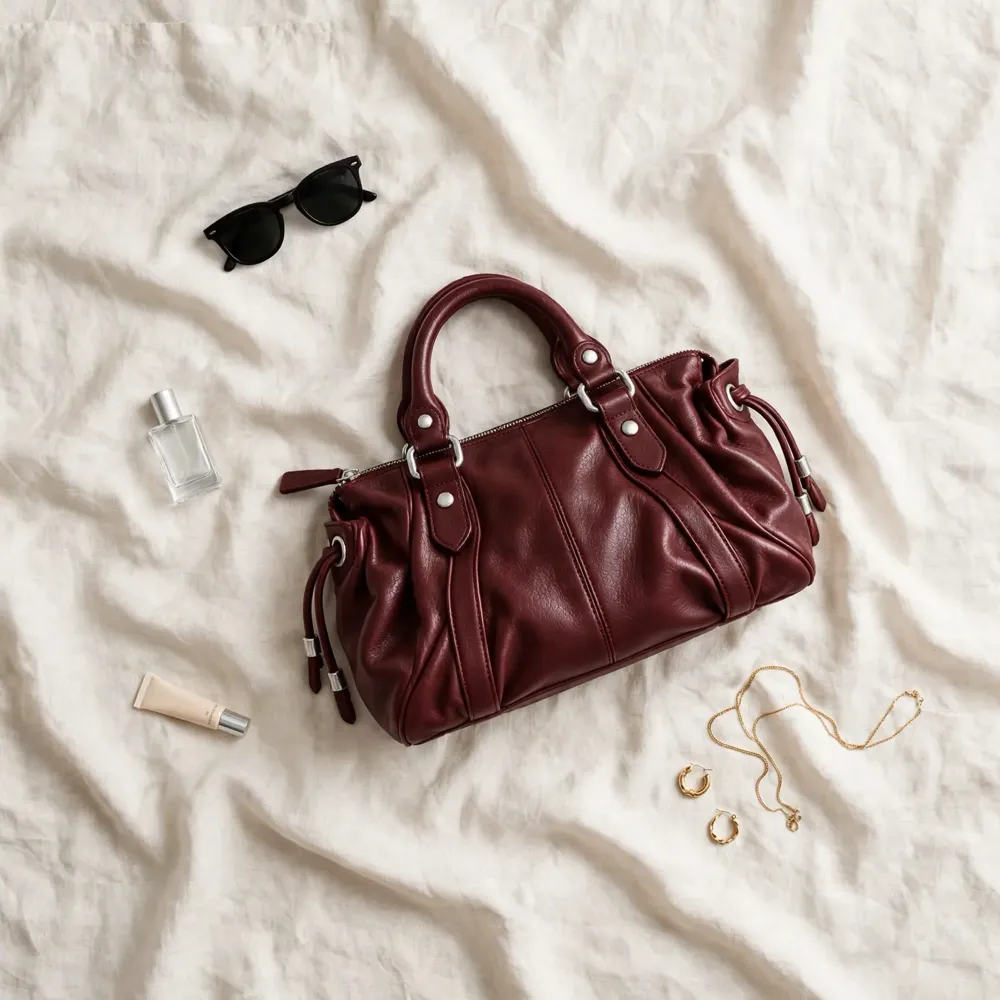
Real GenImagePro results. On the left is the photo you give the assistant, on the right is what comes back.
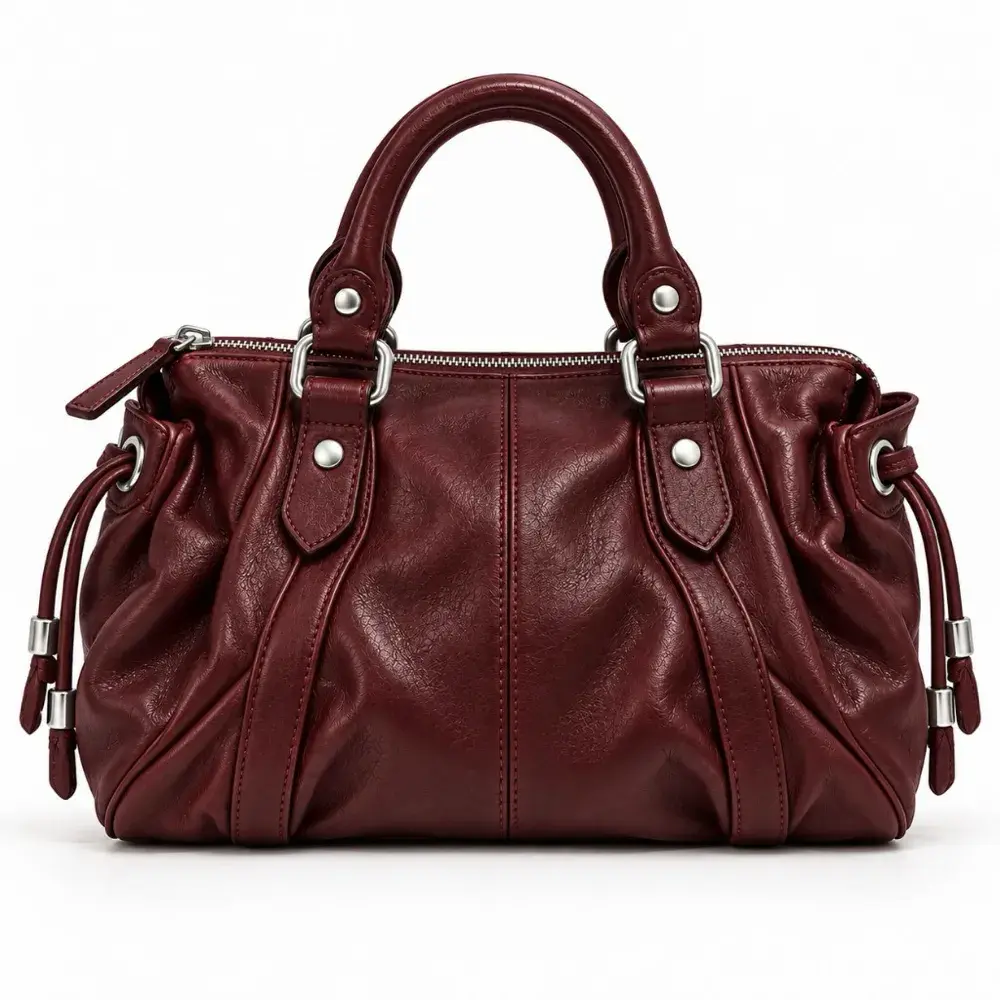 You send
 You get
“Make a lifestyle flat lay of this bag on linen, soft daylight.”
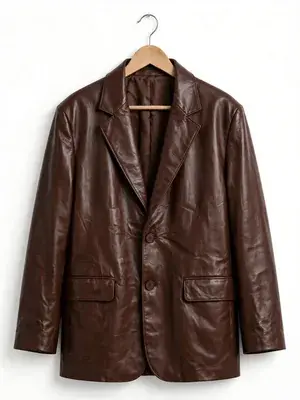 You send
 You get
“Show this blazer on a female model, warm studio light.”
 You send
 You get
“Translate the text in this banner into Japanese.”
Prompts to try in Claude
Copy one into a chat after you connect. Mentioning GenImagePro the first time helps the assistant choose it.
If something doesn't work.
- Couldn't connect: check the URL is exactly https://mcp.genimagepro.com/mcp, with /mcp at the end, then remove the connector and add it again.
- Claude doesn't use GenImagePro: switch it on in the chat's Connectors menu and start your message with “Use GenImagePro to…”.
- “Image could not be downloaded”: the link has to be public and point straight at a PNG, JPEG or WebP file under 15 MB. A link to a web page or a private drive won't work.
- Free plan says you've reached the limit: remove another custom connector first.
- Not enough credits: ask “how many GenImagePro credits do I have?” to see your balance.
- Session expired: disconnect GenImagePro in Connectors and connect again. You can also review access under Connected apps in GenImagePro.
Every tool the assistant can use.
16 tools. The ones marked Create make something and use credits (uploading doesn't). The ones marked Read only look things up.
create_imageCreateMake an image from a description, or edit a photo in plain words. Also removes backgrounds, upscales, enhances, resizes and crops.product_studioCreateTurn one product photo into a product shot with your choice of style, background, camera angle, framing and color, or a ready-made look such as Amazon listing images.fashion_modelCreateShow a garment on an AI model, on your own model photo, or on the person already wearing it. One image or a set of up to five.apply_templateCreateApply one of hundreds of ready-made templates to a photo: interior staging, headshots, makeup, jewelry, food, cars, pets and film effects.create_videoCreateAnimate an image into a short clip (4, 6 or 8 seconds, vertical or wide), from an upload or a previous result.translate_imageCreateTranslate the text inside ads, packaging, banners and menus into other languages and keep the layout.generate_with_styleCreateCreate an image in one of your own trained styles.train_styleCreateTrain a new style from your reference images.upload_imageCreatePrepare an upload for a local image file, for assistants that work in a terminal such as Claude Code. Uses no credits.list_templatesReadSearch the template catalog by what you want to make.list_studio_optionsReadThe styles, backgrounds, angles, scenes, poses and model presets that Product Studio and Fashion Model accept.list_video_presetsReadMotion presets for image to video.list_stylesReadYour trained styles and the featured shared ones.list_historyReadYour recent creations with status and links.get_generationReadStatus and result of one creation.get_account_usageReadYour plan and remaining credits.
You stay in control.
- You approve access on a GenImagePro page. The assistant never sees your password.
- It can only do what the consent page lists: browse templates and options, see and create your images and videos, and read your plan and credits.
- It can't change your plan, payment method or account details, and it never shows prices or purchase links.
- Every request runs through the same content checks as the GenImagePro app.
- Disconnect any time under Account → Connected apps. Access stops immediately.
- How data is handled is in section 5 of the Privacy Policy.
GenImagePro in Claude: questions
Which Claude plans can use GenImagePro?
Any plan that can add a custom connector. Free accounts can add one custom connector; Pro and Max can add more. On Team and Enterprise an Owner adds GenImagePro for the organization first, then each member connects their own GenImagePro account.
Does it work in the Claude desktop and mobile apps?
Yes. Connectors belong to your Claude account, so once you add GenImagePro on claude.ai it is available in Claude Desktop and the mobile apps as well.
I attached a photo in Claude. Why does GenImagePro ask for a link?
Claude can see a photo you attach, but it can't pass the file itself to a connector. Give Claude a public link to the image instead. In Claude Code you can point to a file on your computer and it uploads it for you.
The dialog asks how Claude should identify itself. What do I pick?
Keep the recommended "Use Claude's published identity". "Register automatically" works as well. You don't need your own client ID or secret.
Why does Claude ask for permission before creating an image?
Claude asks before a connector takes an action. Choose Allow once to approve a single request, or Always allow if you're happy for GenImagePro to create without asking.
What is GenImagePro Prompts, and how is it different?
GenImagePro Prompts is a separate free connector listed in Claude's directory. It only writes photo and video prompts as text and needs no account. The connector on this page is the full studio: it creates the images and videos in your GenImagePro account.
Is GenImagePro an official Claude or ChatGPT app?
GenImagePro is an independent AI photo studio. In ChatGPT it is in review for the plugin directory, and you can already add it yourself in Developer mode. In Claude you add it as a custom connector with the server URL on this page. Either way it connects only to your own GenImagePro account.
Does it cost extra to use GenImagePro inside Claude or ChatGPT?
No. Connecting is free. Images and videos use the credits on your GenImagePro account at the same rate as in the GenImagePro app. Your Claude or ChatGPT plan is billed separately by Anthropic or OpenAI as usual.
Do I need a GenImagePro account?
Yes. The first time you connect, a GenImagePro page opens where you sign in or create an account and approve access. The assistant never sees your password.
Where do my images go?
Into your GenImagePro library, exactly like images made in the app. The chat shows the result as well, with a link to the full-size file.
How long does an image take?
Most images are ready in under a minute. Videos and sets of several images take longer. You can keep chatting while they finish.
Can I use my own photos?
Yes. In ChatGPT, attach the photo to your message. In Claude, paste a public link to the image. In Claude Code, point to a file on your computer and it uploads it for you, or use a link. PNG, JPEG and WebP up to 15 MB.
What happens when I run out of credits?
The assistant tells you the account doesn't have enough credits for the request and nothing is created. You can check your balance any time by asking.
How do I disconnect?
Open Account, then Connected apps in GenImagePro and select Disconnect next to the assistant. Access stops immediately. You can also remove the connector in Claude or ChatGPT.
Only need the prompts?
GenImagePro Prompts is a free connector in Claude's directory that writes photo and video prompts. No account needed.
Use ChatGPT as well?
The ChatGPT setup takes about two minutes too, and you can attach photos directly.

Ready to create with Claude?
Create your GenImagePro account, connect it to Claude and describe your first image.