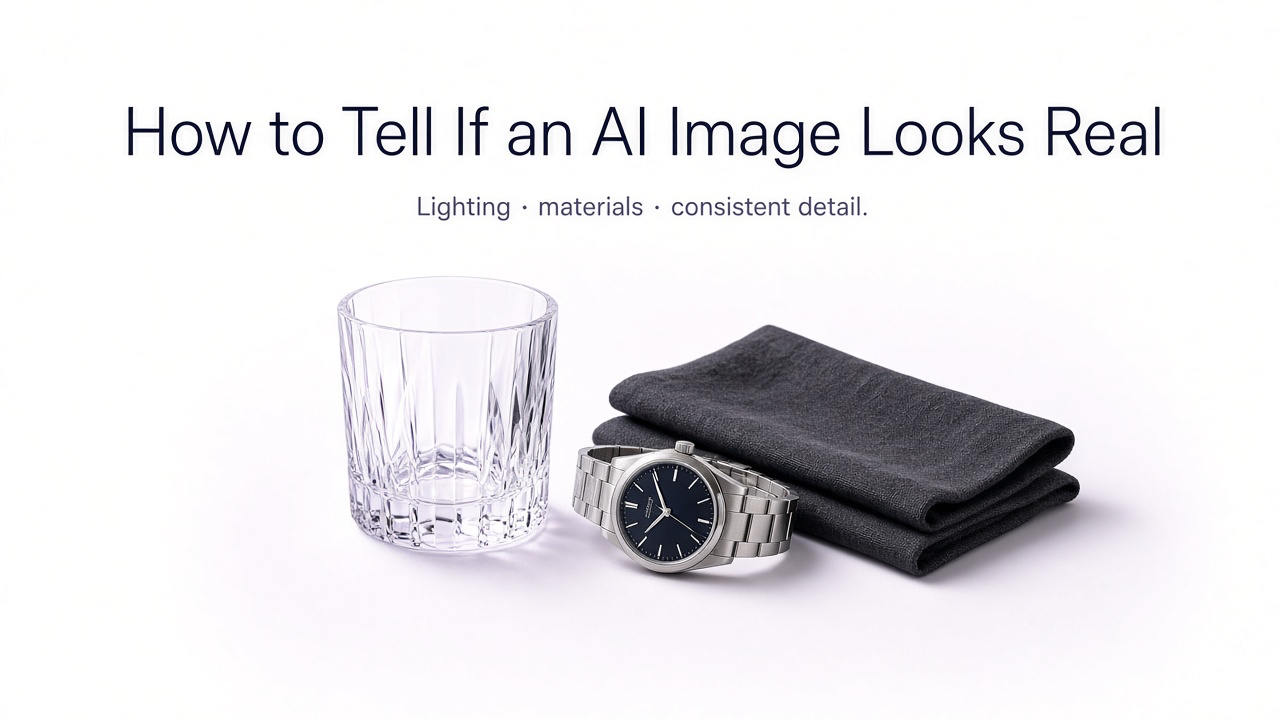
AI images have become much more convincing, which means the obvious mistakes are no longer always obvious. Extra fingers and distorted faces still happen, but many unrealistic images now fail in subtler ways: reflections do not match, shadows fall in conflicting directions, materials feel synthetic, small objects merge together, or the scene has a polished but strangely artificial texture.
A useful way to judge realism is to stop asking whether an image simply looks impressive and instead ask whether every part of it follows the same visual logic. If the lighting, geometry, anatomy, materials, depth, and fine detail all agree with one another, the image is much more likely to feel believable.
This also matters when you are creating images yourself. With GenImagePro, you can generate or edit an image, inspect the areas that feel artificial, and then refine those specific problems. You do not need to start over every time a hand, reflection, texture, background object, or piece of text looks wrong.
What Makes an AI Image Look Real?
Realism is usually the result of consistency. A believable image does not need to be perfectly sharp or technically flawless, but the different parts of the scene should agree about how the world works.
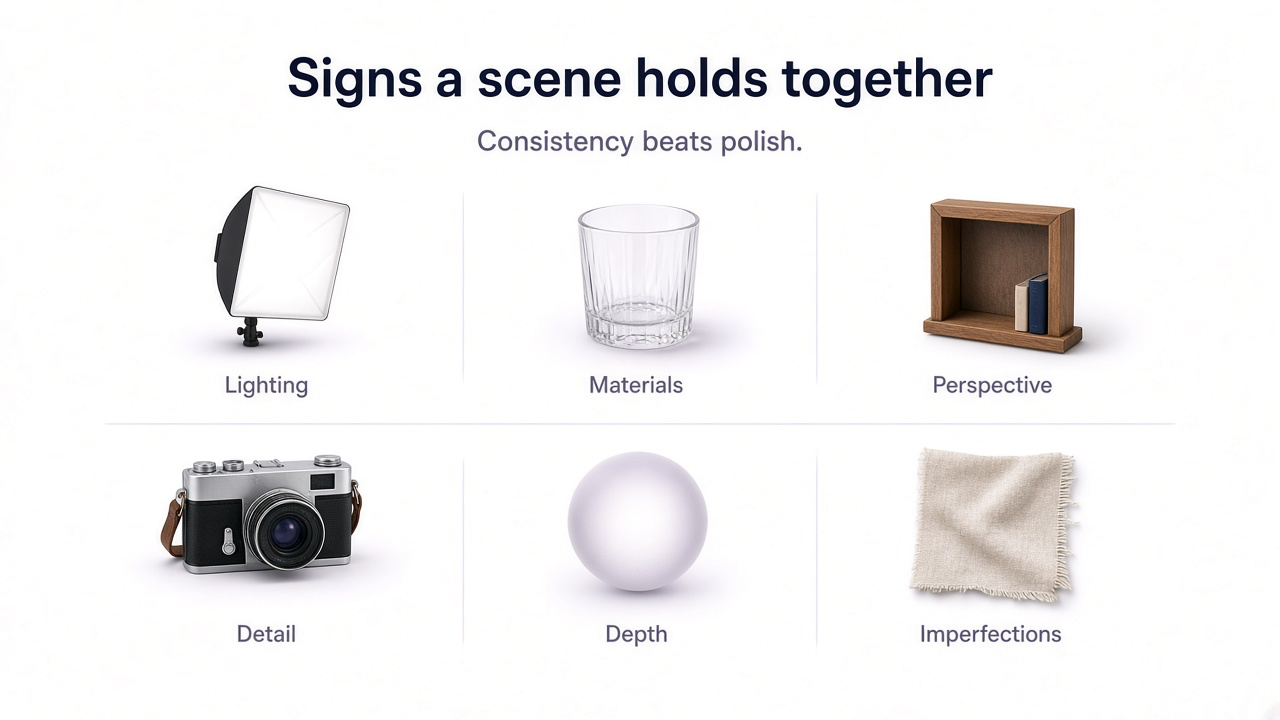
Signs an AI image looks realistic
Lighting comes from a believable direction.
Highlights and shadows should support the same light sources.
Materials behave correctly.
Glass should transmit and reflect light differently from plastic, metal, skin, fabric, or stone.
Objects have consistent perspective.
Edges, furniture, architecture, and repeated forms should follow the same spatial geometry.
Fine details remain coherent.
Hair, seams, jewelry, labels, fingers, utensils, and small background objects should remain structurally believable.
Depth of field feels photographic.
Blur should increase naturally with distance instead of appearing randomly painted onto parts of the scene.
The image contains natural imperfections.
Perfect symmetry, perfect surfaces, and uniformly polished texture can make an image feel synthetic.
1. Check the Lighting
Lighting is one of the fastest ways to judge whether an image feels physically believable. Look at where the brightest highlights appear and compare them with the direction of the shadows.
If one object appears lit from the left while another nearby object casts a shadow suggesting light from the opposite direction, the scene may feel wrong even if you cannot immediately explain why.
Lighting problems to look for
- Conflicting shadow directions
- Highlights with no obvious light source
- Faces lit differently from the surrounding scene
- Objects glowing unnaturally at the edges
- Shadows that are too dark, too sharp, or missing entirely
2. Inspect Shadows
Shadows should follow the shape and position of the object creating them. They should also respond to distance: an object sitting directly on a surface usually creates a tighter contact shadow than something floating farther away.
3. Look Closely at Hands and Anatomy
Hands remain useful places to inspect because they combine many small joints, overlapping shapes, fingernails, skin folds, and complex poses. Modern AI can generate convincing hands, but small anatomical errors still appear.
Common anatomy problems
- Fingers merging together
- Incorrect finger lengths
- Strange wrist transitions
- Missing or duplicated fingernails
- Jewelry blending into fingers or skin
- Objects being held in physically awkward ways
4. Check Eyes, Teeth, Hair, and Facial Details
A face can appear realistic at first glance but still contain subtle inconsistencies. Eyes may reflect different environments, teeth may blend together, earrings may differ between sides, or hair may disappear into clothing and background elements.
The strongest realistic portraits usually keep these small details coherent rather than simply making the skin extremely smooth or the eyes unusually sharp.
5. Read Any Text in the Image
Text is another useful test. AI image models have improved significantly at generating typography, but packaging, signs, labels, menus, book covers, and distant text can still contain malformed letters, inconsistent spacing, or words that look correct until you actually read them.
6. Inspect Reflections
Reflections are difficult because they must match both the object and the environment around it. Mirrors, windows, glossy packaging, jewelry, polished metal, glass, water, and screens are useful places to inspect.
Reflection mistakes that can reveal AI
- A reflected object is missing
- A reflection shows a different shape from the real object
- A mirror contains objects that do not exist in the scene
- Metal reflections do not match the surrounding environment
- Glass behaves like opaque plastic
7. Look at Materials and Texture
One of the biggest differences between mediocre and realistic AI imagery is material rendering. Real surfaces respond differently to light.
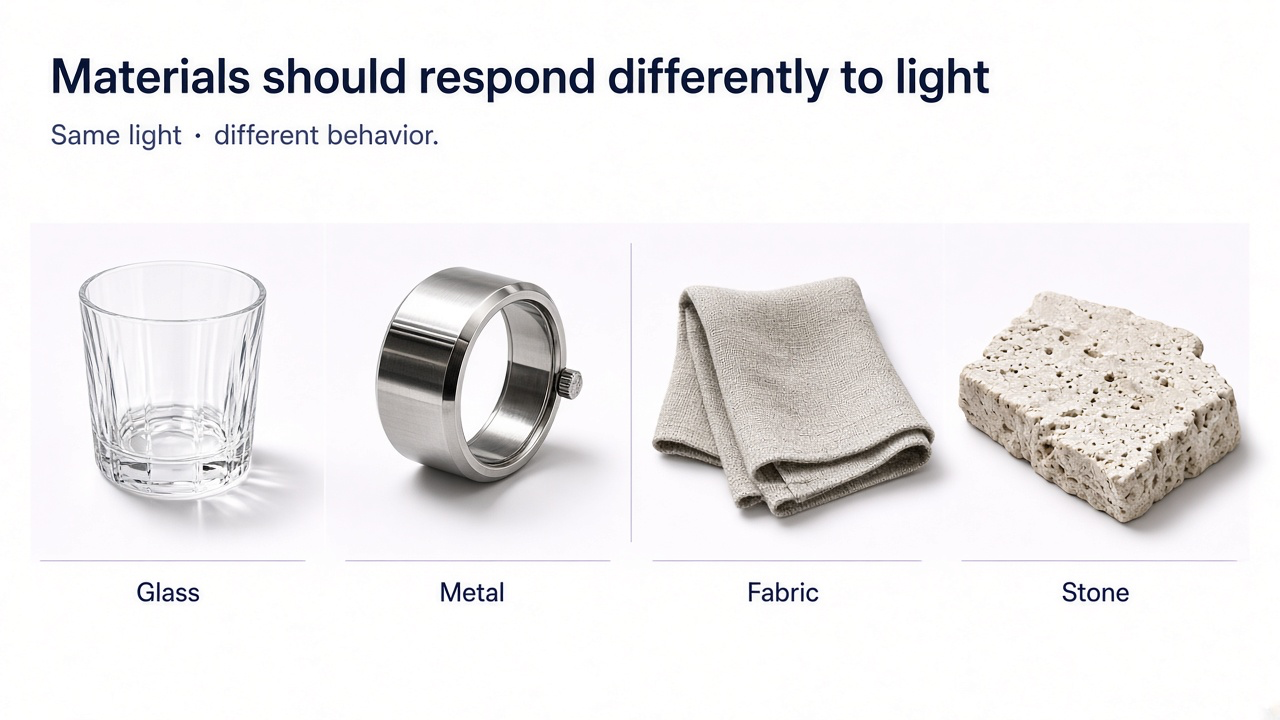
| Material | What to look for | Common AI problem |
|---|---|---|
| Glass | Transmission, reflections, thickness, distortion | Looks like transparent plastic |
| Metal | Environment-dependent reflections | Generic bright highlights with no real reflection |
| Fabric | Weave, folds, tension, seams | Texture melts or changes direction |
| Skin | Fine texture, subtle tonal variation | Plastic or wax-like surface |
| Stone | Irregular texture and realistic surface variation | Repeated or painted-looking patterns |
| Food | Moisture, crisp edges, believable ingredients | Melted structures or overly perfect surfaces |
If every surface shares the same polished sheen, the image often feels rendered rather than photographed.
8. Check Perspective and Geometry
Straight lines are especially revealing in interiors, architecture, product photography, tables, shelves, frames, and packaging. Objects occupying the same space should follow compatible vanishing points and scale.
Watch for shelves that narrow incorrectly, table legs pointing in different directions, windows with inconsistent angles, packaging that changes width from top to bottom, or objects whose scale does not make sense relative to the room.
9. Look at Small Background Objects
AI images often devote the most accuracy to the main subject. Small background details can receive less structural attention, which makes them useful places to inspect.
- Books with strange spines
- Furniture that merges into walls
- Plants with impossible leaves
- Cutlery or glasses with distorted shapes
- Repeated people or objects
- Handles, hinges, switches, or fixtures that do not connect correctly
10. Check Whether Everything Looks Too Perfect
Real photographs usually contain small imperfections: slightly uneven fabric, fingerprints, asymmetry, texture variation, dust, skin texture, small scratches, imperfect food placement, or minor background distractions.
An image where every surface is perfectly smooth, every object is perfectly centered, and every highlight feels deliberately placed can start to resemble a render rather than a photograph.
11. Check Depth of Field
Photographic blur generally follows distance from the plane of focus. AI-generated images sometimes blur individual objects selectively even when other objects at the same distance remain sharp.
Inspect edges where sharp and blurred regions meet. Artificial depth of field can create strange halos around hair, products, glasses, plants, or furniture.
12. Look for Repeated Patterns
Repeating structures can expose inconsistencies. Bricks, windows, tiles, fabric patterns, jewelry chains, keyboards, shelves, chair legs, and rows of objects should remain logically repeated.
When a pattern suddenly changes shape, disappears, merges, or becomes irregular for no physical reason, it can make an otherwise realistic image feel generated.
13. Check Product Accuracy in Ecommerce Images
For ecommerce, realism is not only about whether the image looks photographic. The product also needs to match what customers will actually receive.
Product realism checklist
Product shape matches the real item
Packaging dimensions remain consistent
Logo and label placement are correct
Product colors match reality
Materials look accurate
Hardware, stitching, caps, clasps, buttons, and closures are correct
No extra accessories or features have appeared
How to Make AI Images Look More Real with GenImagePro
If you generate an image and something feels artificial, you do not necessarily need to discard the entire result. GenImagePro can be used to refine the existing image and target the areas that break realism.
Upload the image or continue from your existing GenImagePro result, then describe what feels wrong. The platform is designed to use strong current image-generation and image-editing technology for the requested change, so you can focus on the visual problem rather than choosing a separate technical tool.
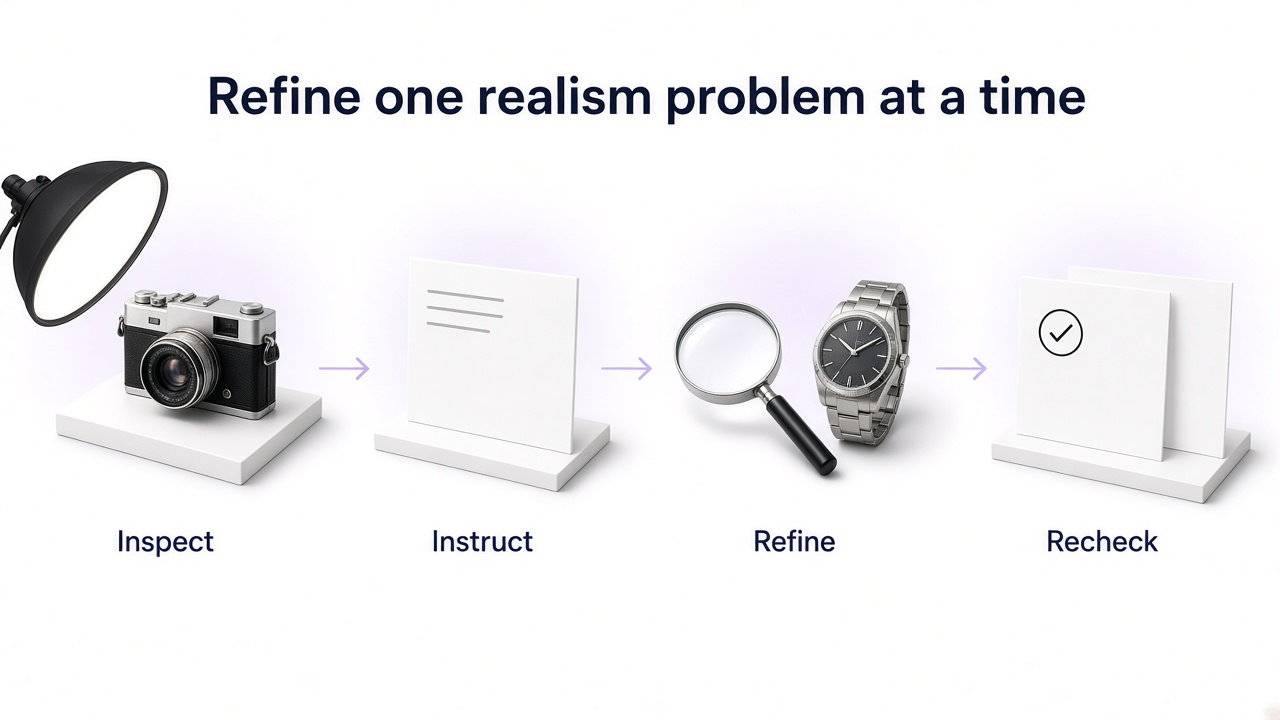
Improve realism in GenImagePro
Identify what feels artificial
Check lighting, hands, reflections, materials, text, geometry, background objects, and textures.
Describe the specific problem
For example: "make the glass reflections more physically realistic" or "fix the hand without changing the person's face."
Preserve what already works
Tell GenImagePro to keep the composition, subject, product, lighting direction, or identity unchanged where appropriate.
Refine one area at a time
Targeted edits often preserve more of the successful image than repeatedly regenerating the entire scene.
Inspect the result again
Zoom into the edited area and also check that the new change remains consistent with the rest of the scene.
Prompt to Make an AI Image Look More Real
How GenImagePro Helps Avoid the Generic AI Look
Many images look artificial not because of one obvious mistake, but because they share the same generic AI aesthetic: overly smooth surfaces, dramatic but unmotivated light, excessive bokeh, perfect symmetry, hyper-clean skin, exaggerated texture, and environments that feel designed rather than lived in.
In GenImagePro, you can use the real image or product as the starting point, choose a template or describe a specific photographic direction, and continue refining the same result. This makes it easier to preserve real-world details instead of repeatedly generating unrelated images from text alone.
Useful realism instructions in GenImagePro
- "Keep natural skin texture and facial asymmetry."
- "Use believable soft daylight and physically consistent shadows."
- "Make the materials behave accurately under the existing lighting."
- "Keep the product exactly the same and only improve the environment."
- "Use realistic depth of field rather than strong artificial background blur."
- "Add subtle real-world imperfections without making the image dirty."
- "Keep the scene photographic rather than rendered or overly polished."
Realistic AI Image vs Fake-Looking AI Image
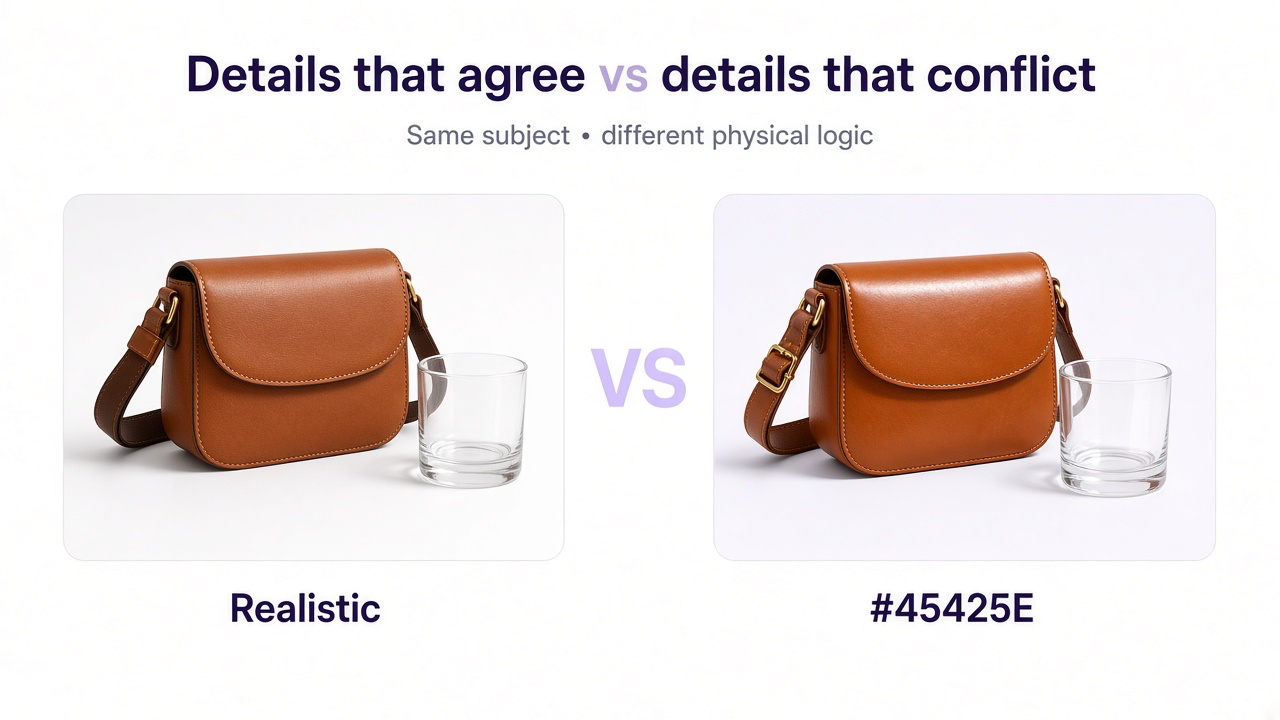
| Area | More realistic | More artificial |
|---|---|---|
| Lighting | Consistent source and shadows | Conflicting highlights and shadows |
| Skin | Natural texture and variation | Plastic, waxy, or over-smoothed |
| Materials | Respond accurately to light | All surfaces have similar glossy texture |
| Composition | Intentional but naturally imperfect | Overly symmetrical or staged |
| Background | Small objects remain coherent | Objects merge or lose structure |
| Depth | Blur follows camera optics | Random areas become blurry |
| Reflections | Match the scene | Show impossible or missing objects |
Use this as a quick review grid before you publish.
Can You Always Tell If an Image Was Made with AI?
No. Visual inspection is useful for spotting inconsistencies, but it is not a guaranteed way to determine how an image was produced. A well-generated AI image can look convincing, and a real photograph can contain unusual lighting, optical distortion, aggressive retouching, compression, or editing that makes it look artificial.
That means clues such as hands, text, reflections, or strange details should be treated as signals rather than absolute proof. The question "does this image look realistic?" is easier to answer visually than the question "was this image definitely generated by AI?"
How to Review Your Own AI Images Before Publishing
Final realism checklist
Zoom into faces and hands.
Read all visible text.
Check logos and product labels.
Compare shadow directions.
Inspect glass, mirrors, metal, and reflections.
Check repeated patterns and background objects.
Look for melted or merged edges.
Check perspective and object scale.
Make sure materials do not all share the same artificial texture.
Check whether the image has become excessively smooth or perfect.
For ecommerce, compare the product directly with the real source image.
Frequently Asked Questions
How can you tell if an AI image looks real?
Check whether lighting, shadows, reflections, anatomy, perspective, text, materials, depth of field, and small background details remain consistent. Realistic images usually follow the same physical rules across the entire scene.
What makes an AI image look fake?
Common problems include plastic skin, incorrect hands, malformed text, inconsistent reflections, strange shadows, warped geometry, repeated patterns, unrealistic materials, overly perfect composition, and background objects that lose structure.
Can you always tell whether an image was generated by AI?
No. Visual clues can suggest that an image may be AI-generated, but they are not definitive proof. Modern AI images can be highly convincing, while real photographs can also contain unusual artifacts or heavy editing.
Can GenImagePro make an AI image look more realistic?
Yes. You can use GenImagePro to generate an image or upload an existing result and refine specific areas such as lighting, shadows, materials, anatomy, reflections, depth, or background detail while preserving the parts that already work.
Do I need to regenerate the entire image if one part looks fake?
Not necessarily. In GenImagePro, you can give a more targeted editing instruction and ask for the problematic area to be corrected while preserving the rest of the image.
How do I make AI-generated product photography look realistic?
Start with the real product image whenever possible, preserve its exact design, and focus on believable lighting, scale, materials, contact shadows, reflections, depth, and environmental context. Check all commercial details before publishing.
Why do some AI images look too perfect?
Perfect symmetry, spotless surfaces, uniform texture, exaggerated lighting, and excessive sharpness can remove the subtle imperfections normally found in real photographs. Adding restrained natural variation can make a scene feel more believable.
What is the easiest way to improve realism in GenImagePro?
Upload the image, identify the specific feature that feels artificial, and tell GenImagePro what should be corrected while preserving everything that already looks right.