AI photo editing is most useful when you already have an image worth keeping but want to change something about it. Instead of generating an entirely new picture, the existing photo provides information about the person, product, composition, lighting, environment, or subject that should remain recognizable.
Modern generative editing can make very small changes—such as removing one distracting object—or much larger ones, such as turning a simple product photo into a lifestyle campaign image. The important part is telling the editor both what should change and what should remain unchanged.
With GenImagePro, you can upload a photo and request the edit directly. You can also start from ready-made templates for supported visual workflows. If you are new to prompt-based editing, see How to Edit Photos with AI for the basic workflow.
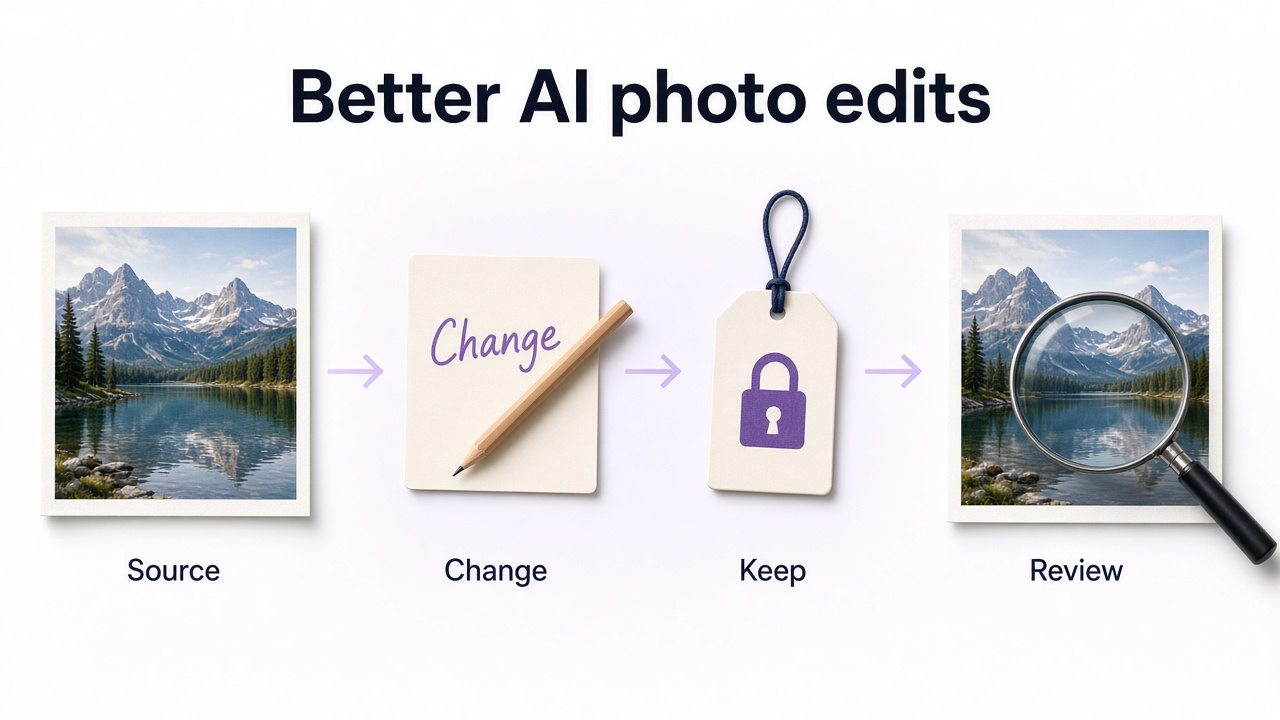
How to get better AI photo editing results
Upload the best source you have
Use the original photo rather than a screenshot or heavily compressed copy whenever possible.
Describe the change specifically
Say which object, region, background, color, lighting condition, or visual characteristic should change.
Say what should stay the same
Mention identity, pose, product design, composition, important text, colors, or other details that must be preserved.
Make one meaningful edit at a time when accuracy matters
Targeted edits are easier to review than changing the subject, environment, perspective, lighting, and styling all at once.
Inspect the result
Check faces, hands, text, product labels, patterns, reflections, edges, and other details where generative editing can introduce subtle changes.
25 AI photo editing ideas to try
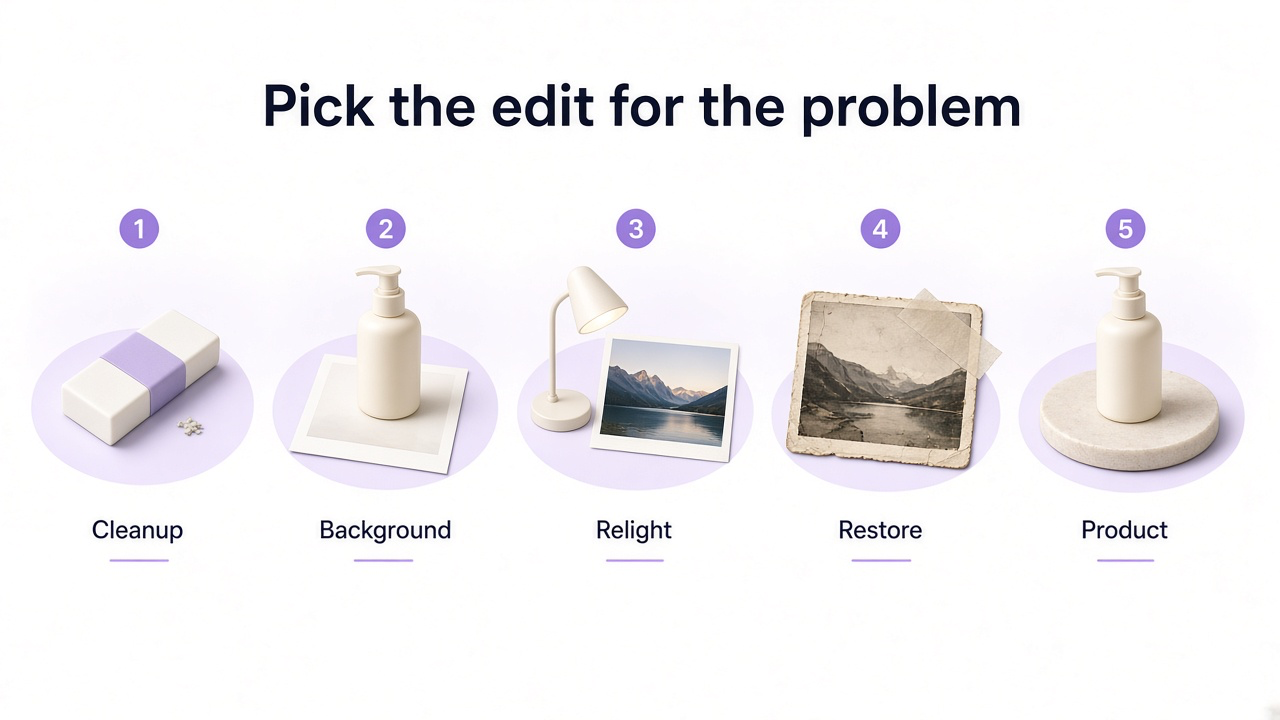
1. Remove an unwanted object
Remove trash cans, cables, signs, small objects, distracting furniture, or anything else that pulls attention away from the subject. AI can reconstruct the area behind the removed object using the surrounding scene.
2. Remove people from the background
A travel, street, event, or portrait photo can be strong except for strangers walking through the background. Generative removal can clean up the scene without cropping the photo more tightly.
3. Remove the background
Background removal is useful for ecommerce images, profile photos, design assets, collages, presentations, and any workflow where you need to isolate the subject.
4. Replace the background
Keep the subject you already like and move it into a more suitable environment. This can turn a casual portrait into a professional one, a simple product shot into a lifestyle image, or an ordinary photo into something more editorial.
5. Expand the photo beyond its original crop
Generative expansion, sometimes called outpainting, can extend a tightly cropped image into a wider or taller composition. It is useful when adapting an existing photo for banners, social formats, presentations, ads, or website layouts.
6. Turn a portrait crop into a wider composition
A close portrait may work for a profile picture but leave no room for a website header, presentation, or editorial layout. AI can reconstruct more of the surrounding scene while keeping the original portrait intact.
7. Relight the scene
Relighting changes how the existing scene is illuminated rather than replacing the scene itself. It can soften harsh lighting, add more directional light, make a flat product photo feel dimensional, or create a more deliberate portrait.
8. Change the time of day
A daytime exterior can become early morning, blue hour, evening, or another believable lighting condition without rebuilding the entire image.
9. Replace a dull sky
Sky replacement works best when the new sky matches the existing direction and quality of light. Simply inserting a dramatic sunset into a midday foreground usually looks artificial unless the rest of the scene is relit too.
10. Improve a dark or poorly exposed photo
Instead of applying one global brightness adjustment, AI editing can help recover a more balanced-looking image while preserving highlight and shadow detail.
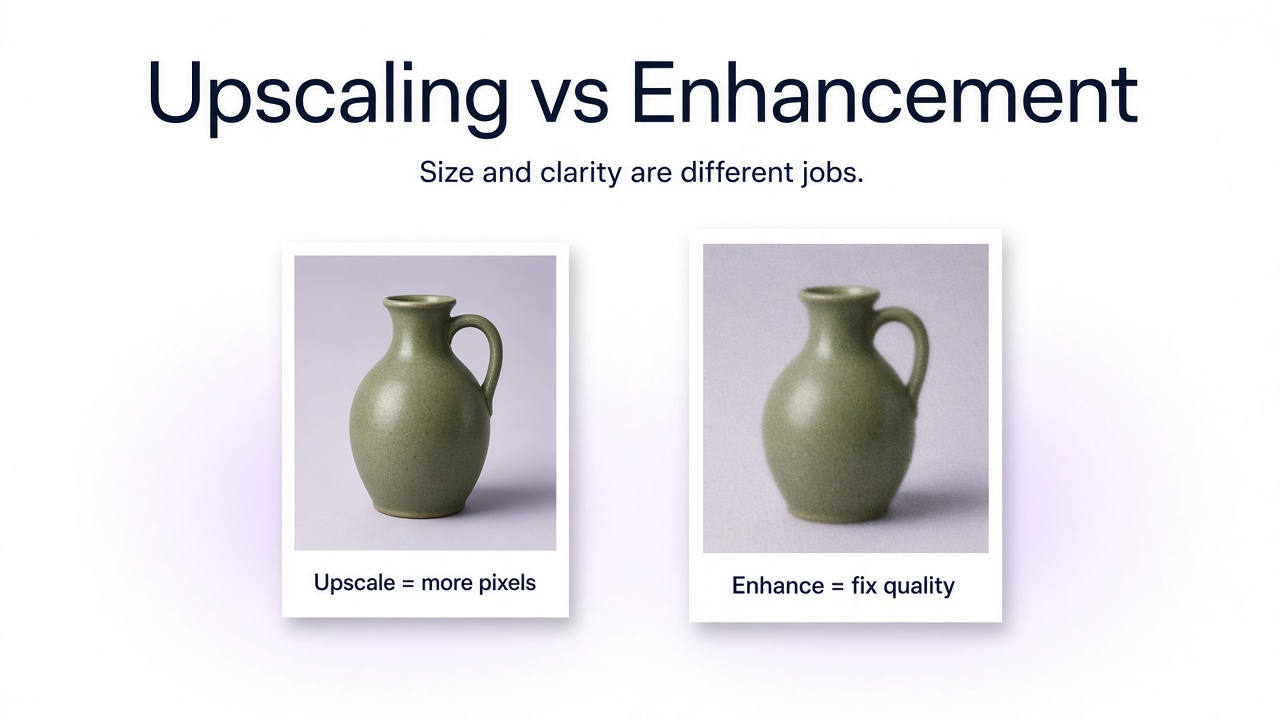
11. Increase resolution and clarity
Upscaling is useful when an otherwise good image is too small for a larger display, crop, ecommerce zoom, or print. AI-based enhancement can also reconstruct plausible edge and texture detail instead of only stretching the existing pixels.
For the technical difference between resizing and genuine resolution enhancement, see How to Increase Image Resolution.
12. Reduce noise and grain
Low-light and high-ISO images often contain colored speckles or coarse luminance noise. Denoising should reduce distracting noise without wiping out real texture.
13. Restore an old or damaged photo
AI restoration can help repair scratches, dust, creases, fading, missing patches, softness, and scan damage. The goal should be conservative restoration rather than turning an old photograph into a newly generated portrait.
See How to Restore Old Photos with AI for a more detailed restoration workflow.
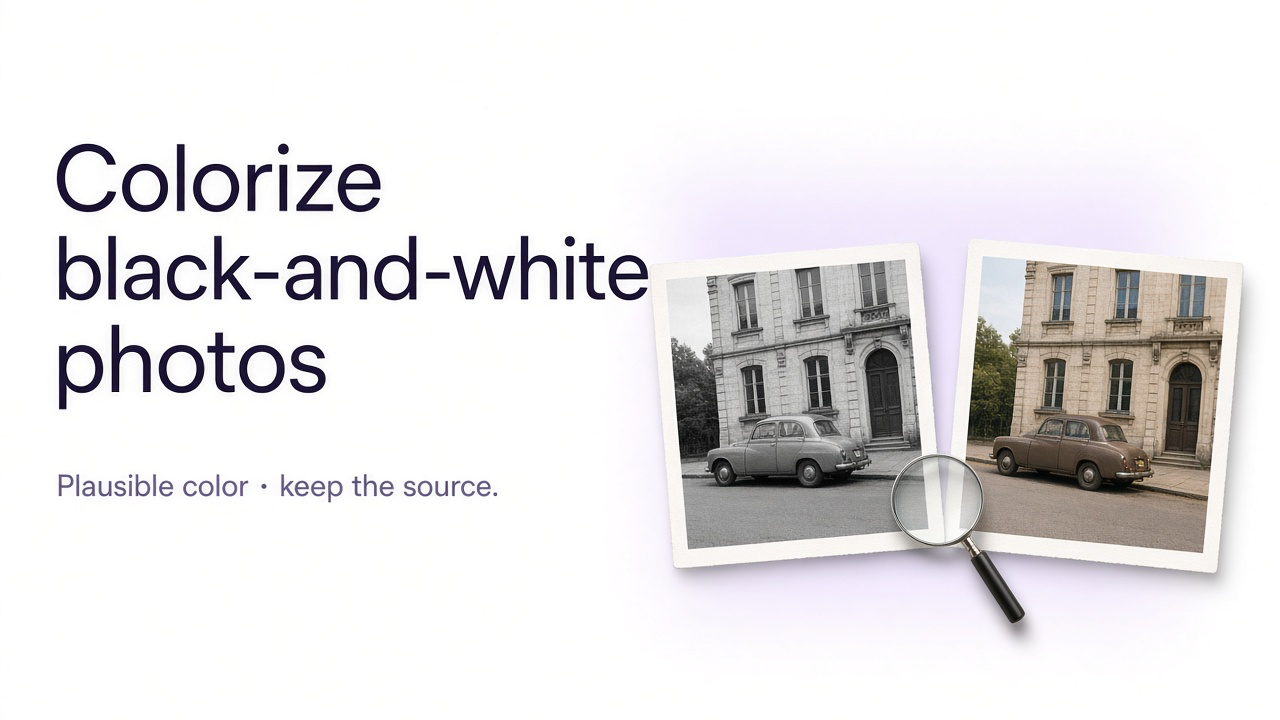
14. Colorize a black-and-white photo
AI can add plausible color to historical or family photographs. Treat the result as an interpretation unless you have references confirming the original colors.
15. Retouch a portrait naturally
Portrait retouching does not need to mean smoothing away every pore. AI can clean temporary distractions while keeping the person recognizable and realistic.
16. Clean up hair, clothing, or small portrait distractions
Some portraits do not need full retouching. Fixing one flyaway section, a distracting clothing wrinkle, or a small wardrobe problem can be enough.
17. Change an outfit
AI outfit editing is useful for concept exploration, personal styling ideas, campaign experimentation, or creating another visual direction from an existing portrait.
18. Try a different hairstyle or hair color
Hair editing can help visualize a new cut, length, texture, or color without changing the rest of the portrait.
19. Turn a casual portrait into a professional headshot
A strong existing portrait can be adapted into a more professional visual by simplifying the background, balancing the light, and refining the presentation without replacing the person's identity.
For more directions, see LinkedIn Profile Picture Ideas and Best AI Headshot Generators.
20. Move or reposition an object
Sometimes the content of the photo is right but the composition is not. Moving one prop or product can create better balance without regenerating the whole scene.
21. Change the color of one object
Targeted recoloring can be useful for visual concepts, interior planning, fashion experiments, or previewing an actual product variant. For commercial listings, only represent a color as a purchasable variant if it really exists.
22. Turn a simple product photo into a lifestyle image
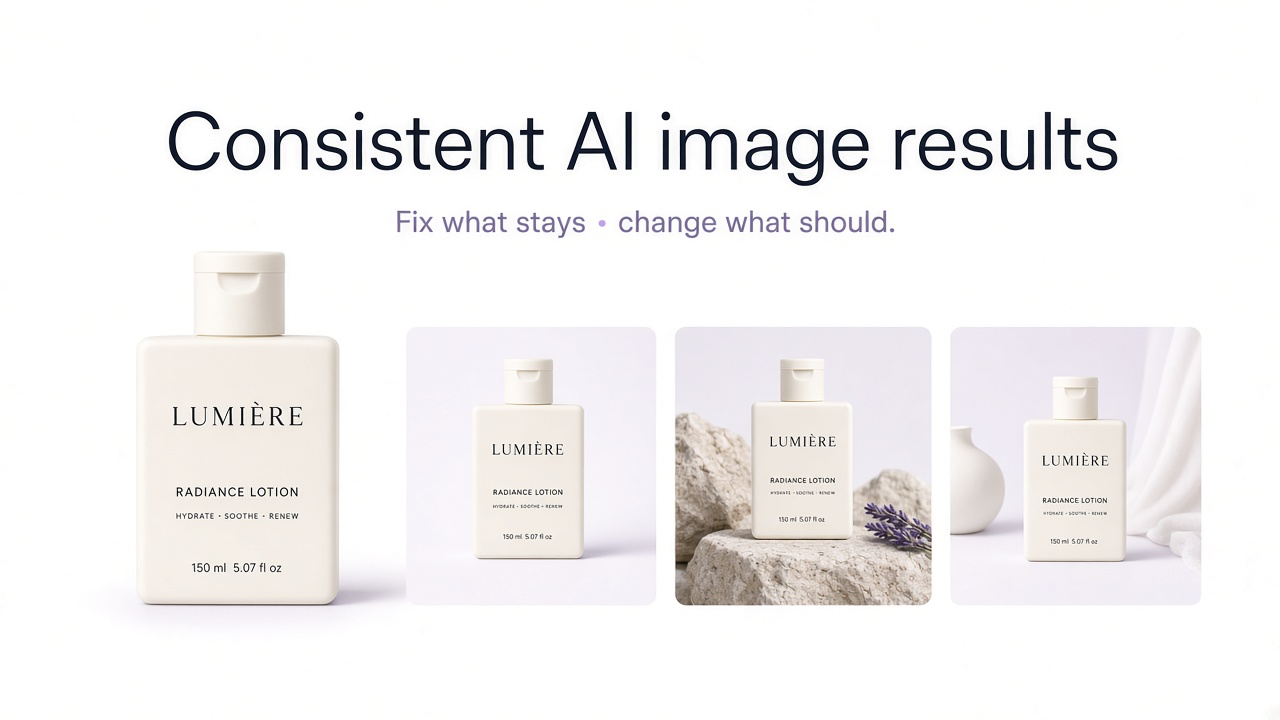
One of the most useful ecommerce applications of AI editing is keeping the real product while changing its environment. A clean source image can become a contextual PDP image, campaign visual, or social asset.
23. Turn a product photo into a campaign image
Campaign imagery can use stronger art direction than a normal product-page image while still preserving the real product. This is useful for ads, launches, seasonal campaigns, social content, or homepage banners.
24. Restyle a food photo
AI editing can change the photographic presentation of an existing dish without replacing the food itself. This is useful for restaurant menus, social content, delivery listings, and editorial food imagery.
For more food-specific ideas, see AI Food Photography Prompts.
25. Translate text inside an image
AI image editing can also be practical rather than purely visual. Menus, posters, graphics, signs, ecommerce images, and social assets can be translated while preserving the surrounding design.
Which AI photo edit should you try?
| Your photo | Good AI edit to try |
|---|---|
| Good subject, distracting background | Remove or replace the background |
| Good photo, wrong aspect ratio | Generative expansion |
| Flat or awkward lighting | Relight the scene |
| Small or compressed image | Resolution enhancement |
| Old or damaged image | Restoration |
| Portrait with minor distractions | Targeted retouching |
| Portrait needs another visual direction | Outfit, hair, background, or headshot edit |
| Clean product photo | Lifestyle or campaign scene |
| Existing designed image for another market | Translate text while preserving layout |
When AI photo editing needs extra review
Generative editing works by reconstructing or creating visual information that fits the surrounding image. That makes it useful, but it also means some results can look convincing without being perfectly faithful to the source.
Review these details carefully
Faces
Check identity, facial proportions, hairlines, eyes, teeth, and distinctive features.
Hands and jewelry
Inspect fingers, rings, watches, chains, and small accessories.
Product images
Check shape, proportions, labels, logos, colors, materials, patterns, and hardware.
Written text
Verify every important character rather than assuming visually plausible text is correct.
Historical photographs
Treat reconstructed or colorized missing details as plausible interpretations unless independently verified.
Reflections and shadows
Make sure edited objects still belong physically in the scene.
How to edit a photo in GenImagePro
You do not need a separate app for every idea in this list. GenImagePro is designed around the result you want to create from an uploaded image.
Upload your photo
Start with the image you want to keep and edit.
Choose a direction
Use a relevant GenImagePro template where available or start with a custom edit.
Copy a prompt
Use one of the prompts in this guide as a starting point and adjust the subject, environment, colors, or other details for your photo.
Generate the edit
GenImagePro applies the appropriate image-generation or editing workflow for the requested visual result.
Review and refine
If one part needs adjustment, describe that specific change rather than unnecessarily rebuilding the entire image.
AI photo editing checklist
Start from the highest-quality source available
Describe the specific change instead of saying only "make it better"
Mention important details that should remain unchanged
Use targeted edits when fidelity matters
Check faces and hands after portrait edits
Check labels, logos, colors, and materials after product edits
Check lighting, shadows, scale, and perspective after compositing
Verify generated or translated text
Compare important commercial edits against the original
Frequently Asked Questions
What can I edit in a photo with AI?
AI photo editors can remove or replace objects, change backgrounds, expand images, alter lighting, replace skies, increase resolution, restore damaged photos, retouch portraits, change clothing or hair, recolor selected objects, edit product scenes, and perform many other targeted visual changes.
Can AI edit an existing photo instead of generating a new one?
Yes. Image-to-image editing uses an existing photo as the visual reference and changes selected aspects of it. This is useful when you want to preserve a person, product, composition, or other original content.
Can I use these AI photo editing prompts in GenImagePro?
Yes. Upload your photo to GenImagePro, copy the relevant prompt from this guide, and adjust any details such as background, lighting, clothing, color, or visual style for the result you want.
How do I stop AI from changing the whole image?
Describe the targeted edit and explicitly state which important elements should remain unchanged. Smaller, clearly defined changes are usually easier to review than broad instructions to redesign the whole image.
Can AI remove people and objects from photos?
Yes. Generative removal can remove a selected person or object and reconstruct the area behind it based on the surrounding scene.
Can AI make a blurry or low-resolution photo clearer?
AI enhancement can increase resolution, reduce some noise or compression artifacts, and reconstruct plausible detail. Extremely blurred or tiny images still contain limited source information, so the result should be reviewed carefully.
Can AI restore old photographs?
Yes. AI can help repair scratches, creases, fading, noise, blur, and damaged areas. However, details reconstructed from missing information should be treated as plausible rather than guaranteed historical fact.
Can AI change clothes in a photo?
Yes. Prompt-based editing can replace an outfit while preserving the person's face, pose, hair, and background. Review hands, garment edges, body proportions, and identity after the edit.
Can AI edit product photography?
Yes. You can use an uploaded product image to create new backgrounds, lifestyle scenes, studio presentations, campaign visuals, or other commercial directions. For ecommerce use, verify that the actual product has not changed.
Can AI translate text inside an image?
Yes. AI can replace text in an image with another language while attempting to preserve the surrounding design and layout. Important translations and rendered text should still be checked manually.