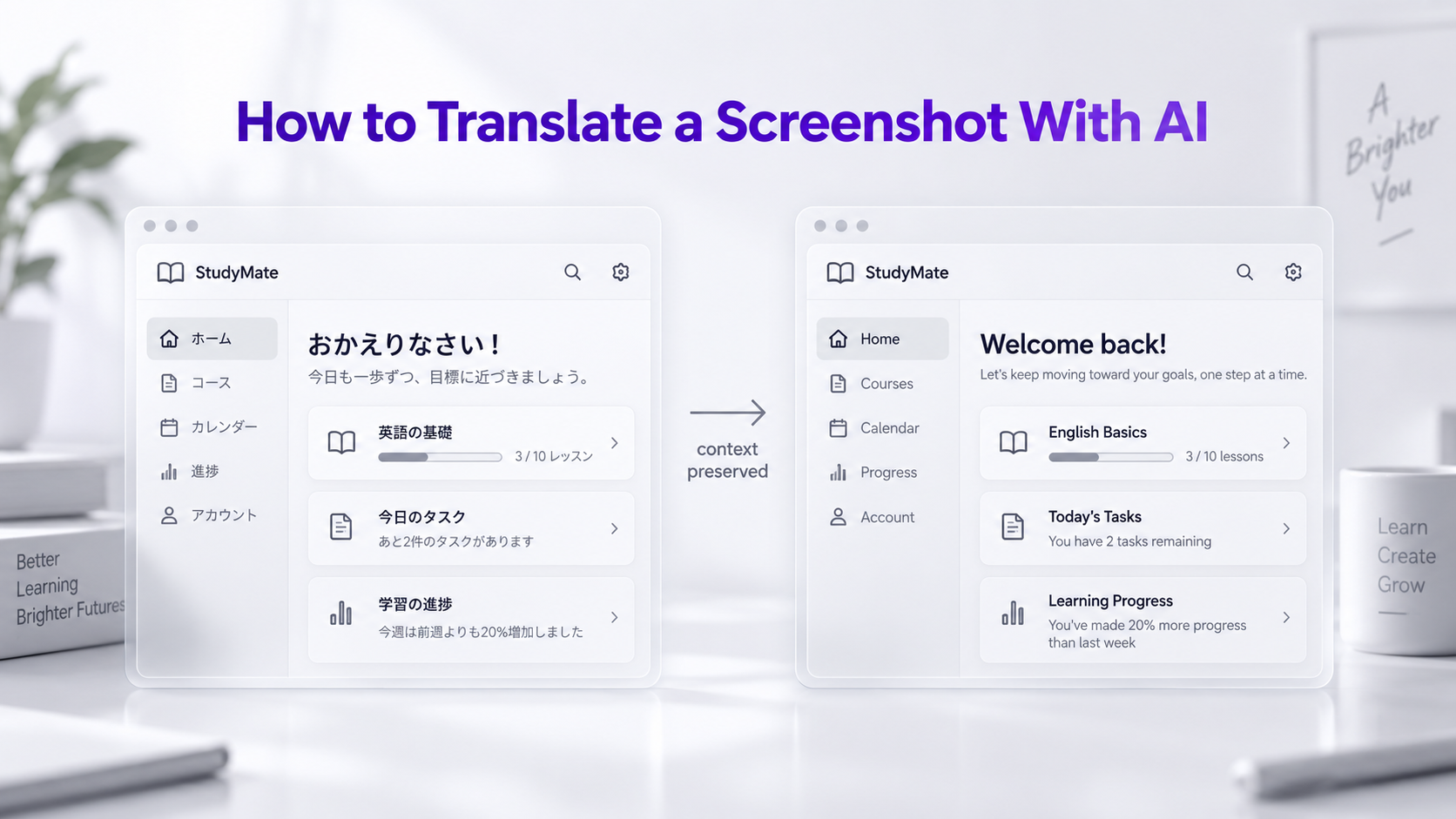
Screenshots often contain information that is difficult to understand without knowing the language: app menus, website interfaces, error messages, conversations, dashboards, product pages, social media posts, games, and instructions. Instead of manually copying each piece of text into a translator, AI can translate the screenshot itself.
This is especially useful because the location of text inside a screenshot provides context. A translated button still appears as a button, a translated warning remains associated with the relevant interface element, and a translated product label stays connected to the product it describes.
With the GenImagePro AI Image Translator, you can translate screenshots into more than 40 languages and process multiple images in batch. You can also work with multiple target languages, making it useful for both quick personal translations and larger localization workflows.
What Is an AI Screenshot Translator?
An AI screenshot translator identifies text inside an uploaded screenshot, interprets that text, translates it into another language, and creates a translated version that preserves the surrounding visual context.
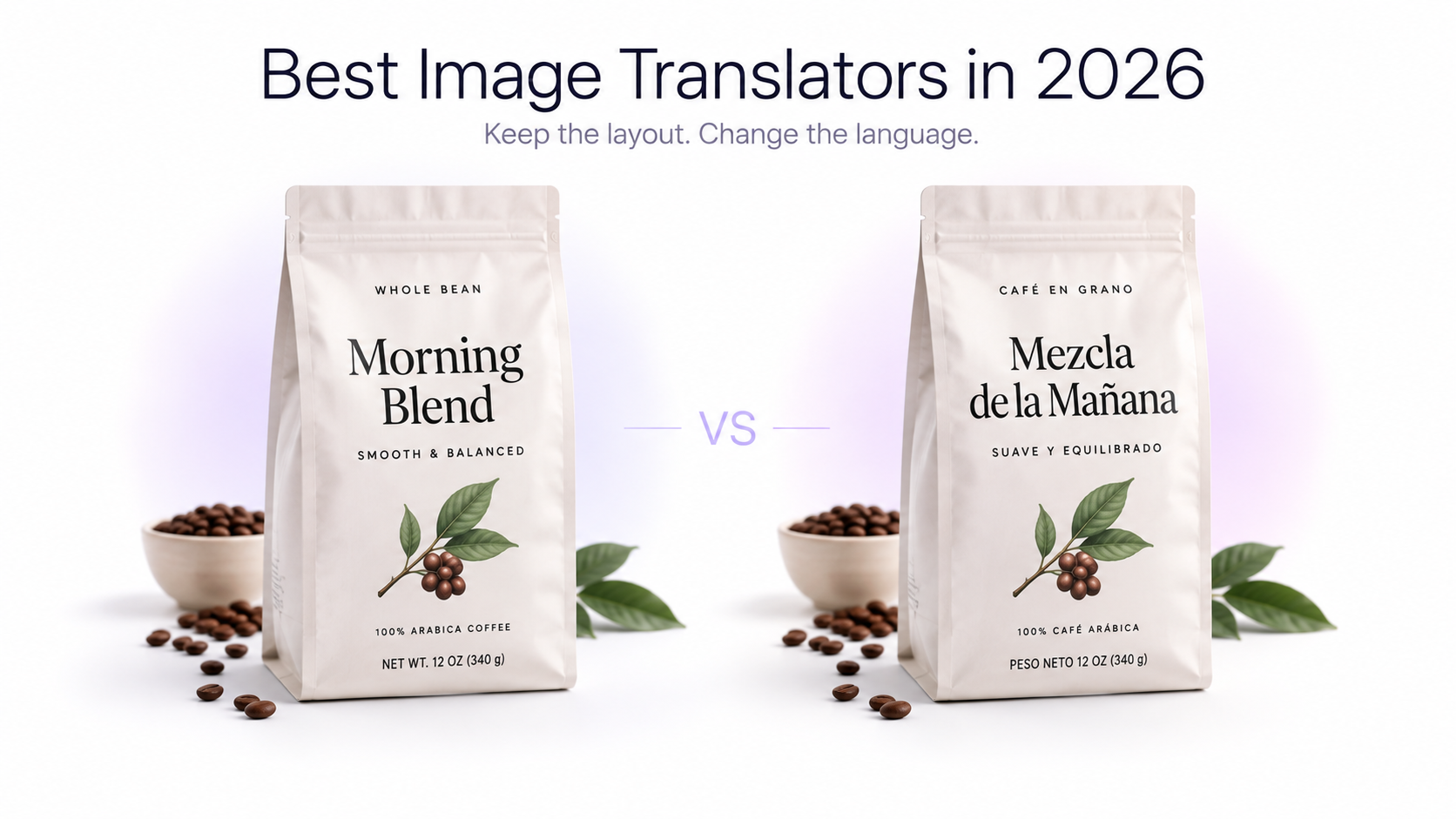
This differs from simply extracting text with OCR. When you use OCR alone, the result is typically a separate block of text. With image-based screenshot translation, the goal is to keep the translated content connected to the interface, image, message, label, or other element where it originally appeared.
How to Translate a Screenshot With AI
1. Capture a Clear Screenshot
Start with the clearest screenshot available. Text should be readable and large enough to distinguish from surrounding interface elements. Avoid unnecessary cropping if it removes context that could help interpret the text.
For mobile apps and websites, capturing the entire relevant section is usually better than cropping extremely tightly around individual words.
2. Upload the Screenshot
Open the GenImagePro Image Translator and upload the screenshot you want to translate. You can use the same workflow for screenshots from websites, desktop applications, mobile apps, social networks, ecommerce stores, games, messages, and other digital interfaces.
3. Choose Your Target Language
Choose the language you want the screenshot translated into. GenImagePro supports more than 40 languages, making it possible to translate screenshots for audiences across different countries and regions.
This can be useful whether you need one English translation of a foreign-language screenshot or several localized versions of the same screenshot for different markets.
4. Translate the Screenshot
The AI analyzes the visible text, translates it, and produces a localized version of the screenshot. Because the translation remains associated with the original visual, it is easier to understand what each button, message, field, heading, or label refers to.
5. Review the Result
Check the translated screenshot before using or publishing it. Pay particular attention to names, technical terminology, numbers, dates, prices, product specifications, abbreviations, and very small interface labels.
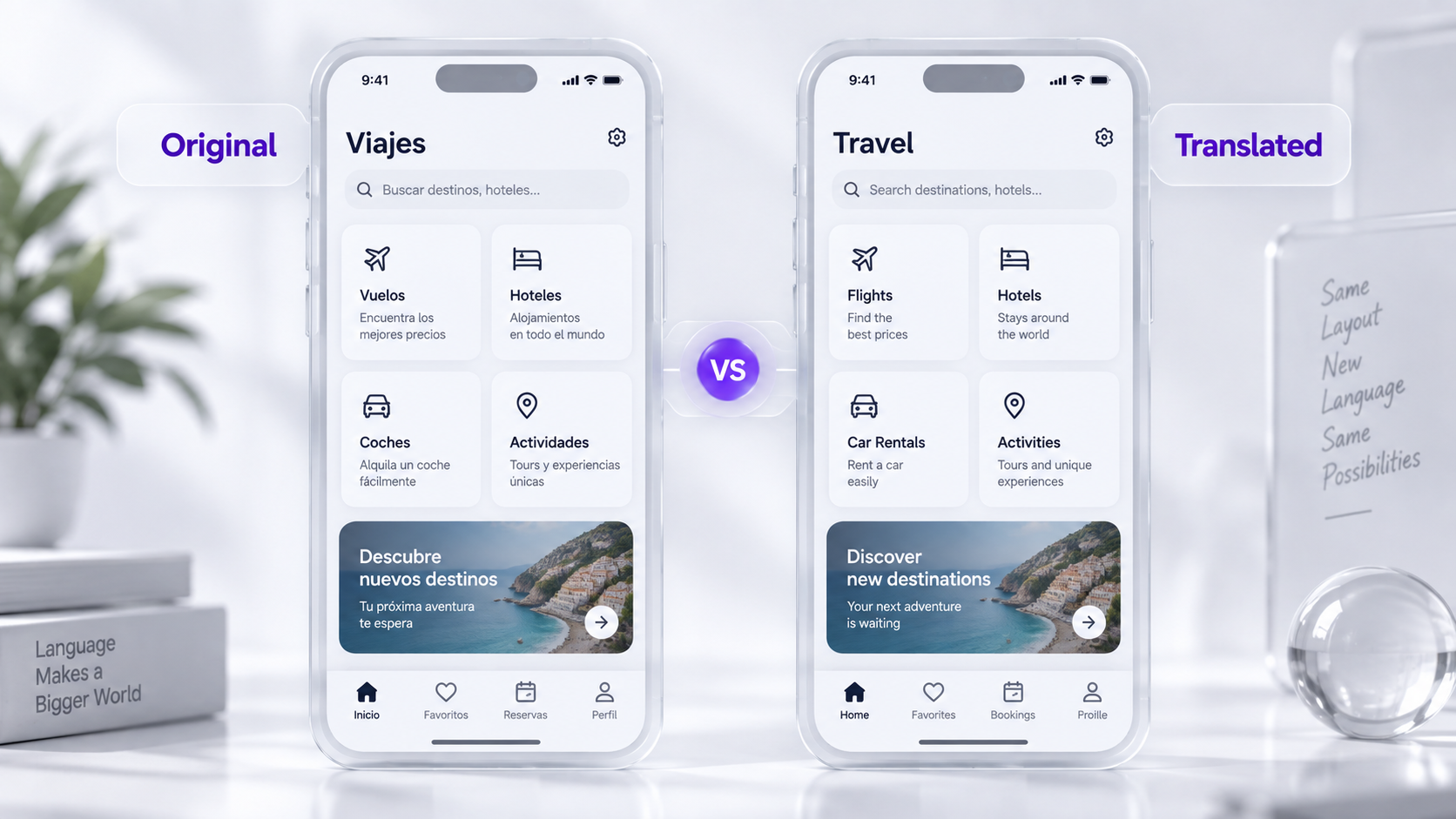
Translate Screenshots Into 40+ Languages
Screenshot translation becomes significantly more useful when you are not limited to one or two language pairs. GenImagePro supports translation across more than 40 languages, allowing the same workflow to be used for international products, ecommerce, marketing, research, support, and everyday communication.
For example, a company may have an English application screenshot that needs localized versions for several international markets. Instead of rebuilding each image manually, the original visual can be used as the basis for multiple translated versions.
Batch Translate Multiple Screenshots at Once
Translating one screenshot at a time is reasonable when you only have a single image. It quickly becomes repetitive when you have an entire app flow, product catalog, presentation, support guide, or collection of marketing screenshots.
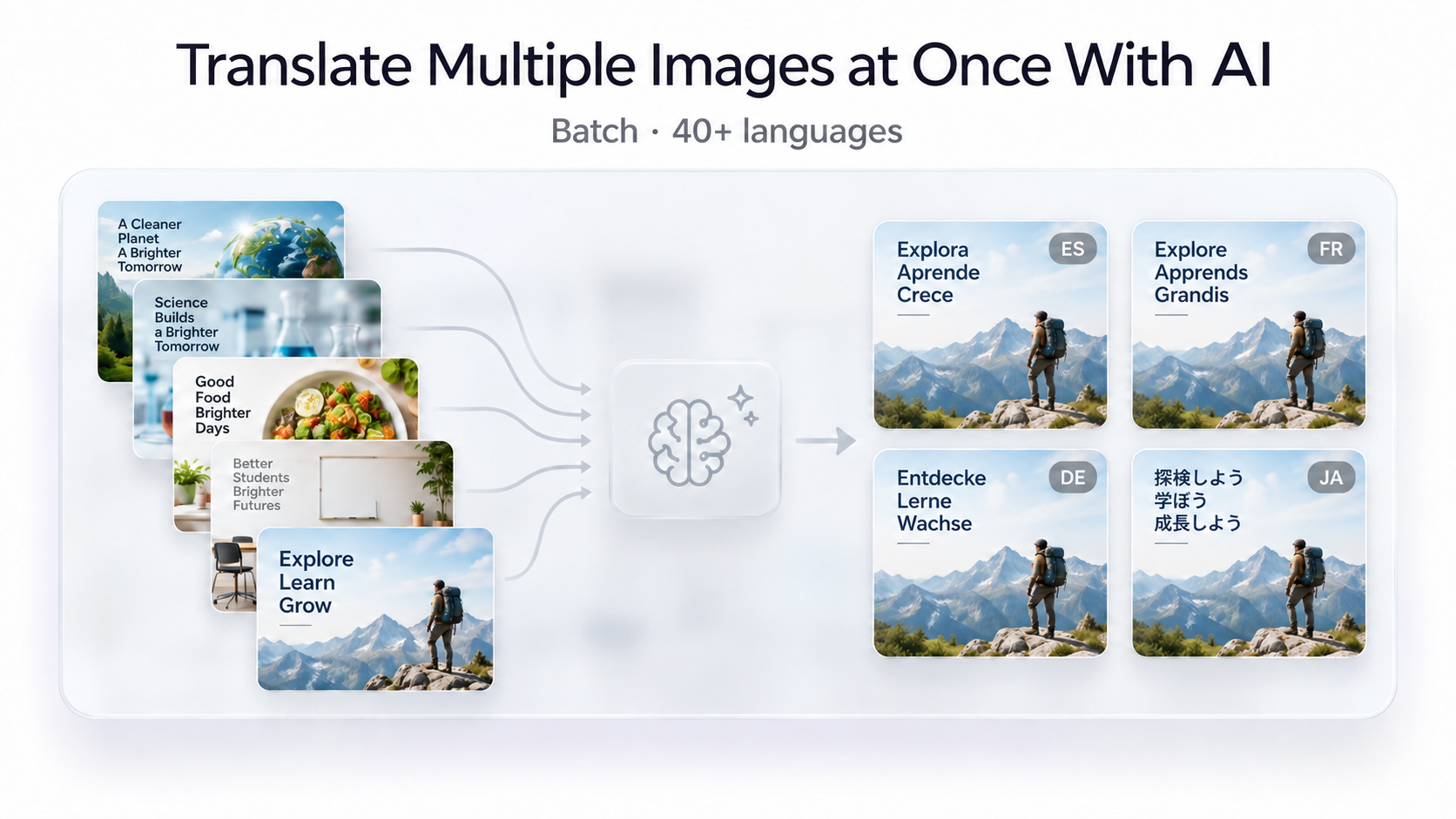
GenImagePro supports batch image translation, so you can work with multiple screenshots in the same workflow rather than repeatedly uploading and translating individual images.
This is particularly useful when a localization project contains dozens of related images. Instead of treating every screenshot as an isolated task, you can process many images together.
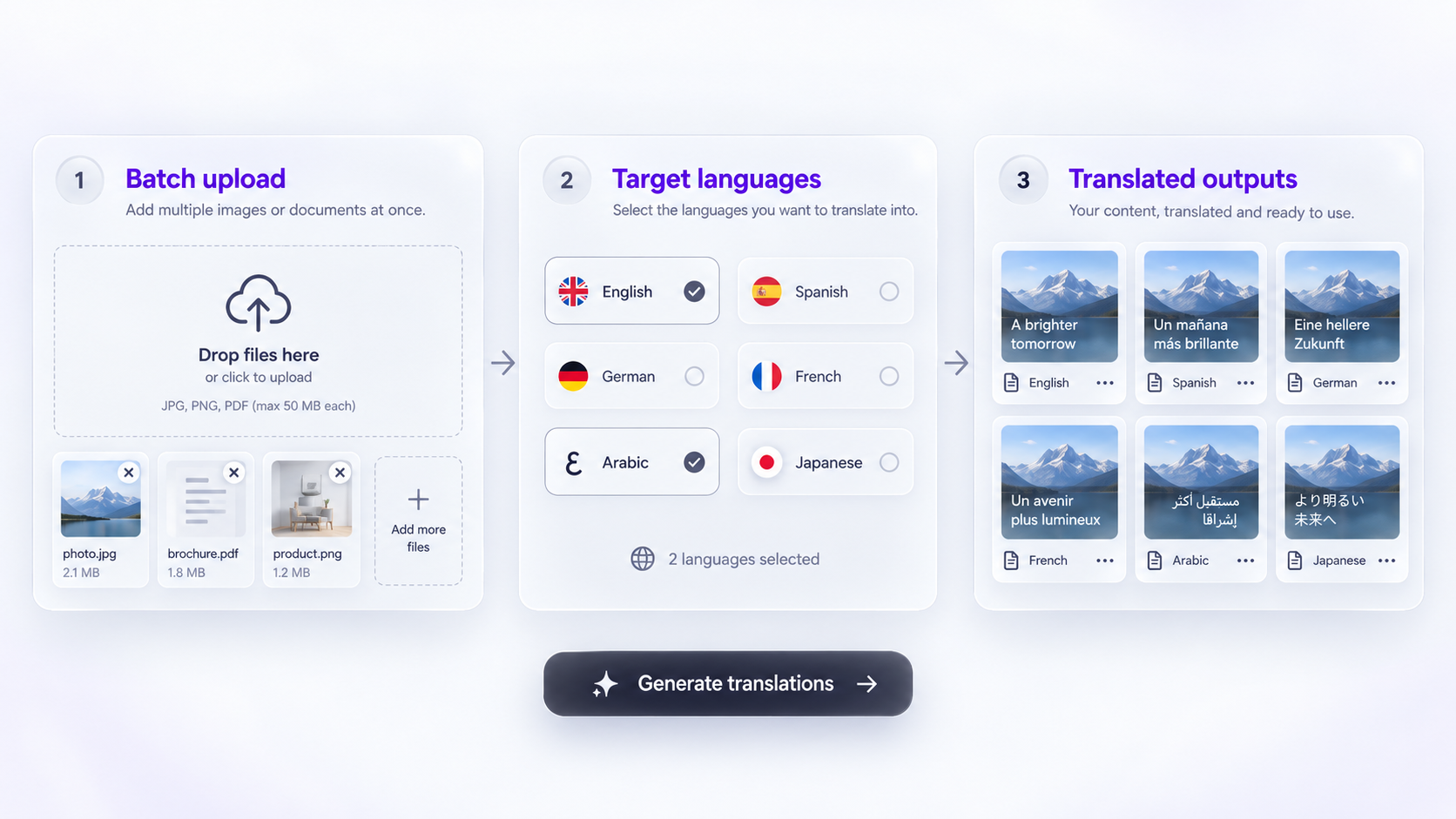
Translate Multiple Images Into Multiple Languages
Batch translation is not only about processing multiple source images. GenImagePro can also help when the same collection of visuals needs to be localized into several target languages.
Imagine that you have 10 screenshots for a product onboarding flow and need versions for several international markets. A manual workflow would require repeatedly exporting, editing, translating, and organizing each combination of image and language.
A batch-oriented workflow makes this much more practical: multiple source images can be translated across multiple target languages without rebuilding every screenshot individually.
What Types of Screenshots Can You Translate?
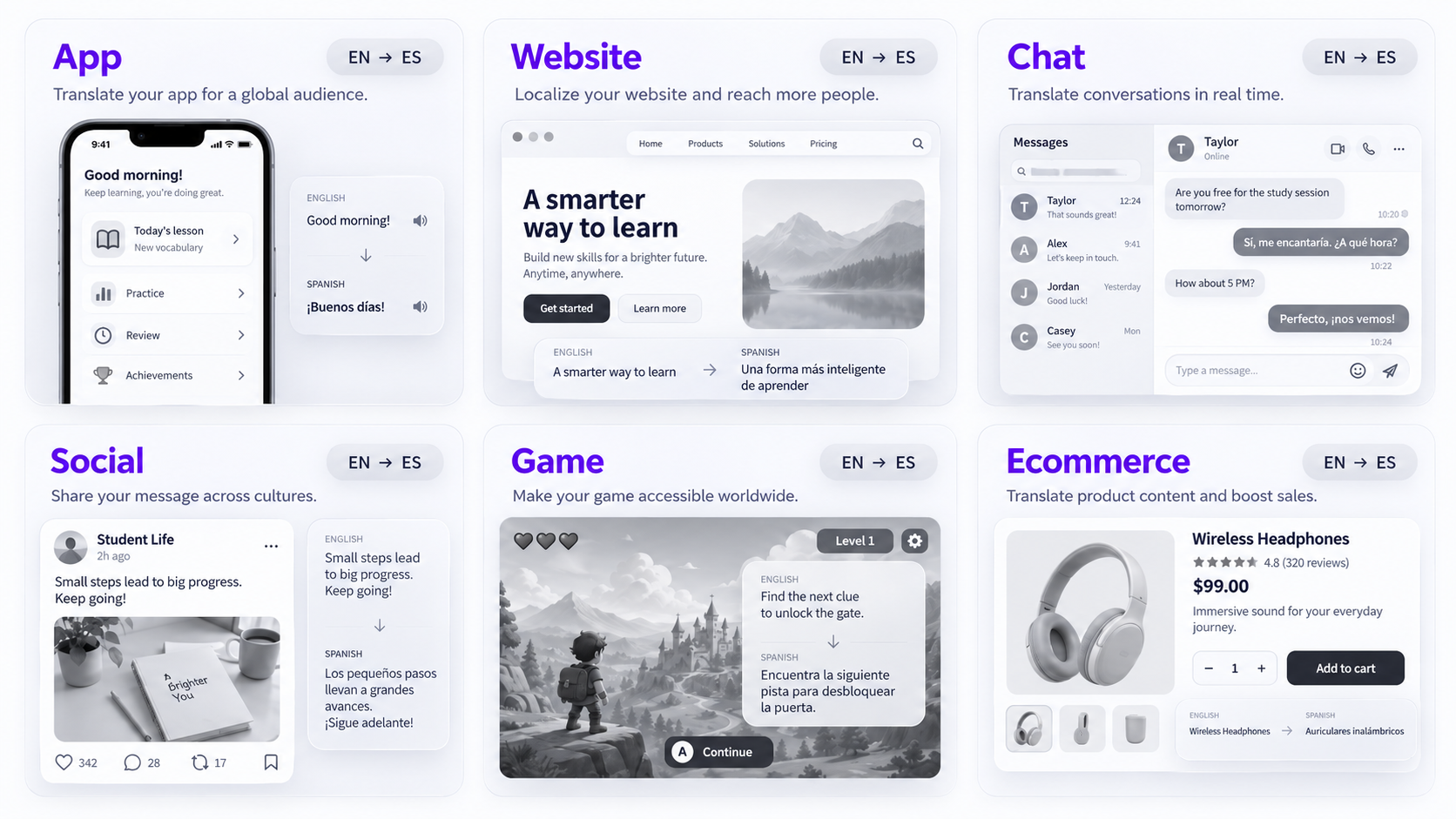
App Screenshots
Mobile and desktop application screenshots commonly contain navigation labels, settings, buttons, tooltips, instructions, notifications, dialogs, and status messages. Translating the screenshot can make an unfamiliar application much easier to understand.
Website Screenshots
You can translate screenshots of foreign-language websites, landing pages, dashboards, ecommerce stores, documentation, booking pages, and other web interfaces while keeping the relationship between the text and page structure.
Chat and Message Screenshots
Screenshots from messaging applications or social networks can contain several separate messages, timestamps, usernames, replies, and interface labels. Translating the complete screenshot can preserve more context than copying individual sentences into a translator.
Posts, comments, captions, infographics, announcements, and other social content can include text in several different parts of an image. An image translator can help you understand or localize these screenshots without manually transcribing each element.
Game Screenshots
Game interfaces can contain objectives, item descriptions, menus, character dialogue, tutorials, statistics, and other text. Translating a screenshot can be useful when a game does not provide localization for your preferred language.
Product and Ecommerce Screenshots
Marketplace listings and ecommerce screenshots may include product titles, feature callouts, prices, specifications, promotional messages, and interface controls. Translating the whole image makes it easier to understand how all of these pieces fit together.
Why Translate the Screenshot Instead of Copying the Text?
Copying text manually can work for a single sentence, but screenshots often contain many separate text elements. You may need to identify which label belongs to which button, which message corresponds to which user, or which specification describes which part of a product.
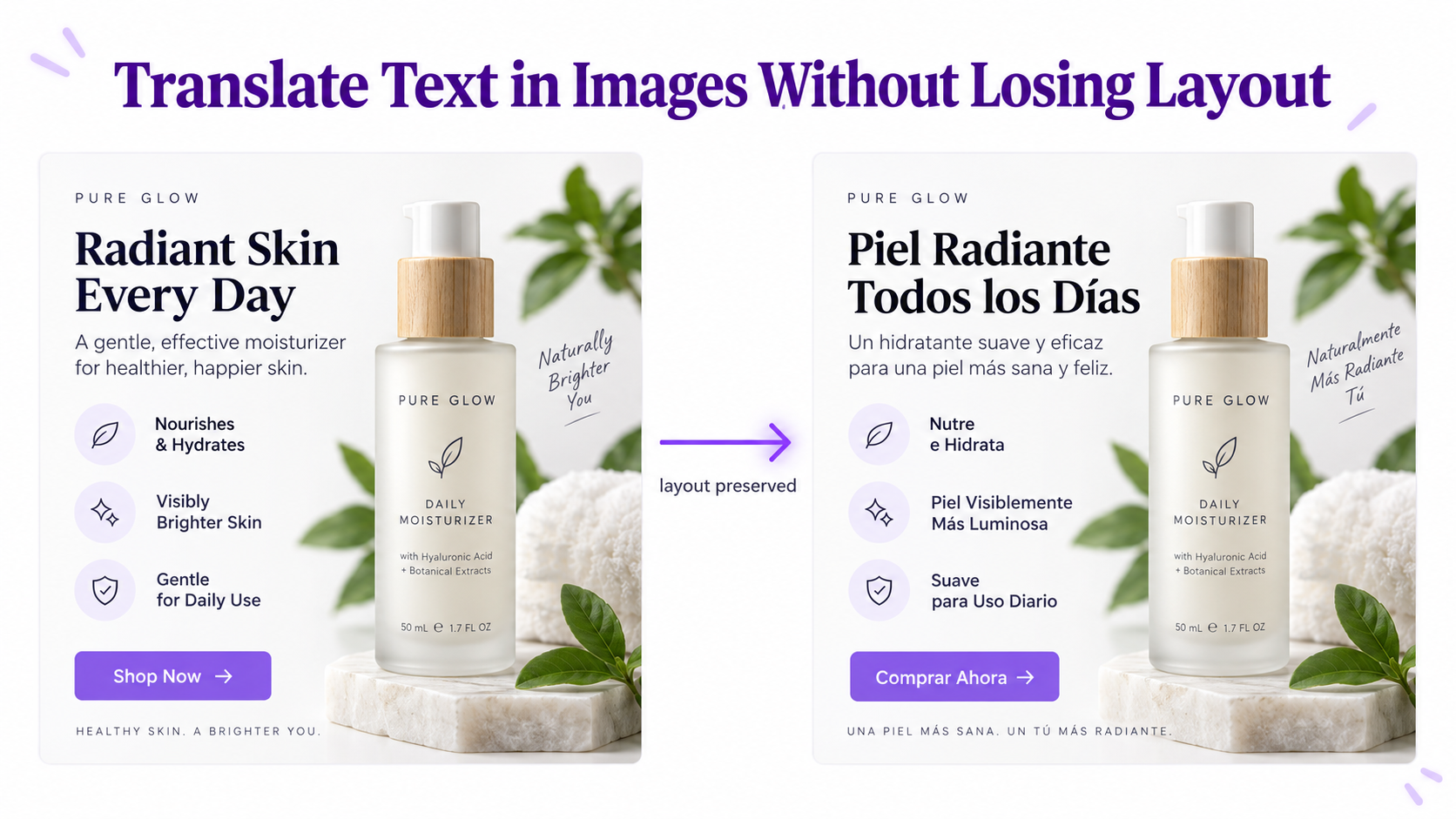
Once the text is separated from the screenshot, much of that visual relationship disappears. Translating the image itself preserves more of the original context and makes the result easier to interpret.
Screenshot Translation vs OCR
OCR is designed to recognize characters inside an image and convert them into editable or searchable text. It is a useful technology when you want to copy text from an image.
Screenshot translation has a different goal. The text still needs to be translated, but preserving its connection to the interface or visual content is often equally important.
If you only need a sentence copied from a screenshot, OCR followed by text translation may be enough. If you want to understand or create a translated version of the complete screenshot, an AI Image Translator provides a more direct workflow.
How Screenshot Translation Helps App Localization
Developers and marketers frequently need localized screenshots for product pages, documentation, presentations, help centers, advertisements, and app store listings.
If an application has ten promotional screenshots and each screenshot needs to be available in several languages, the number of required assets grows quickly. Ten screenshots across six languages already creates 60 localized images.
This is where support for both 40+ languages and batch processing becomes particularly useful. Multiple screenshots can be processed for multiple markets without treating each image-language combination as a completely separate manual design project.
How Screenshot Translation Helps Customer Support
Customer support teams frequently receive screenshots showing errors, account settings, payment pages, notifications, or other product issues. If the screenshot is in an unfamiliar language, understanding the problem can take additional time.
Translating the screenshot can help support agents understand both the wording and where it appears in the interface. This visual context can be important when identifying the exact error message, setting, button, or step the customer is referring to.
How Screenshot Translation Helps Research and Competitor Analysis
Products, apps, ecommerce stores, advertisements, and social media campaigns are increasingly global. A useful competitor interface or marketing campaign may be published only in another language.
Translating screenshots allows researchers and product teams to understand the interface while retaining its original structure. This can be useful when studying onboarding flows, pricing pages, product positioning, feature presentation, ecommerce layouts, or international marketing campaigns.
How to Get Better Screenshot Translation Results
Use High-Resolution Screenshots
Small interface text is easier to recognize when the screenshot has sufficient resolution. Whenever possible, use the original screenshot rather than an image that has already been resized or heavily compressed.
Keep Relevant Context in the Image
Avoid cropping so tightly that the surrounding interface disappears. Context can help make the translated screenshot easier to understand.
Check Small Labels and Technical Terms
Technical interfaces often contain abbreviations, product names, file formats, model names, command names, or other terminology that should not necessarily be translated literally. Review these elements carefully.
Review Numbers, Prices, and Dates
Important numerical information should always receive a final review, particularly when translating ecommerce, financial, analytics, booking, or account screenshots.
Do Not Expect Every Language to Use the Same Amount of Space
Translations can be shorter or longer than the original text. The translated screenshot may therefore require different line breaks or spacing to keep the interface readable.
Translate One Screenshot or an Entire Collection
For an occasional foreign-language screenshot, AI translation provides a much faster alternative to manually transcribing every visible phrase. For larger localization projects, the same workflow becomes even more useful when combined with batch processing.
GenImagePro supports more than 40 languages and lets you work with multiple images and multiple target languages, so the workflow can scale from translating one screenshot to localizing an entire collection of visual assets.
Frequently Asked Questions
How can I translate text from a screenshot?
Upload your screenshot to an AI image translator, choose your target language, generate the translated image, and review the result. This avoids manually copying every piece of text into a separate translator.
Can AI translate a screenshot?
Yes. AI can identify text inside screenshots, translate it into another language, and produce a translated version while retaining the surrounding visual context.
How many languages can GenImagePro translate screenshots into?
GenImagePro supports more than 40 languages for image and screenshot translation.
Can I translate multiple screenshots at once?
Yes. GenImagePro supports batch image translation, allowing you to process multiple screenshots together instead of translating each one individually.
Can I translate multiple screenshots into several languages?
Yes. GenImagePro is designed for larger localization workflows where multiple source images may need translated versions across multiple target languages.
Can I translate app screenshots?
Yes. You can translate screenshots containing app menus, buttons, settings, notifications, dialogs, onboarding screens, and other interface elements.
Can I translate website screenshots?
Yes. Screenshots of websites, dashboards, ecommerce stores, documentation, and other web interfaces can be translated.
Can I translate screenshots without copying the text manually?
Yes. An AI screenshot translator can detect and translate text directly from the uploaded image, so you do not need to manually transcribe it first.
What is the difference between translating a screenshot and using OCR?
OCR primarily extracts text from an image. Screenshot translation also translates that text while preserving its relationship to the surrounding visual content.
Should I review AI-translated screenshots?
Yes. Always review important terminology, numbers, prices, dates, names, technical information, and small interface labels before publishing or relying on a translated screenshot.
Social Media Screenshots