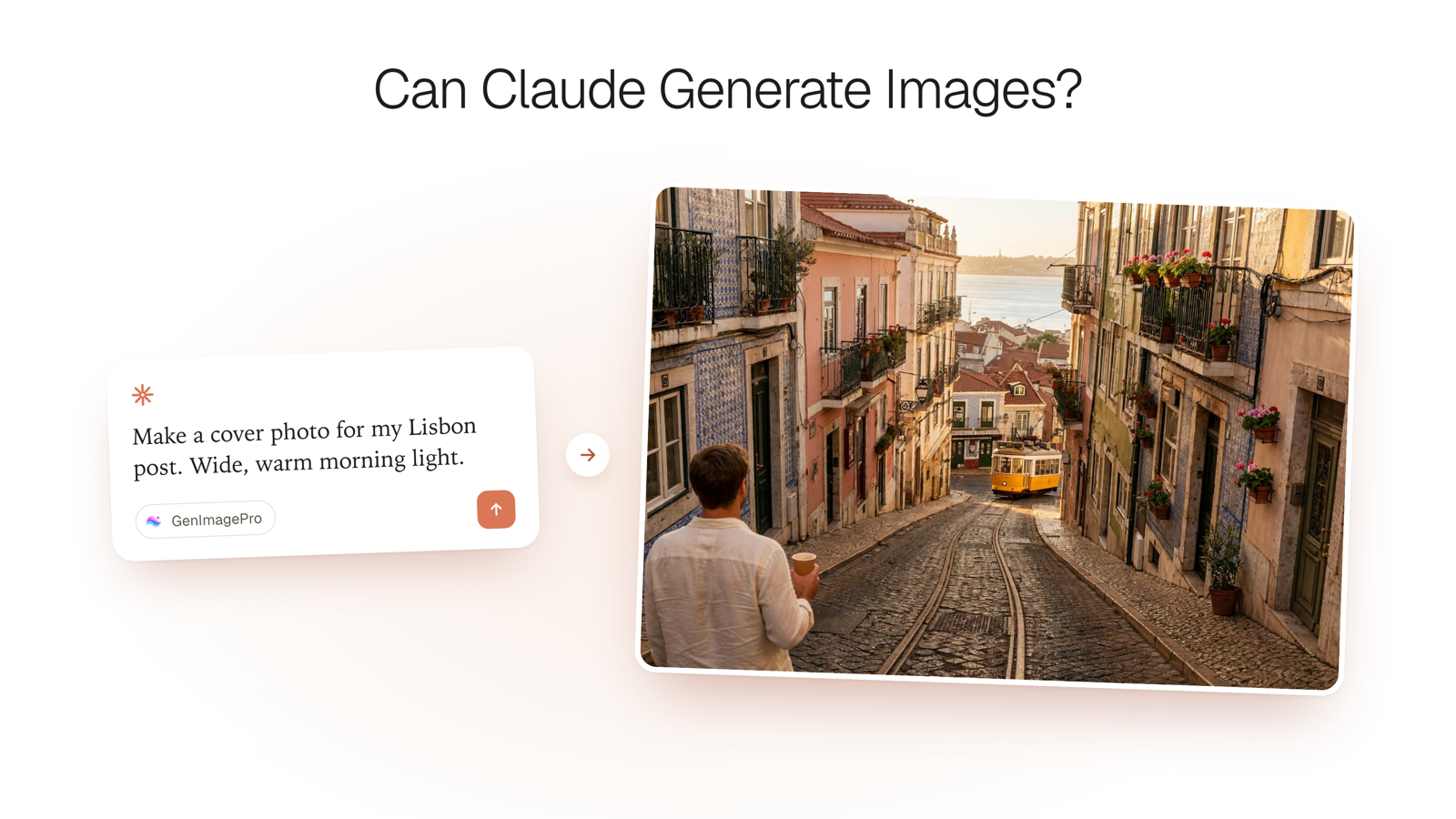
Claude has no image generator built in. It supports connectors instead: outside tools it calls while you chat. GenImagePro is one of them, and setup takes about a minute.
What Claude Can Make Without a Connector
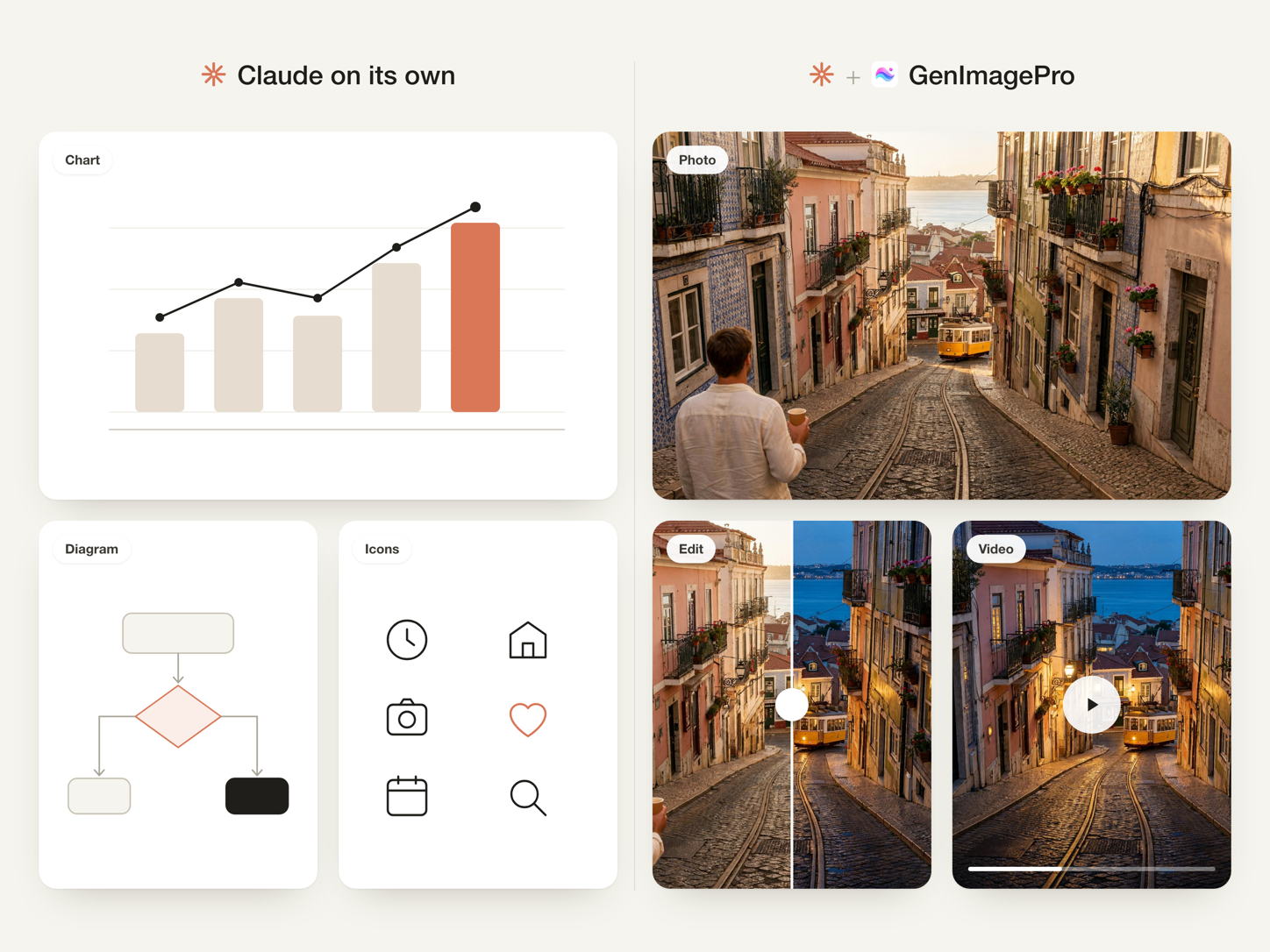
Claude writes code, and code can draw. Ask for a flowchart, a bar chart, a simple logo idea, an icon or a web page mockup and Claude builds it as SVG or HTML. You can download these as files. This works well for diagrams and clean vector shapes.
It stops there. Code can't produce a realistic photograph, so anything that needs to look like a camera took it — a product on a marble counter, a model wearing your dress, a professional headshot — needs a real image model behind Claude.
How Claude Makes Real Images: Connectors (MCP)
Connectors use MCP (Model Context Protocol), an open standard that lets Claude use outside tools. When you add an image connector, Claude decides when to call it, sends your request and shows the result in the chat. You keep talking to Claude the way you normally do.
GenImagePro runs its own MCP server. Once connected, Claude can use your GenImagePro account to:
Create images from a description
Edit your photos: new background, remove objects, upscale, retouch
Turn a photo into a video
Browse templates, styles and studio options
See the images you've already made
How to Add GenImagePro to Claude
Setup takes about a minute and works on claude.ai and the Claude desktop app. Custom connectors are available on every Claude plan, including Free (Free allows one custom connector).
1. Copy the server URL
It's also in your GenImagePro account under Connected apps.
2. Add a custom connector in Claude
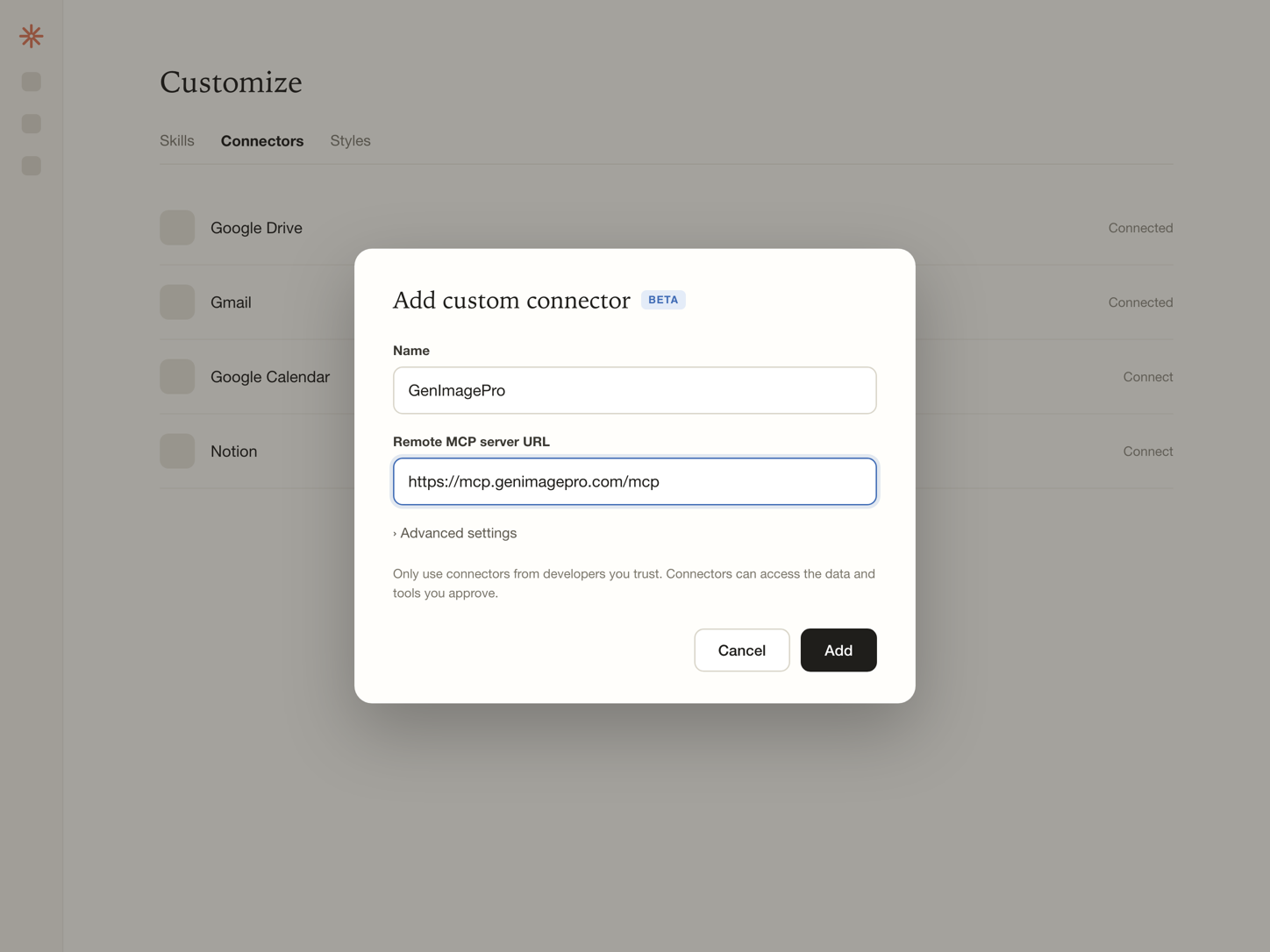
In Claude, open Customize, then Connectors. Select Add, then Add custom connector. Name it GenImagePro, paste the URL and continue.
3. Sign in and approve
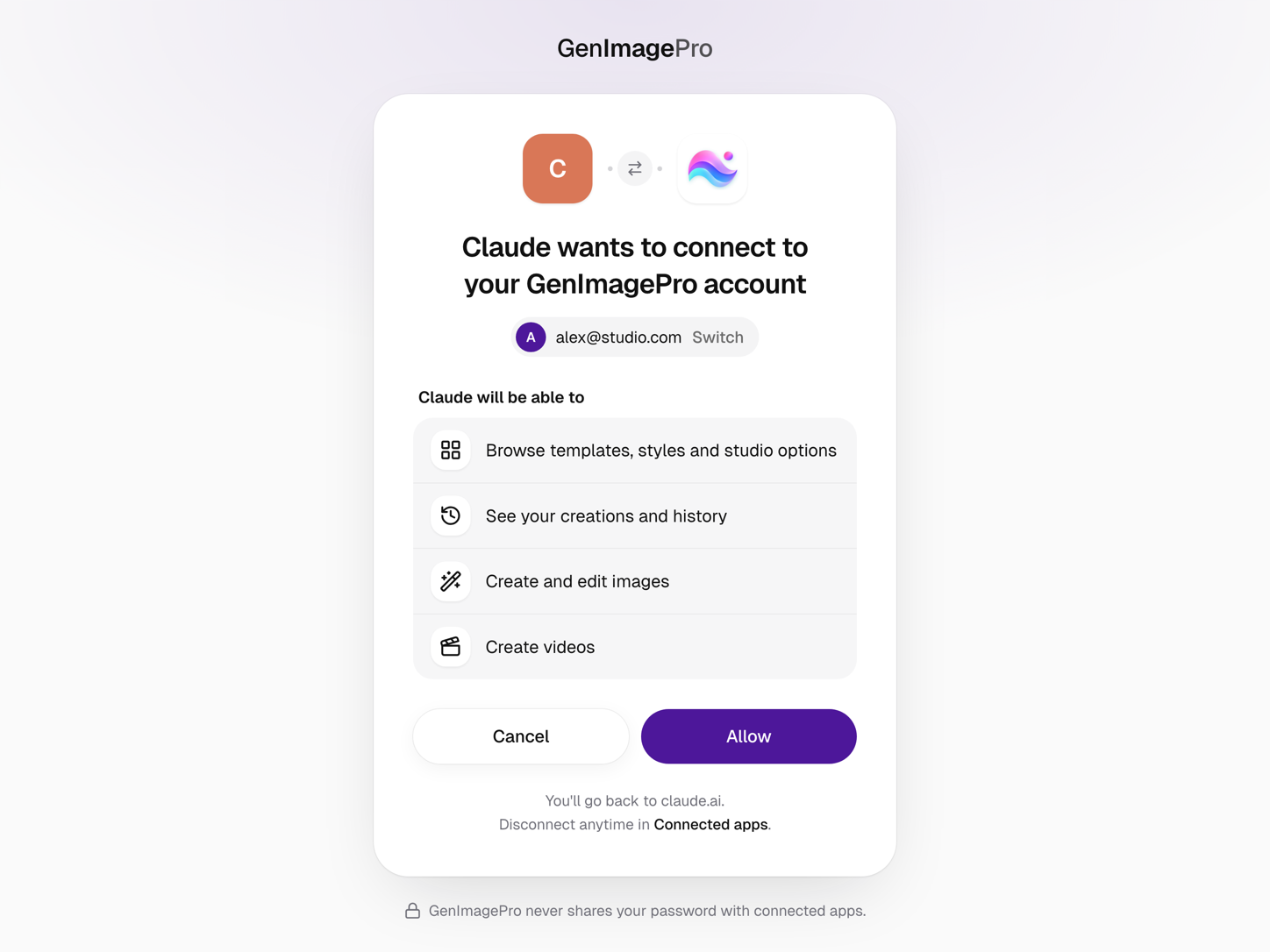
Claude opens a GenImagePro sign-in page. Sign in (or create an account), check what Claude is allowed to do and approve. You return to Claude with the connector ready.
4. Ask Claude for an image
Start a new chat and ask in plain words. If Claude doesn't pick up the connector, mention GenImagePro in your message.
Using Claude Code?
Add the same server from your terminal, then run /mcp inside Claude Code to sign in:
What to Ask Claude: Example Requests
You don't need prompt formulas. Describe what you want and what it's for, and attach a photo when you have one.

Why Use Claude for Images This Way
Claude is good at understanding what you mean. Tell it about your shop, your brand colours or your launch, and it turns that into a precise request for GenImagePro. You can plan a campaign, write the captions and make the images in the same conversation.
Ask for changes the same way: "warmer light", "closer", "now a 4:5 version". Claude keeps track of what you asked for earlier, so you don't repeat yourself.
Everything Claude creates is saved to your GenImagePro library, in full resolution, with no watermark. Open the web app anytime to download, resize or keep editing on the board.
Claude vs ChatGPT and Gemini for Images
ChatGPT and Gemini have image generators built in. Claude doesn't, which is why a connector matters. With GenImagePro connected, Claude gets dedicated tools for product and fashion photoshoots, photo editing, headshots and video.
The same GenImagePro connector also works in ChatGPT and Cursor with the same server URL.
Control and Privacy
Claude only gets the access you approve. You can see every connected app, when it was last used, and disconnect it anytime from Connected apps in your GenImagePro account. Disconnecting removes access immediately.
Anything Claude creates through the connector uses your GenImagePro plan, the same as creating in the web app.
FAQ
Can Claude generate images?
Yes, with a connector. Claude has no built-in image generator, so on its own it can only draw diagrams, charts and SVG graphics with code. Connect GenImagePro and Claude creates real photos, edits and videos in the chat.
Does Claude generate images for free?
Custom connectors work on Claude's Free plan (one custom connector). GenImagePro lets you try it for free when you sign up.
How do I add an image generator to Claude?
Open Customize, then Connectors in Claude, select Add, then Add custom connector. Paste https://mcp.genimagepro.com/mcp, continue, and sign in to GenImagePro to approve access.
Can Claude edit my photos?
With the GenImagePro connector, yes. Upload a photo and ask Claude to change the background, remove an object, upscale it, retouch a portrait or turn it into a video.
What is an MCP server?
MCP (Model Context Protocol) is an open standard that lets AI assistants like Claude use outside tools. A connector is an MCP server added to your Claude account.
Can I disconnect GenImagePro from Claude?
Yes. Go to Connected apps in your GenImagePro account and select Disconnect. Access ends immediately. You can also remove the connector in Claude.