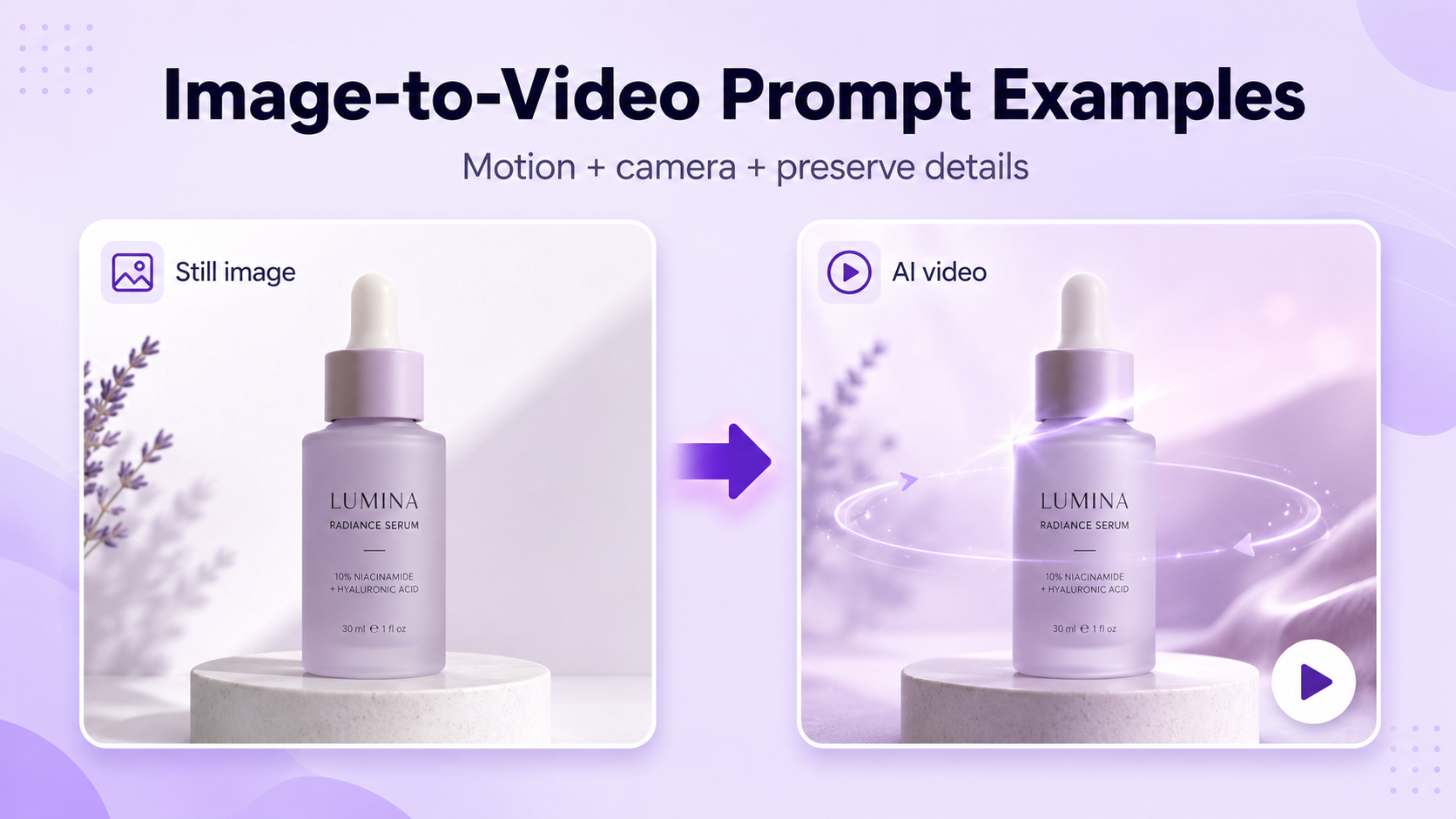
Image-to-video AI can turn a single still image into a moving clip, but the result depends heavily on how you describe motion. A useful image-to-video prompt tells the model what should move, how the camera should behave, how fast the scene should develop, and which details from the original image should remain unchanged.
In GenImagePro, upload a still image to the image-to-video tool and use these motion prompts to create short AI videos for products, portraits, fashion, and more.
The examples below are designed to be copied, adapted, and used with product photos, portraits, fashion images, food photography, cars, travel scenes, and other visual content. You can keep the basic structure and replace the subject, movement, or camera direction to match your own image.
What Is an Image-to-Video Prompt?
An image-to-video prompt is a text instruction that tells an AI video model how a still image should change over time. Because the source image already defines the subject, composition, colors, and environment, the prompt should usually focus on motion rather than describing the entire image again.
How to Write a Good Image-to-Video Prompt
A simple image-to-video prompt formula is: subject movement + camera movement + environmental motion + motion style + preservation instructions.
For example: "The model slowly turns toward the camera while a gentle breeze moves their hair. The camera makes a subtle cinematic push-in. Natural facial expressions and realistic body movement. Preserve the face, clothing, colors, proportions, and original composition."
1. Describe the Main Motion
Start by describing the most important action. Examples include a person turning their head, a product rotating slowly, fabric moving in the wind, steam rising from food, or a vehicle driving forward.
2. Add a Camera Movement
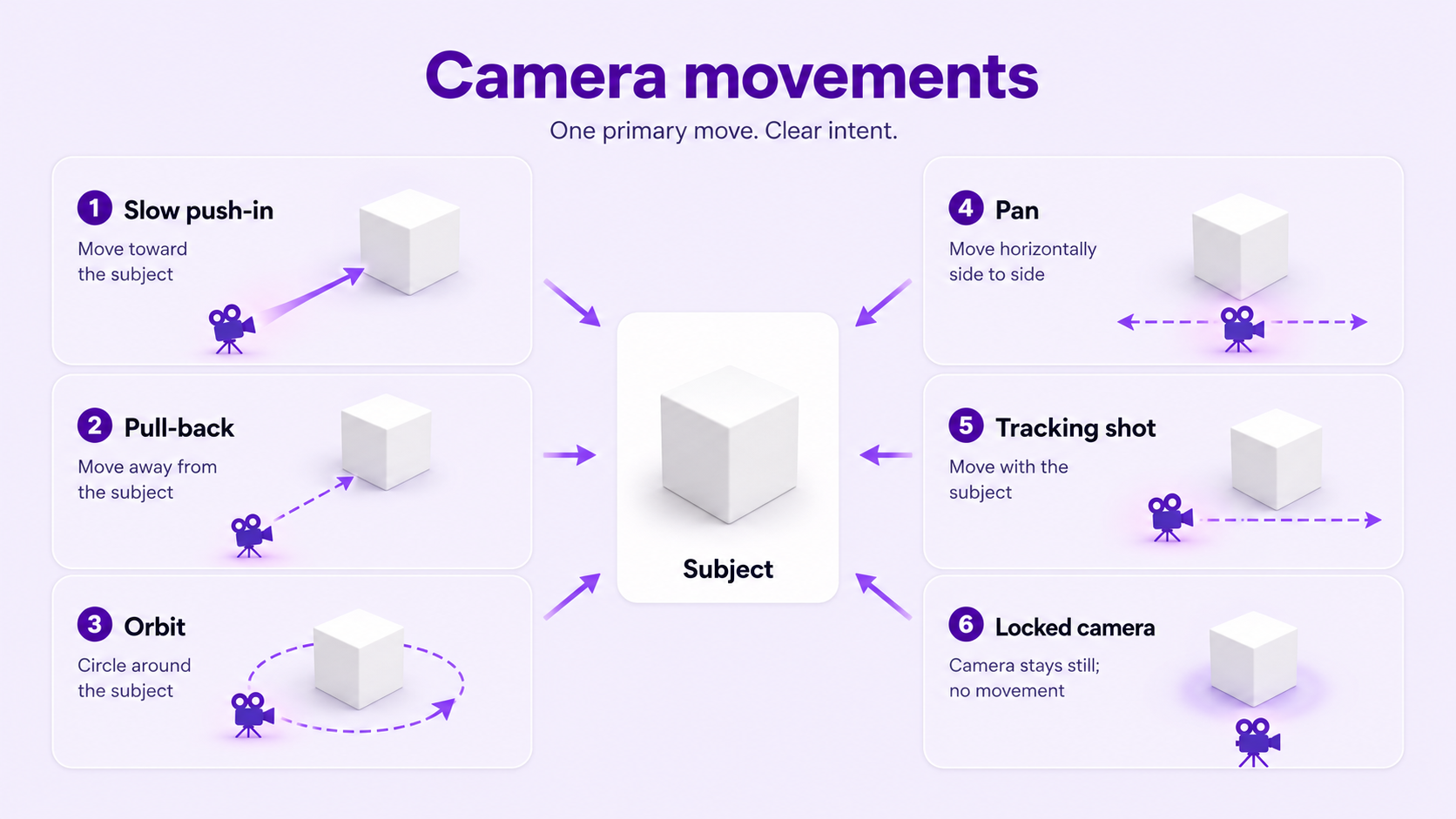
Use one clear camera instruction such as slow push-in, pull-back, orbit, pan, tilt, tracking shot, or locked camera. Combining too many camera movements in one short clip can make the result less predictable.
3. Add Environmental Motion
Secondary motion can make the scene feel alive. You might describe moving leaves, drifting mist, rippling water, shifting reflections, floating particles, blowing hair, or fabric moving naturally.
4. Describe the Motion Style
Words such as slow, cinematic, smooth, realistic, subtle, energetic, luxurious, editorial, and natural help communicate the intended pacing and visual style.
5. Preserve Important Details
If consistency matters, explicitly state what should remain unchanged. For products, preserve the packaging, logo, colors, proportions, and label. For portraits, preserve facial identity and natural proportions. For fashion, preserve the garment design, pattern, fabric, and fit.
30+ Image-to-Video Prompt Examples
The 36 prompts below are grouped by subject: products, portraits, fashion, cinematic camera moves, food, travel, and cars. Each one follows the same formula: one main action, one camera move, and a line that says what must stay the same.
Pick the group closest to your photo, copy a prompt, then swap the subject words for your own. For a product, keep the product still and let the camera move. For a person, keep motion small. For more camera direction ideas, see AI video camera angles and cinematic AI video prompts.
Product Image-to-Video Prompts
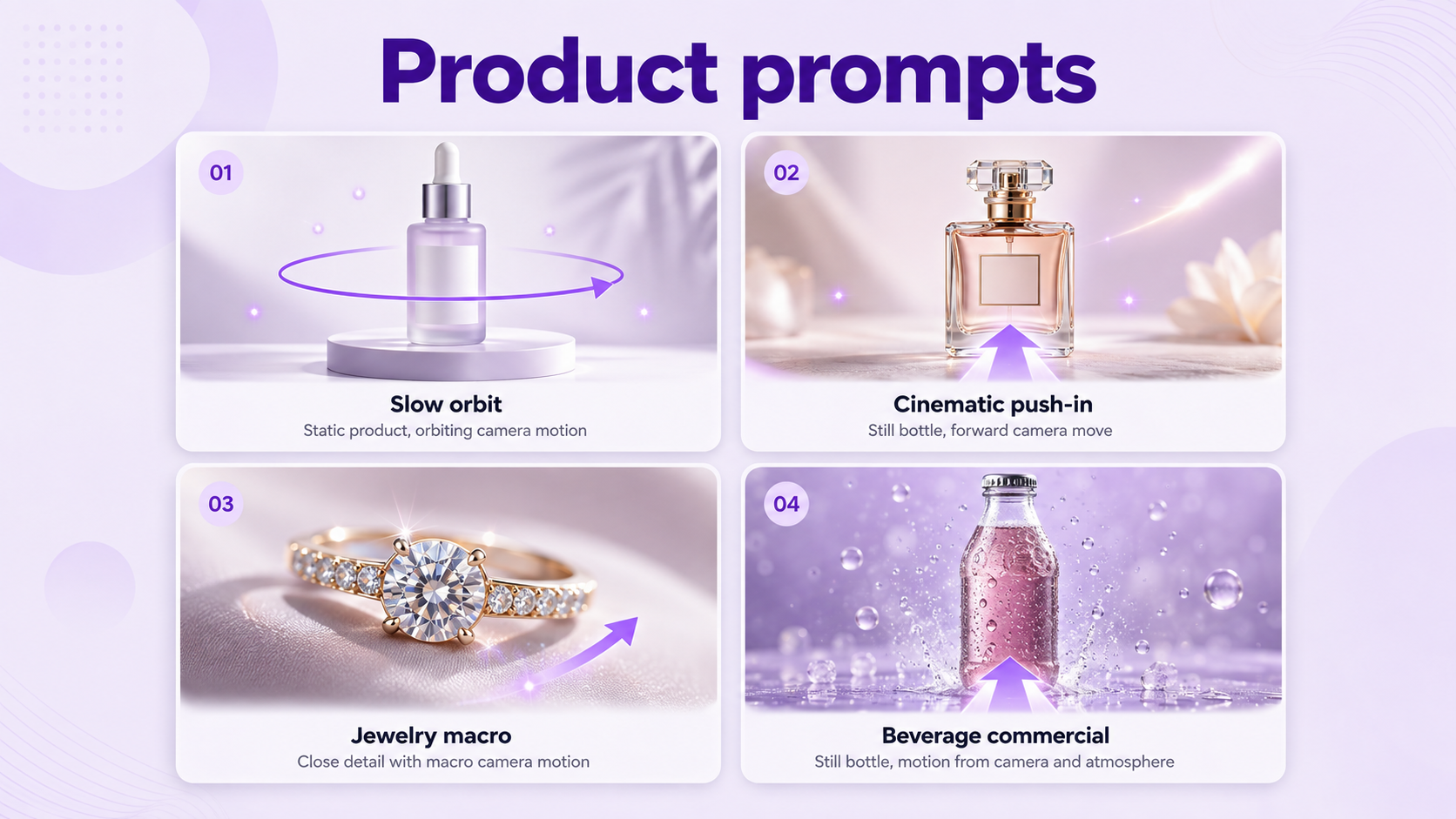
1. Slow Product Orbit
2. Cinematic Product Push-In
3. Luxury Product Reveal
4. Floating Product
5. Skincare Serum Commercial
6. Perfume Advertisement
7. Jewelry Macro Video
8. Beverage Commercial
Portrait Image-to-Video Prompts
9. Natural Portrait Motion
10. Gentle Head Turn
11. Hair Moving in the Wind
12. Cinematic Portrait
13. Natural Smile
14. Editorial Beauty Portrait
Fashion Image-to-Video Prompts
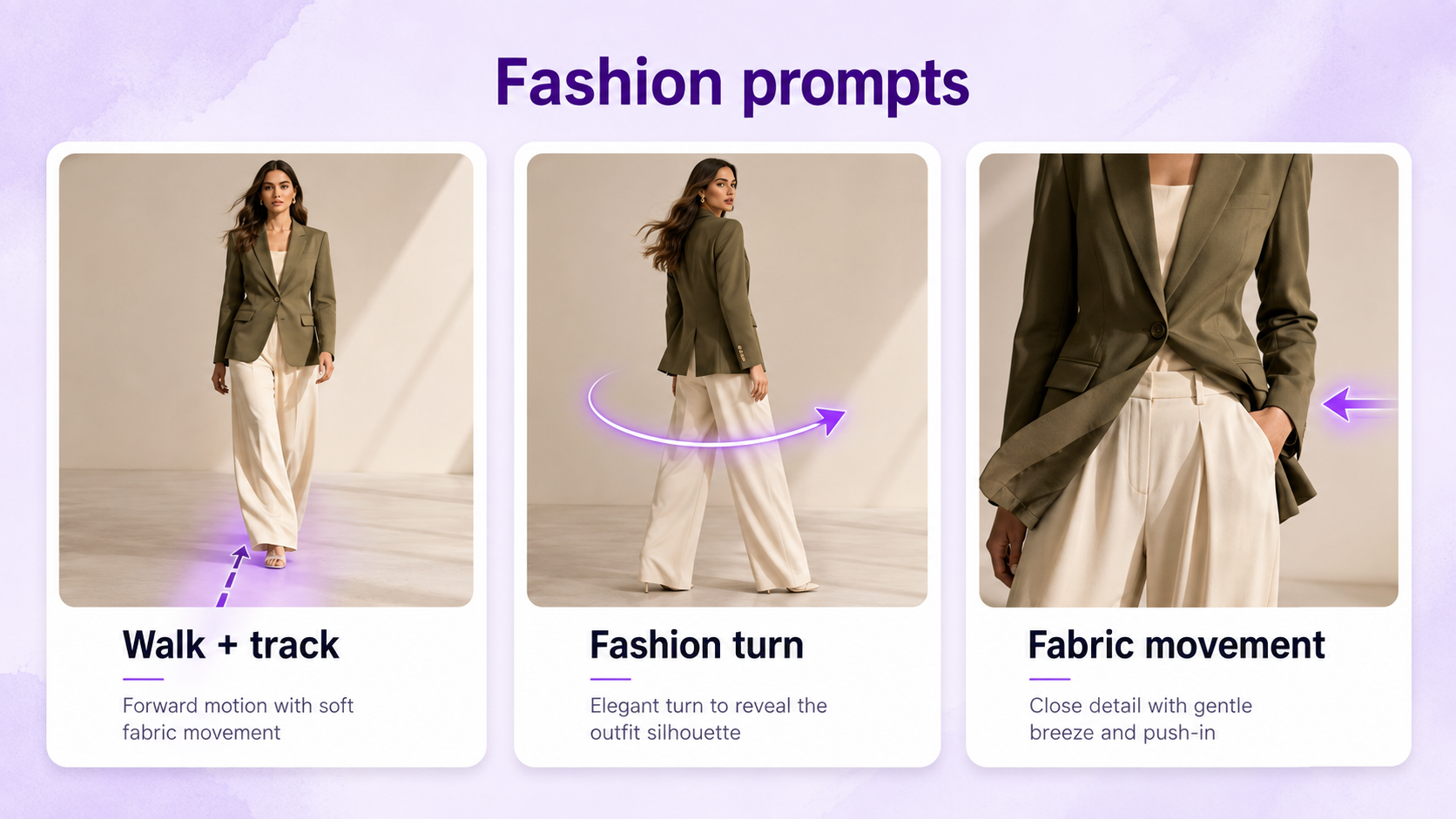
15. Model Walking Toward the Camera
16. Editorial Pose Transition
17. Fashion Turn
18. Fabric Movement
19. Runway Walk
20. Fashion Detail Shot
Cinematic Image-to-Video Prompts
21. Cinematic Push-In
22. Slow Camera Orbit
23. Dramatic Pull-Back Reveal
24. Side Tracking Shot
25. Slow Pan
26. Subtle Handheld Shot
Food Image-to-Video Prompts
27. Steam Rising From Food
28. Drink Pouring Shot
29. Melting Dessert
30. Restaurant Food Commercial
Travel and Landscape Image-to-Video Prompts
31. Ocean Landscape
32. Forest Scene
33. City Travel Shot
Automotive Image-to-Video Prompts
34. Cinematic Car Orbit
35. Driving Tracking Shot
36. Luxury Showroom Car Video
Best Camera Movements for Image-to-Video Prompts
Camera direction is one of the most useful ways to control an AI-generated video. Instead of simply asking for a cinematic result, describe the exact camera movement you want.
Slow Push-In
Prompt phrase: "The camera slowly pushes toward the subject with smooth cinematic movement." This works well for products, portraits, food, and dramatic reveals.
Pull-Back
Prompt phrase: "The camera slowly pulls backward to reveal more of the surrounding environment." Use it when you want to start with a subject and gradually show the wider scene.
Orbit
Prompt phrase: "The camera performs a slow clockwise orbit around the subject while maintaining consistent distance." Orbiting works especially well for products, cars, sculptures, and stationary subjects.
Pan
Prompt phrase: "The camera slowly pans from left to right across the scene." Panning is useful for landscapes, interiors, architecture, and wide compositions.
Tracking Shot
Prompt phrase: "The camera smoothly tracks alongside the moving subject while maintaining consistent framing." Tracking works well for walking models, cars, athletes, and other moving subjects.
Locked Camera
Prompt phrase: "The camera remains completely stationary while only the subject and environmental elements move." A locked camera can help when subject motion is already complex.
How to Keep Your Original Image Consistent
Large or conflicting movements can cause an AI video model to change details that were correct in the source image. More restrained prompts often give the model a better chance of preserving the original subject.
Preserving Faces
Use subtle head, eye, hair, and body movements. Add instructions such as "preserve facial identity, facial structure, hairstyle, skin tone, and natural proportions."
Preserving Products
Keep the product stationary when possible and let the camera or environment provide most of the movement. Explicitly preserve the product shape, packaging, logo, label, text, materials, dimensions, and colors.
Preserving Clothing
Avoid extreme body motion when garment accuracy matters. Tell the model to preserve the garment silhouette, length, fabric, pattern, stitching, colors, fit, and accessories.
Common Image-to-Video Prompt Mistakes
Using a Prompt That Is Too Vague
A prompt such as "make this cinematic" leaves most motion decisions to the model. Instead, describe the specific camera movement and subject action you want.
Adding Too Many Actions
Asking a subject to walk, turn, smile, wave, and change pose while the camera simultaneously zooms, orbits, and pans can produce unstable motion. Start with one primary subject action and one primary camera move.
Describing the Image Instead of the Motion
The source image already provides visual information. Use the prompt to explain what changes over time rather than spending most of the prompt repeating what the model can already see.
Forgetting Preservation Instructions
When exact details matter, state them clearly. This is particularly important for product branding, facial identity, clothing patterns, jewelry designs, and vehicle features.
Using Image-to-Video Prompts With Different AI Models
The same basic image-to-video prompting principles apply across different AI video models. Models may read instructions differently, but motion-focused prompts carry over better than prompts built around one model's special syntax.
When moving between models, keep the core idea the same: clearly describe the subject motion, camera behavior, environmental movement, pacing, and details that should remain consistent. Then adjust prompt complexity based on how the selected model responds.
How to Turn an Image Into a Video With GenImagePro
GenImagePro turns a still photo into a short video in about a minute, in 9:16 for Reels, TikTok and Stories or 16:9 for YouTube and websites. Upload your image, describe the movement you want, and generate a moving version of the original visual.
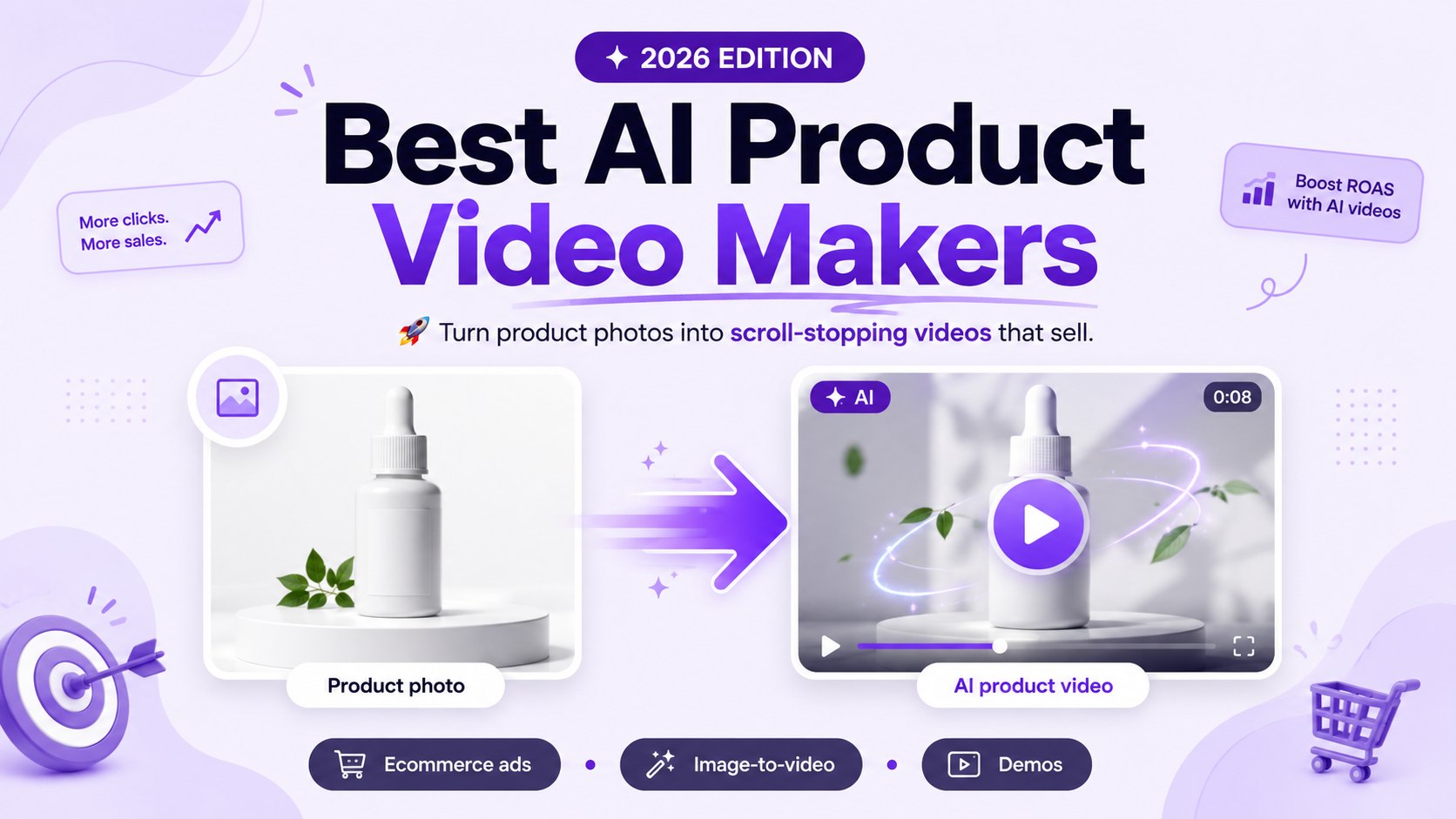
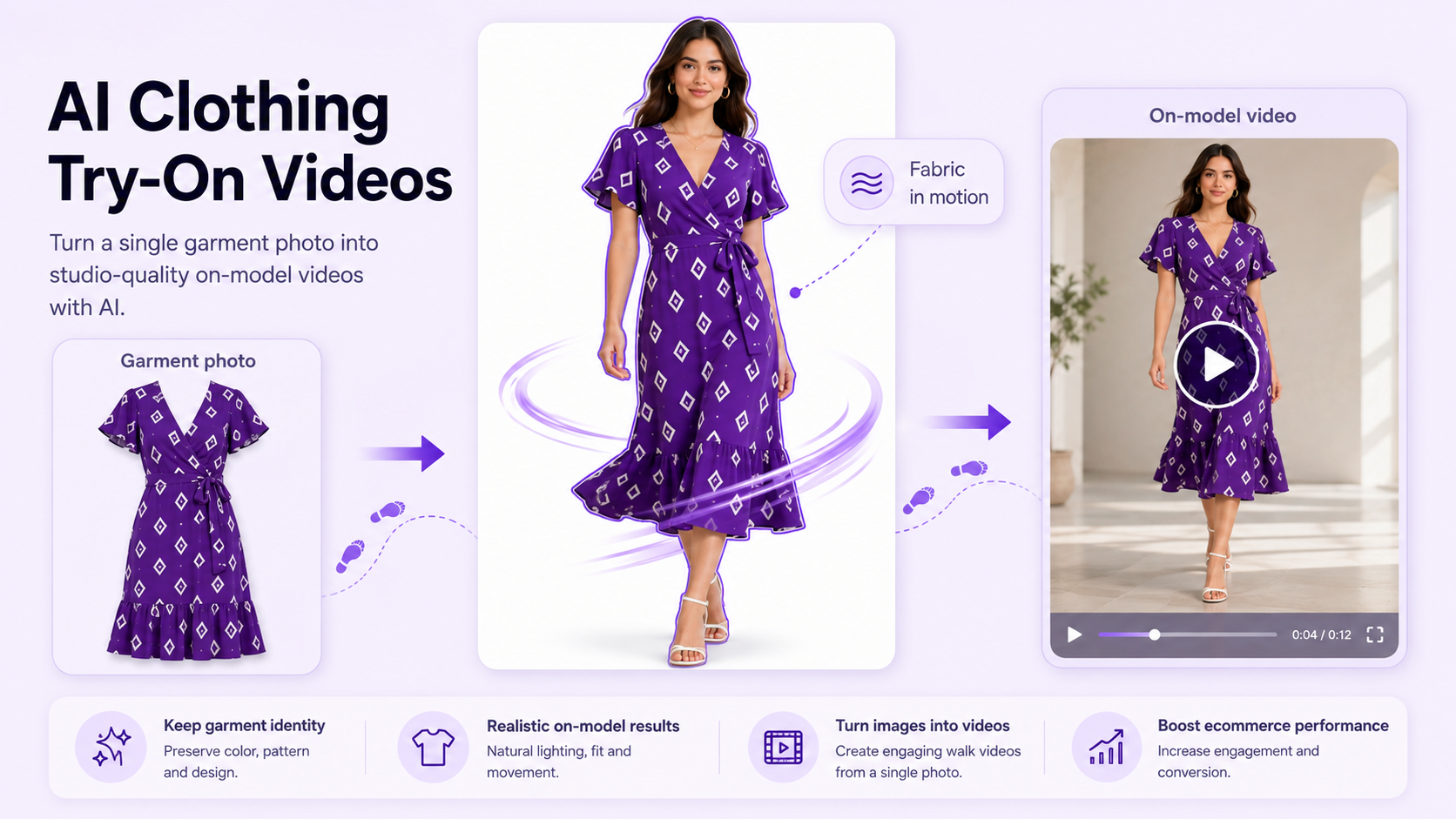
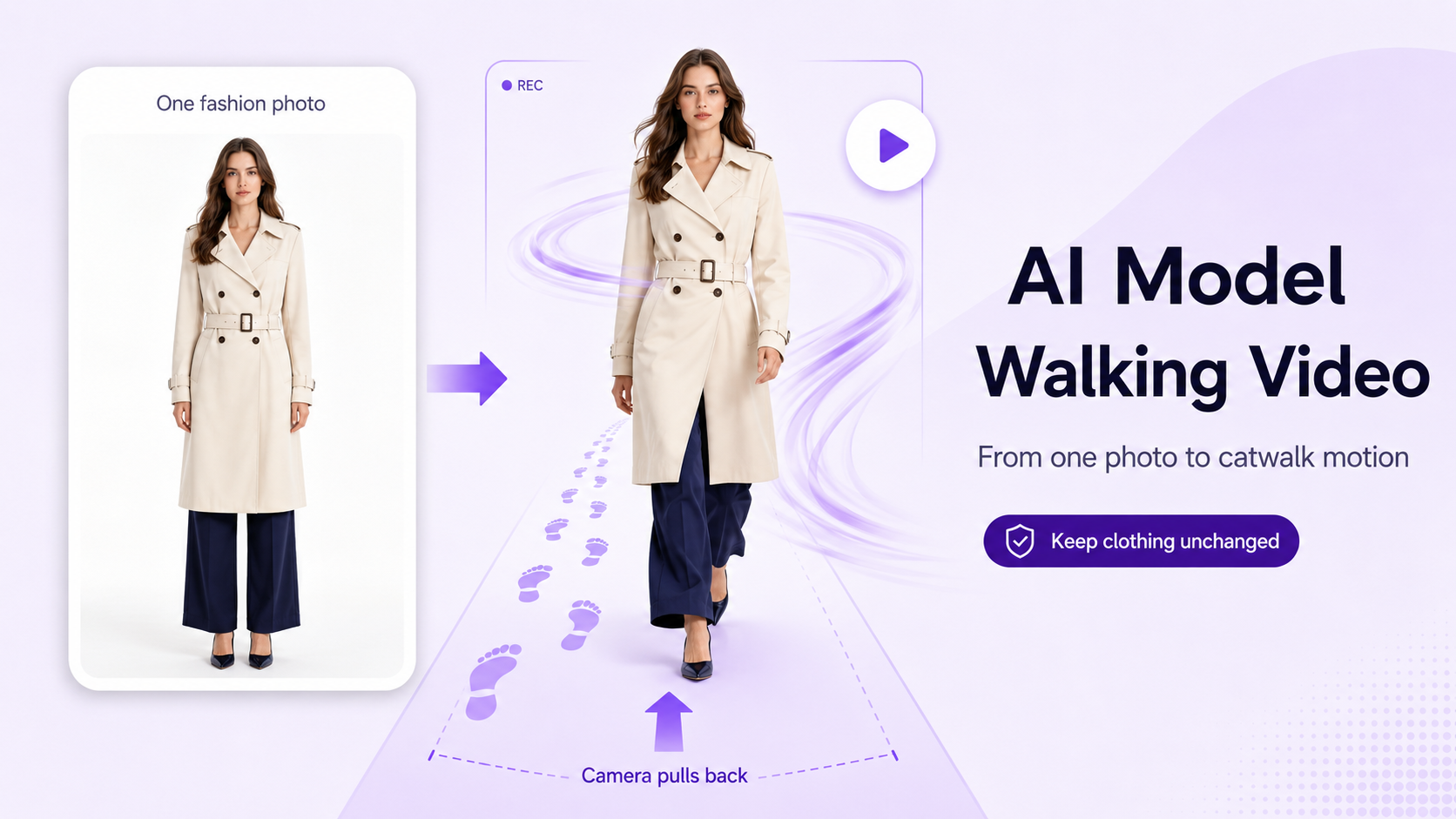
For products, the AI product video generator makes showcase clips from one product photo, and fashion stills can become on-model videos. If you need more ideas by subject, see AI product video prompts and AI fashion video prompts.
For the best starting point, use a clear image with a well-defined subject. Then copy one of the prompts above and customize the movement, camera direction, speed, and preservation instructions for your image.
Image-to-Video Prompt FAQ
How do I turn a photo into a video with AI?
Upload a still image to an image-to-video tool, describe the movement you want, and the model uses your photo as the first frame of a new clip. GenImagePro makes a short video from one photo in about a minute, in 9:16 for Reels, TikTok and Stories or 16:9 for YouTube and websites.
What are some image-to-video AI examples?
Common examples are a slow orbit around a still product, a push-in on a perfume bottle, a model walking toward the camera, hair moving in the wind, steam rising from food, waves rolling onto a shore and a car orbit with moving reflections. Each uses one main action, one camera move and a note on what stays the same.
How do I keep a product consistent in an AI video?
Keep product movement limited, use camera motion where possible, and explicitly preserve the product shape, logo, label, packaging, text, materials, proportions, and colors.
How do I keep a face consistent in an AI video?
Use restrained facial and body movement and explicitly ask the model to preserve facial identity, structure, hairstyle, skin tone, and natural proportions.
How do I get good results from image-to-video AI?
Describe the motion, not the picture, because the photo already shows the subject and colours. Say how the subject moves, give one camera move, add some background motion like mist or leaves, name the pace, and list what must stay the same. One main action and one camera move give the most stable result.
What are the best camera movements for image-to-video AI?
Common choices include push-in, pull-back, orbit, pan, tilt, tracking, and locked-camera shots. Choose the movement based on the subject and usually use one main camera direction per short clip.
Does the same motion description work with different AI video models?
Yes, usually. A description of subject motion, camera behaviour, background movement, pace and what should stay the same carries over between models better than one model's special syntax. Models still read instructions differently, so simplify or adjust it based on how the chosen model responds.