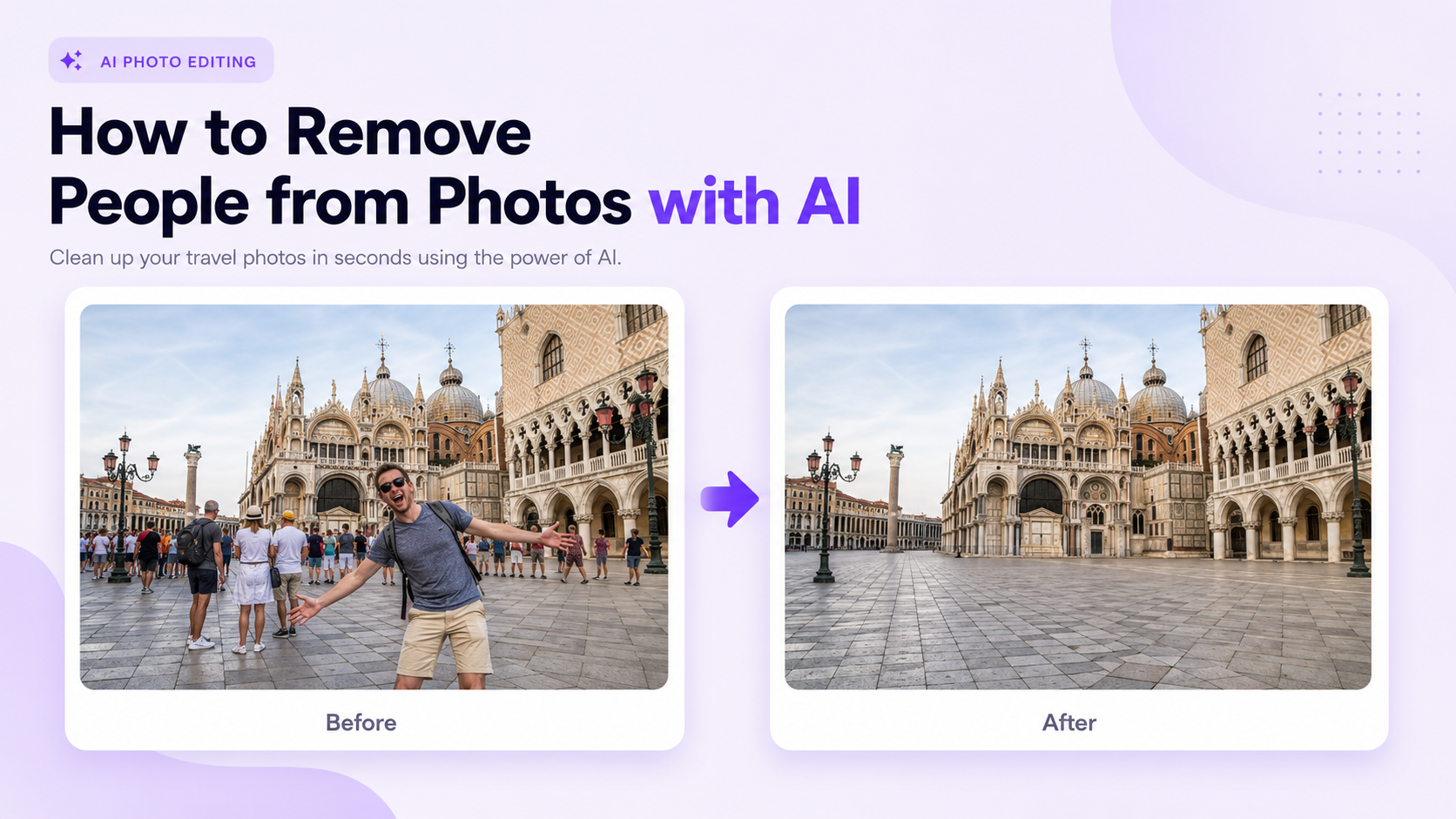
A stranger walking through the background, a photobomber behind a group, or a crowd blocking a landmark can weaken an otherwise useful photo. AI people-removal tools can erase these unwanted subjects and rebuild the hidden background without requiring detailed manual cloning.
The process is often simple: upload the image, mark the person, generate the repaired area, and review the result. However, the quality depends on the scene. Removing a small distant figure from an open beach is easier than removing someone who overlaps the main subject, covers detailed architecture, or casts a large shadow.
This guide explains how to remove people from photos with AI, which images work best, how to handle difficult backgrounds, what to inspect before publishing, and when a second edit is necessary.
How AI Removes People from Photos
AI removal tools do more than delete pixels. After you select a person, the model analyzes nearby textures, lines, colors, lighting, perspective, and repeated patterns. It then generates new visual content to fill the selected area.
This reconstruction process is often called generative fill, inpainting, object removal, cleanup, or content-aware replacement. The tool may rebuild pavement, grass, sky, water, walls, furniture, or other hidden surfaces.
The AI does not know exactly what was behind the person. It creates a plausible continuation based on the surrounding image. That is why the result should always be inspected, especially when the removed subject covers important details.
People Removal vs. Background Removal
People removal erases selected individuals while keeping the rest of the photo. Background removal separates the main subject from the entire environment. These are different editing tasks.
Use people removal when the scene should remain intact but one or more figures are distracting. Use background removal when you want to isolate the subject and replace or export the whole background.
Common Reasons to Remove People from Photos
Travel photos are one of the most common use cases. Tourists, pedestrians, or event visitors may block landmarks, architecture, scenery, or a clean composition.
People removal is also useful for real estate images, product photos, restaurant interiors, event photography, social media, professional portraits, family photos, and marketplace listings.
In each case, the goal should be to remove an unwanted distraction without making the remaining image look obviously edited.
How to Remove People from Photos Step by Step
1. Choose the Highest-Quality Original
Begin with the largest and clearest version of the photo. A high-resolution image gives the AI more information about textures, edges, shadows, patterns, and background details.
Avoid repeatedly edited screenshots or compressed social-media downloads when the original file is available. Compression artifacts can become more visible after the selected area is regenerated.
2. Identify Every Part of the Person
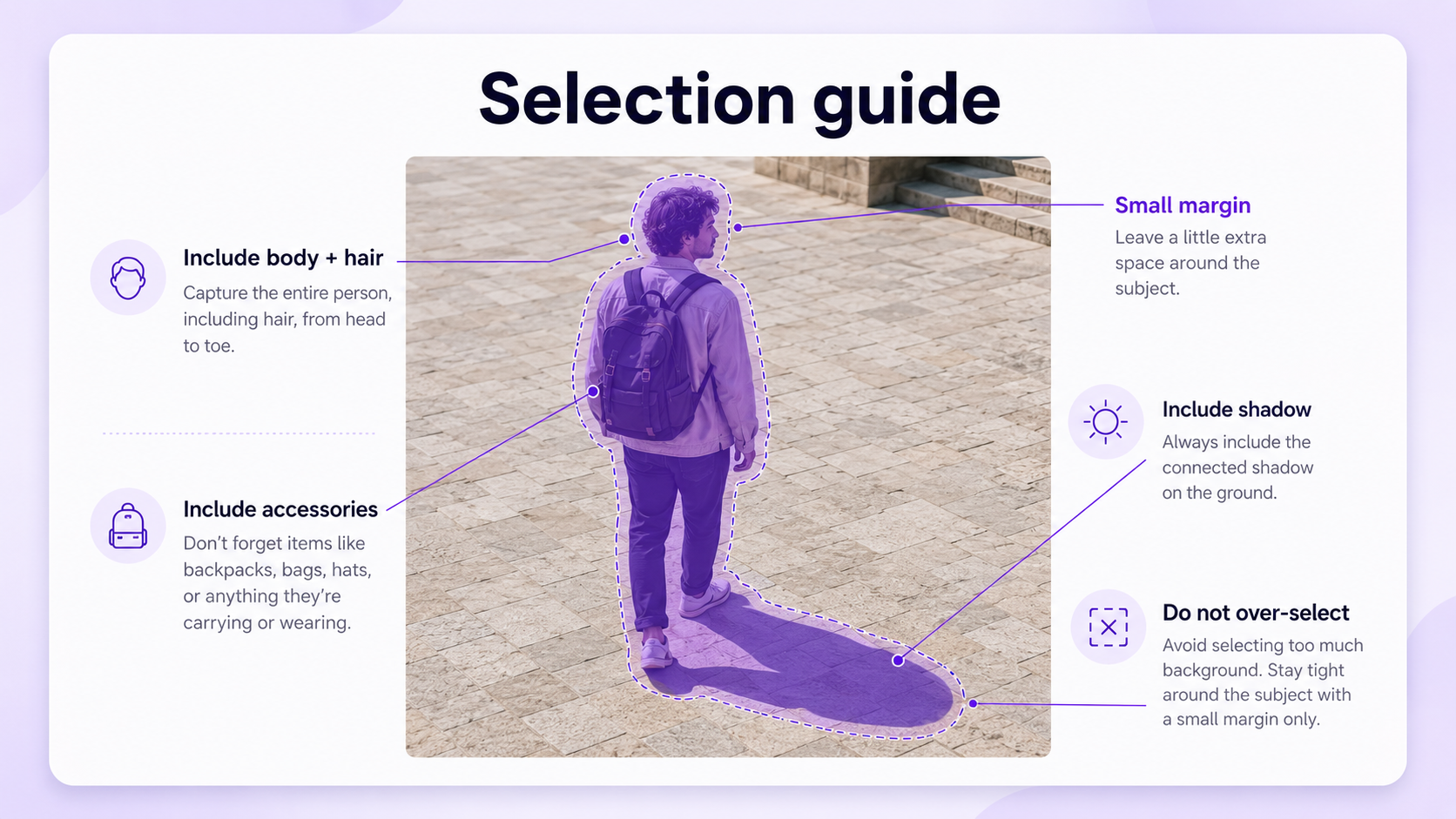
Look beyond the body. The selection may also need to include hair, loose clothing, bags, umbrellas, shadows, reflections, bicycle parts, or objects the person is holding.
Leaving a partial shoe, shadow, reflection, or strap behind makes the edit obvious. Zoom in before selecting so the removal area includes all connected visual elements.
3. Select Slightly Beyond the Person's Edges
A selection that is too tight can leave outlines or fragments. Add a small margin around the person so the AI can blend the reconstructed background into the surrounding image.
Do not select a much larger area than necessary. Large selections force the model to invent more content and can change nearby objects that were already correct.
4. Generate the Replacement
Run the removal or cleanup tool. Some editors automatically fill the area, while others allow a short instruction such as remove the person and continue the background naturally.
When text instructions are supported, describe the background rather than the missing person. For example: continue the stone wall and pavement with matching perspective, texture, and lighting.
5. Compare Several Variations
Generative removal may produce more than one result. Compare variations for line continuity, texture, shadows, repeated patterns, and perspective.
The most detailed variation is not always the best. A simple continuation that matches the existing scene often looks more natural than an elaborate replacement with invented objects.
6. Repair Smaller Problems Separately
Do not repeatedly regenerate the entire original selection when only one small area is wrong. Select the broken edge, distorted tile, strange shadow, or repeated texture and repair it separately.
Working in smaller passes gives you more control and reduces the risk of damaging parts of the background that already look correct.
7. Review the Full Image
Zooming in helps identify errors, but the final image should also be viewed at normal size. Check whether the repaired region attracts attention or breaks the balance of the composition.
A technically clean patch may still look unusual if the scene suddenly becomes empty, the lighting changes, or repeated elements appear in an unnatural pattern.
Best Photos for AI People Removal
The easiest images have a person standing in front of a simple or repetitive background. Sky, grass, sand, water, plain walls, blurred streets, and open pavement can often be reconstructed effectively.
Small background figures are also easier to remove because they cover fewer pixels and less scene information.
The original image should have clear edges and consistent lighting. Heavy motion blur, extreme darkness, low resolution, or strong compression makes accurate selection and reconstruction more difficult.
Difficult People-Removal Situations
A Person Overlapping the Main Subject
Removing someone who overlaps the person or object you want to keep is difficult because part of the main subject is hidden. The AI must invent missing clothing, hair, skin, body shape, product detail, or architecture.
Use a careful selection that protects the main subject. Repair the overlap area in small sections. When the hidden detail is important, another photo of the same subject may be needed as a reference.
Crowds and Large Groups
Removing an entire crowd creates a large empty region. The AI may need to rebuild floors, walls, seats, barriers, storefronts, scenery, or architectural details.
Remove the crowd in stages rather than selecting the whole group at once. Start with figures at the edges, review the reconstructed background, and continue toward the center.
Detailed Architecture
Buildings, fences, windows, railings, tiles, bricks, and decorative patterns require precise line and perspective continuity. AI may create warped windows, broken edges, or repeated designs.
Use smaller selections and inspect every straight line. A second repair pass may be necessary where the generated pattern does not match the original structure.
Reflections and Shadows
A person may appear more than once through mirrors, windows, polished floors, water, or glossy surfaces. Removing only the visible body leaves the reflected version behind.
Shadows must also be considered. Select the connected shadow when it clearly belongs to the person, but avoid removing unrelated environmental shadows.
Busy Natural Backgrounds
Leaves, branches, waves, rocks, crowds of flowers, and complex ground textures can be unpredictable. The AI may create duplicated leaves, broken branches, or repeated texture patches.
These results may still look acceptable at normal viewing size, but close inspection is necessary when the image will be printed or displayed at high resolution.
Removing One Person from a Group Photo
Group photos require special care because people often overlap. Removing one person may expose missing arms, clothing, furniture, or parts of another subject.
Select only the unwanted person and connected details. Protect nearby faces, hands, hair, and clothing. If the person occupies a central position, consider whether cropping or a different group photo would produce a more natural result.
After removal, check spacing between the remaining people. A large artificial gap may make the group composition feel incomplete even when the background reconstruction is technically correct.
Removing Photobombers from Portraits
Photobombers are usually easier to remove when they appear behind the main portrait subject and do not overlap the person's face, hair, or clothing.
Include the photobomber's entire body, accessories, and shadow in the selection. Keep the main subject outside the selected region whenever possible.
Review the edge around the main subject. AI reconstruction can accidentally soften hair, shoulders, clothing, or portrait depth if the selection comes too close.
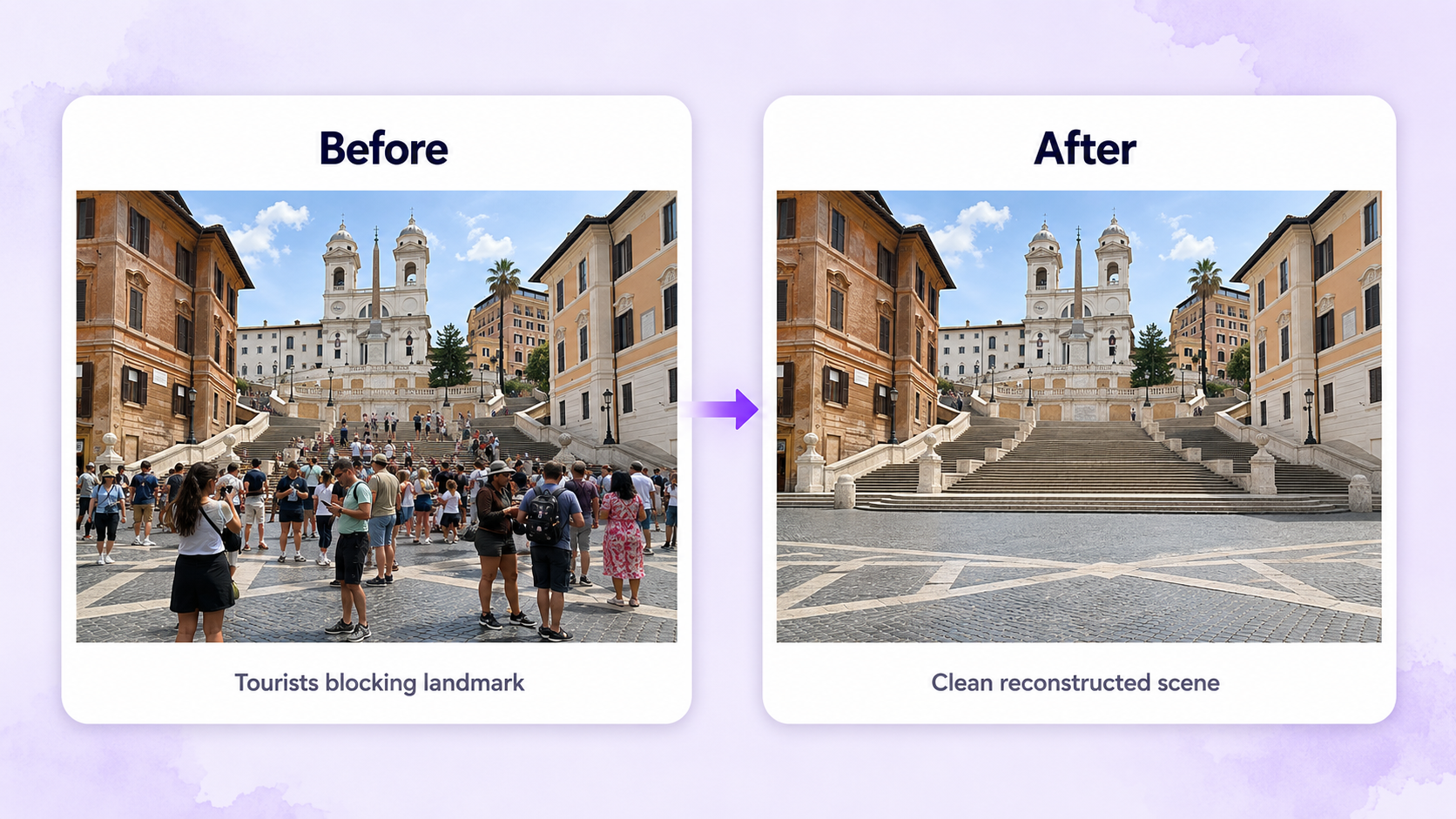
Removing Tourists from Travel Photos
Travel images often contain many small figures spread across plazas, beaches, museums, streets, and viewpoints. Remove the most distracting people first rather than automatically erasing every person.
A completely empty tourist destination may look less believable than a cleaner scene with a few distant figures. Keep people who add scale or atmosphere when they do not block the main subject.
For landmarks and architecture, pay close attention to stairs, railings, columns, signs, paving patterns, and shadows after the removal.
Removing People from Product and Commercial Photos
A hand, model, passerby, or photographer reflection may appear in a product image. People removal can help create a cleaner listing or advertisement when the product itself remains fully visible.
Protect the product's edges, label, logo, color, material, reflections, and proportions. Removing someone from a reflective package, car, glass bottle, appliance, or jewelry image can be difficult because the person may also appear in the surface reflection.
Inspect commercial images more strictly than casual photos. Product pages and advertisements require accurate representation, and small distortions can affect trust.
How to Write an AI People-Removal Instruction
Many tools do not require a prompt, but a short instruction can help when the background is complex. Describe what the area should contain after removal.
For architecture, specify the structure: continue the brick wall and window frame with matching lines and perspective. For nature, specify the surface: continue the grass and distant trees with matching light and depth.
Avoid requesting unrelated redesigns during the removal step. First repair the scene. Change lighting, color, crop, or background style in separate edits.
How to Make the Result Look Natural
Natural results depend on continuity. Lines should connect, textures should not repeat obviously, lighting should remain consistent, and the replacement should follow the original perspective.
Check the transition between the generated region and the untouched photo. Hard seams, sudden blur, different noise levels, or inconsistent sharpness can reveal the edit.
A subtle final crop may improve the composition after removal. However, cropping should support the image rather than hide a visibly broken repair.
Common People-Removal Mistakes
Selecting Only the Body
Hair, bags, shadows, reflections, and held objects may remain behind. Include every connected element that belongs to the unwanted person.
Using One Large Selection
A very large selection forces the AI to invent too much background. Divide crowds or complex overlaps into smaller repair areas.
Ignoring Repeated Patterns
Tiles, bricks, fences, windows, seats, and railings often expose AI errors. Check alignment, spacing, and perspective carefully.
Over-Editing the Scene
Removing every distant person can make a public place look unnatural. Keep figures that contribute scale, realism, or atmosphere.
Not Checking the Main Subject
The removal may alter nearby hair, clothing, product edges, faces, or architectural lines. Compare the edited image with the original before publishing.
Ethical and Privacy Considerations
Removing a distraction from a personal or commercial photo is generally different from using editing to misrepresent an important event or deceive viewers.
Consider the context in which the image will be used. For journalism, legal evidence, documentary records, public-interest reporting, or other authenticity-sensitive situations, removing people may change the meaning of the image.
For advertising and listings, ensure that the edit does not misrepresent the product, property, venue, crowd level, safety conditions, or customer experience.
People Removal Checklist
Before exporting, confirm that the full unwanted person, connected accessories, shadow, and reflection have been removed.
Check straight lines, textures, repeated patterns, lighting direction, perspective, depth, and contact shadows in the repaired area.
Inspect nearby faces, hair, clothing, products, architecture, signs, and objects to make sure the tool did not alter details you intended to keep.
Finally, review the image at both high zoom and normal viewing size. The repair should remain unobtrusive in both views.
Final Recommendation
AI makes it much easier to remove people from photos, but a convincing result still depends on careful selection and review. Start with a high-quality image, include all connected details, use controlled selection areas, and repair complex scenes in stages.
Simple backgrounds may need only one generation. Crowds, overlapping subjects, architecture, reflections, and product images often require several smaller edits.
GenImagePro provides a people-removal workflow for cleaning travel photos, portraits, property images, commercial visuals, and other scenes. Upload the image, remove the unwanted person, and review the reconstructed background before using the result.
FAQ
Can AI remove a person from a photo?
Yes. AI can erase a selected person and generate a plausible reconstruction of the hidden background using nearby textures, colors, lighting, and patterns.
How do I remove people from the background of a photo?
Upload the image to an AI removal tool, select the full person and connected shadow or accessories, generate the replacement, and inspect the rebuilt background.
Can AI remove a crowd from a photo?
Yes, but large crowds are more difficult because they cover more background. Remove people in smaller groups or stages for greater control.
Can I remove a photobomber without changing the main person?
Usually, especially when the photobomber does not overlap the main subject. Keep the main person outside the selected area and inspect nearby hair, clothing, and edges.
Why does the background look strange after removing someone?
The AI may have invented incorrect textures, patterns, shadows, or perspective. Repair the problem area with a smaller selection and provide a short background instruction when supported.
Can AI remove people from travel photos?
Yes. It can remove tourists and pedestrians from beaches, landmarks, streets, museums, and scenic locations while reconstructing the surrounding environment.
Should I remove every person from a photo?
Not always. Distant people can provide scale and atmosphere. Remove figures that block the subject or distract from the intended composition.
Can GenImagePro remove people from photos?
GenImagePro supports people-removal workflows for cleaning portraits, travel photos, property images, commercial visuals, and other scenes.